


Don't forget to register your product for extended warranty and more perks:
Click here to register your device here.
FEATURES
-
Manual or Z-Wave control of DC motors (reversed polarity)
-
Great for motorized shades, blinds, awnings, screens, and more
-
Shutter and Venetian blind modes to choose from
-
Installs behind your existing wall switch (momentary button)
-
700 series Z-Wave chip for better range and faster control
-
Z-Wave Long Range for ultra reliable no-mesh communication
-
Advanced configuration including timer settings and calibration
-
Built-in Z-Wave signal repeater for boosted communication
-
SmartStart and S2 Security for a safer network
SPECIFICATION
-
Model Number: ZEN53 LR
-
Power: 6-32 VDC
-
Maximum Load: 1.5 A (use with DC motors only)
-
Range: Up to 300 feet line of sight (or up to a mile with LR)
-
Operating Temperature: 32-104° F (0-40° C)
-
Installation and Use: Indoor only
CAUTION
This is an electrical device - please use caution when installing and operating the motor controller. Remote control of appliances may result in unintentional or automated activation of power. Do not use this Z-Wave device to control electric heaters or other appliances which produce the risk of fire, burns, or electrical shock when unattended. To reduce risk of overheating and possible damage to other equipment, do not install this unit to control a receptacle; a motor-operated appliance; a fluorescent lighting fixture; any device over 32 V DC power; or a transformer-supplied fixture.
NOTE: This device is intended for installation in accordance with the National Electric Code and local regulations. It is recommended that a licensed electrician perform this installation.
WARNING
-
This product should be installed indoors upon completion of any building renovations.
-
Prior to installation, the device should be stored in a dry, dustand-mold-proof place.
-
Do not install the device in a place with direct sun exposure, high temperature, or humidity.
-
Keep away from chemicals, water, and dust.
-
Ensure the device is never close to any heat source or open flame to prevent fire.
-
Ensure the device is connected to an electric power source that does not exceed the maximum load power.
-
No part of the device may be replaced or repaired by the user.
WIRING: READ IT!
Not sure what you're seeing! Send images of the fully working installation before you disconnect the wires to support.getzooz.com.
-
CHECK THE LOAD: don’t exceed 1.5 A for your DC motor, DO NOT CONNECT THIS DEVICE TO 120 VAC LOADS.
-
POWER OFF: turn the circuit power off in the breaker panel before you start. If installing in a multi-switch box with multiple circuits, turn power off at all of the circuits.
-
CHECK THE WIRES: mark motor connections (OUT), DC power (GND- and VDC+), and switch connections (S1 and S2). Don’t rely exclusively on your multimeter to identify the wires!
-
DISCONNECT THE SWITCH: remove the wires between the switch and the motor and label them accordingly.
-
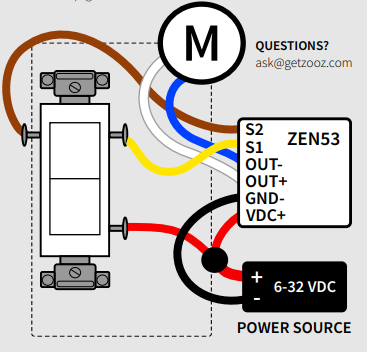
CONNECT THE MOTOR CONTROLLER: follow all installation steps carefully. Wire the device EXACTLY like in the diagram.
NOTE: Do not connect the ZEN53 to a wall dimmer, illuminated switches, or electronic add-on switches. The ZEN53 device can only be wired with single pole button momentary switches!
ZEN53 WIRING DIAGRAM FOR DC MOTORS
-
Connect the motor wires to OUT - and OUT + on ZEN53. ZEN53 WIRING DIAGRAM FOR DC MOTORS
-
Keep your wall switch connected to the VDC positive + on DC power. Connect S1 and S2 on the ZEN53 according to the instructions for your wall switch. The diagram below shows a single-pole double-throw center-off switch.
-
Connect the GND on the DC power source to the GND pigtail on ZEN53. PAGE 1 BUTTON SWITCHES ONLY Do not connect the ZEN53 to a wall dimmer, illuminated switches, or electronic add-on switches. The ZEN53 device can only be wired with single pole button momentary switches!
-
Connect the VDC positive + on the DC power source to the VDC+ pigtail on ZEN53.
COMPLETE INSTALLATION
Secure your Z-Wave DC Motor Controller and the wall switch in the box with mounting screws, handling the wires with care. Install the wall plate and restore power to the circuit.
CALIBRATE THE DEVICE
You will need to calibrate the ZEN53 DC Motor Controller to operate your shades or blinds correctly using Z-Wave control. The default duration for an operating cycle for this device is 60 seconds (for a full up-down cycle). You can calibrate the ZEN53 automatically or manually to set the right duration for up / down or open / close cycles. NOTE: If you are installing a brand new motor for your shades, please set it up according to the instructions first.
AUTOMATIC CALIBRATION
Use this method for motors with limit switches. 1. Click the Z-Wave button 6 times quickly to enter calibration mode (or set parameter 5 to value 1 for shutter mode or value 2 for Venetian mode, add to hub first). 2. The device will start calibrating while blinking green. The process takes around 10 seconds. 3. The motor will start opening the blinds until it reaches the limit and the blind is fully open. It will then reverse operation and start closing the blind until it reaches the closed limit. 4. The calibration process is now complete. The device has calculated the total time it needs to fully open or close your blinds or shutters. It will use this data to execute open and close commands. If you need to make any adjustments manually, you can enter the new values in parameters 3 and 4 in the advanced settings.
Z-WAVE CONTROL
There are 2 methods to add the relay to your hub:
SmartStart:
-
DO NOT POWER ON THE DEVICE YET.
-
Use the hub UI / app to scan the SmartStart code on the device. The SmartStart QR code / security PIN is located on the back of the dimmer.
-
Once completed, power the device for SmartStart inclusion, it will be added automatically.
-
Do NOT press the Z-Wave® button. (Except for SmartThings, you may need to tap the Z-Wave® button 3 times). See below for QR codes to hub-specific instructions.
Manual Inclusion:
-
Initiate inclusion (pairing) in the app or hub UI.
-
Make sure the device is powered and finalize the inclusion at the relay: tap the Z-Wave® button 3 times quickly.
-
The LED indicator will blink green rapidly to signal communication and turn green for 2 seconds if inclusion is successful or turn red for 2 seconds if the pairing attempt fails. If the LED is not blinking rapidly, you did not click the button fast enough.
How to Add the ZEN53 DC Motor Controller to Home Assistant
How to Add the ZEN53 DC Motor Controller to HomeSeer
How to Add the ZEN53 DC Motor Controller to Hubitat
How to Add the ZEN53 DC Motor Controller to SmartThings
How to Add the ZEN53 DC Motor Controller to Z-Box
How to Add the ZEN53 DC Motor Controller to My Z-Wave Hub
TROUBLESHOOTING
The device won’t add to your system? Try this:
1. Initiate EXCLUSION and click the Z-Wave button 3 times quickly.
2. FACTORY RESET the device.
3. Bring the gateway controller (hub) closer to the device, it may be out of range.
4. Get troubleshooting tips for your hub at www.support.getzooz.com
EXCLUSION (REMOVING / UNPAIRING DEVICE)
-
Bring your Z-Wave hub close to the device if possible
-
Put the Z-Wave hub into exclusion mode (not sure how to do that? [email protected])
-
Click the Z-Wave button on the device 3 times quickly (the LED indicator will start blinking green)
-
Your hub will confirm exclusion, the LED indicator on the device will turn green for 2 seconds, and the ZEN53 will disappear from your controller's device list.
Can't Add My ZEN53 DC Motor Controller to Home Assistant
Can't Add My ZEN53 DC Motor Controller to HomeSeer
Can't Add My ZEN53 DC Motor Controller to Hubitat
Can't Add My ZEN53 DC Motor Controller to SmartThings
Can't Add My ZEN53 DC Motor Controller to Z-Box
Can't Add My ZEN53 DC Motor Controller to Z-Wave
FACTORY RESET
If your primary controller is missing or inoperable, you may need to reset the device to factory settings. To reset the ZEN53, click the Z-Wave button once and immediately aer, press and hold it down for 15 seconds. The LED indicator will flash red during the process and turn solid red for 3 seconds to confirm successful reset. NOTE: All previously recorded activity and custom settings will be erased from the device’s memory.
ADVANCED SETTINGS
Here are all of the device's advanced settings: ZEN53 DC Motor Controller Advanced Settings
How to Access the Advanced Settings for the ZEN53 DC Motor Controller on Home Assistant
How to Access the Advanced Settings for the ZEN53 DC Motor Controller on HomeSeer
How to Access the Advanced Settings for the ZEN53 DC Motor Controller on Hubitat
How to Access the Advanced Settings for the ZEN53 DC Motor Controller on SmartThings
How to Access the Advanced Settings for the ZEN53 DC Motor Controller on Z-Box
ASSOCIATION
This Motor Controller supports Group 1 with up to 5 devices for Lifeline Group communication and Groups 2-4 with up to 5 devices. This device will send BASIC REPORT and SWITCH MULTILEVEL REPORT to Group 1, BASIC SET command to group 2, SWITCH MULTILEVEL SET to Group 3, and SWITCH MULTILEVEL START LEVEL CHANGE / SWITCH MULTILEVEL STOP LEVEL CHANGE when operated manually from the wall switch. You can set direct association to have the relay control another ZWave device independently of the hub by using Group 2. Not every hub exposes direct association settings in the interface so please go to www.support.getzooz.com to see if your system allows for direct association.
S2
This product can be included and operated in any Z-Wave network with other Z-Wave certified devices from other manufacturers and/or other applications. All non-battery operated nodes within the network will act as repeaters regardless of vendor to increase reliability of the network. This product features the latest Security 2 (S2) framework to remove smart home network hacking risks. This device is equipped with a unique authentication code for trusted wireless communication
WARRANTY
This product is covered under a 1-year limited warranty and extender 5-year warranty once registered. To read the full warranty policy or file a warranty claim, please go to www.getzooz.com/warranty.
IN NO EVENT SHALL ZOOZ OR ITS SUBSIDIARIES AND AFFILIATES BE LIABLE FOR ANY INDIRECT, INCIDENTAL, PUNITIVE, SPECIAL, OR CONSEQUENTIAL DAMAGES, OR DAMAGES FOR LOSS OF PROFITS, REVENUE, OR USE INCURRED BY CUSTOMER OR ANY THIRD PARTY, WHETHER IN AN ACTION IN CONTRACT, OR OTHERWISE EVEN IF ADVISED OF THE POSSIBILITY OF SUCH DA-MAGES. ZOOZ'S LIABILITY AND CUSTOMER'S EXCLUSIVE REMEDY FOR ANY CAUSE OF ACTION ARISING IN CON-NECTION WITH THIS AGREEMENT OR THE SALE OR USE OF THE PRODUCTS, WHETHER BASED ON NEGLIGENCE, STRICT LIABILITY, BREACH OF WARRANTY, BREACH OF AGREEMENT, OR EQUITABLE PRINCIPLES, IS EXPRESSLY LIMITED TO, AT ZOOZ'S OPTION, REPLACEMENT OF, OR REPAYMENT OF THE PURCHASE PRICE FOR THAT PORTION OF PRODUCTS WITH RESPECT TO WHICH DA-MAGES ARE CLAIMED. ALL CLAIMS OF ANY KIND ARISING IN CONNECTION WITH THIS AGREEMENT OR THE SALE OR USE OF PRODUCTS SHALL BE DEEMED WAIVED UNLESS MADE IN WRITING WITHIN THIRTY (30) DAYS FROM ZOOZ'S DELIVERY, OR THE DATE FIXED FOR DELI-VERY IN THE EVENT OF NONDELIVERY.
FCC NOTE THE MANUFACTURER IS NOT RESPONSIBLE FOR ANY RADIO OR TV INTERFERENCE CAUSED BY UNAUTHORIZED MODIFICATIONS TO THIS EQUIPMENT. SUCH MODIFICATIONS COULD VOID THE USER’S AUTHORITY TO OPERATE THE EQUIPMENT. STORE INDOORS WHEN NOT IN USE. SUITABLE FOR DRY LOCATIONS ONLY. DO NOT IMMERSE IN WATER. NOT FOR USE WHERE DIRECTLY EXPOSED TO WATER. This device complies with Part 15 of the FCC Rules. Operation is subject to the following conditions:
-
This device may not cause harmful interference
-
This device must accept any interference received, including interference that may cause undesired operation.
This equipment has been tested and found to comply with the limits for a Class B digital device, pursuant to part 15 of the FCC Rules. These limits are designed to provide reasonable protection against harmful interference in a residential installation. This equipment generates, uses and can radiate radio frequency energy and, if not installed and used according to instructions, may cause harmful interference to radio communications. However, there is no guarantee that interference will not occur in any given installation. If this equipment causes harmful interference to radio or television reception, the user may try to correct the interference by taking one or more of the following measures:
-
Reorient or relocate receiving antenna
-
Increase the separation between equipment and receiver
-
Connect equipment into a separate outlet or circuit from receiver
-
Consult the dealer or an experienced radio/TV technician for additional assistance
All brand names displayed are trademarks of their respective holders. © Zooz 2025

