No custom handlers or drivers needed, inclusion is fast and easy with the Z-Box! The ZEN12 Motion Dimmer will be recognized and configured correctly on the Z-Box out of the box. Ensure the device is properly installed and powered, then follow the steps below to add the device to your Z-Box hub. You can add a new device via the web interface, or the mobile app. Check out the simple inclusion instructions below!
If you're running Z-Box firmware release 5.172.18 or higher, you have the option to include your Z-Wave Long Range (ZWLR) supporting devices via the new Long Range protocol. Adding via ZWLR can be done both via the Web UI and the app; however, scanning is much easier via the app so that is the process we recommend for ZWLR or SmartStart inclusion.
Mesh Inclusion Steps
ZEN12 Mesh Inclusion From the Web UI
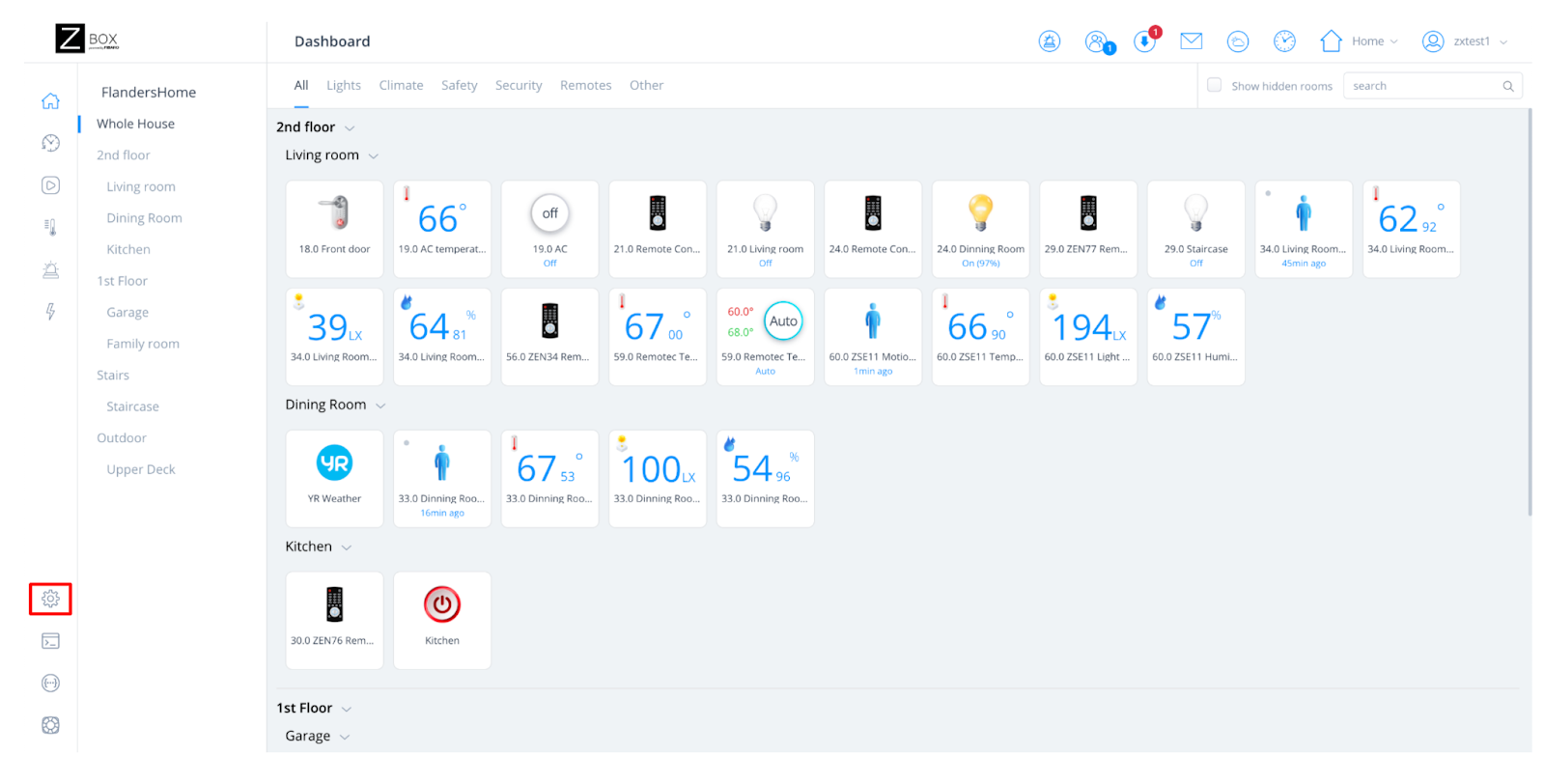
1. From the sidebar navigation menu of the Z-Box web interface, go to Settings by clicking on the gear icon.
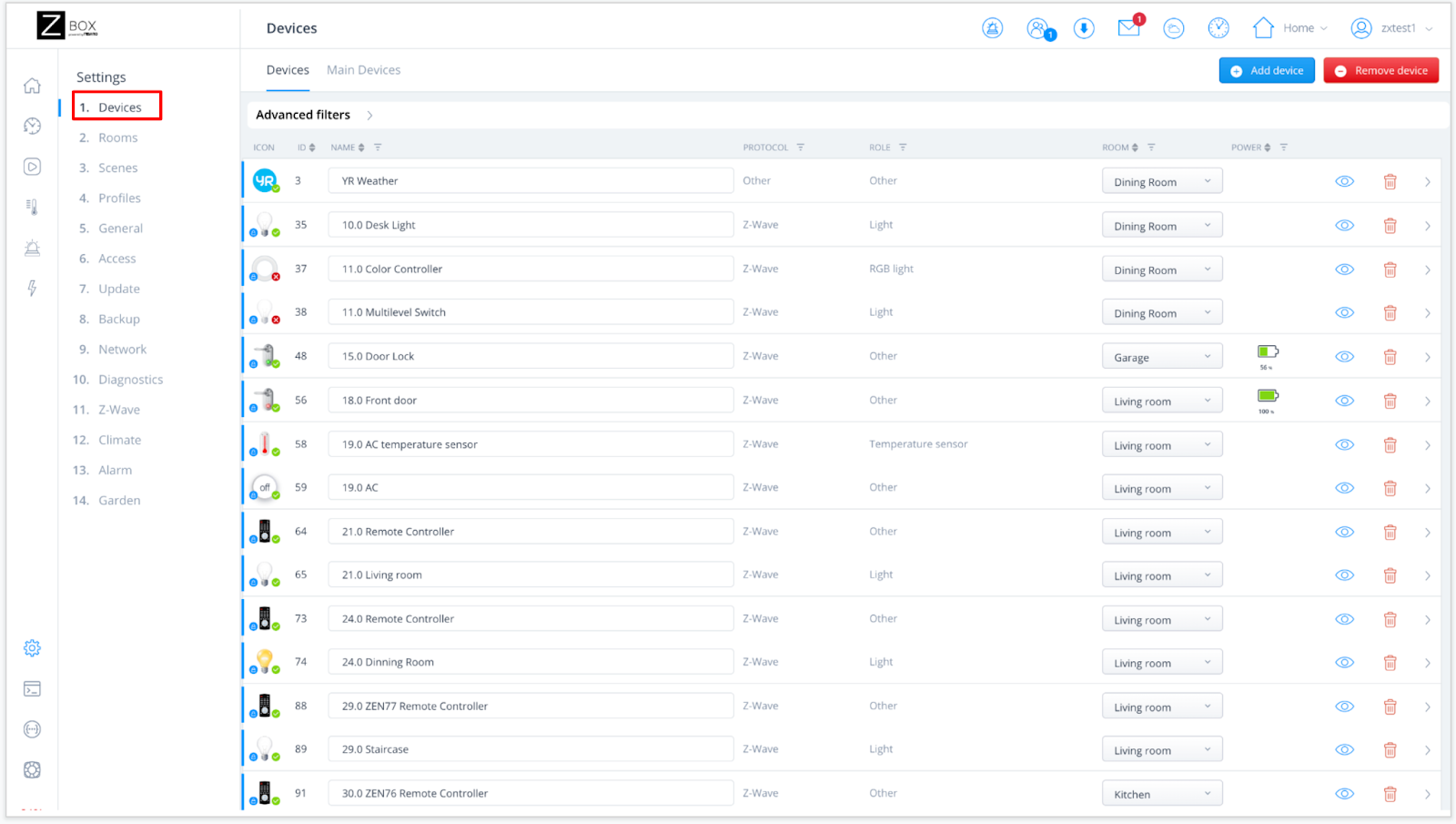
2. You will be redirected to the Devices menu.
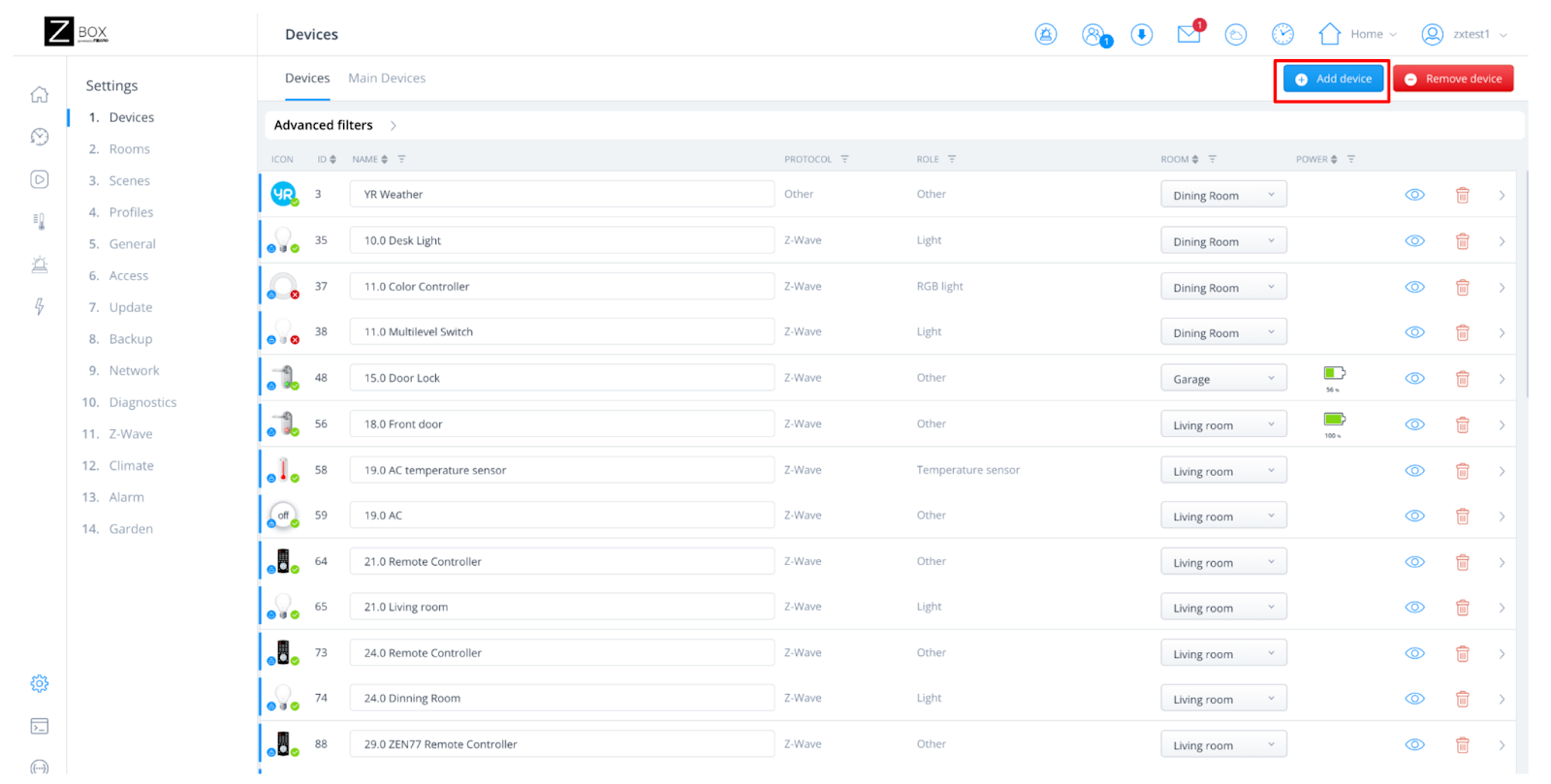
3. Click on + Add device.
4. Select the Z-Wave Device option.

5. Make sure you can physically access your ZEN12 Motion Dimmer and click Start on the screen..
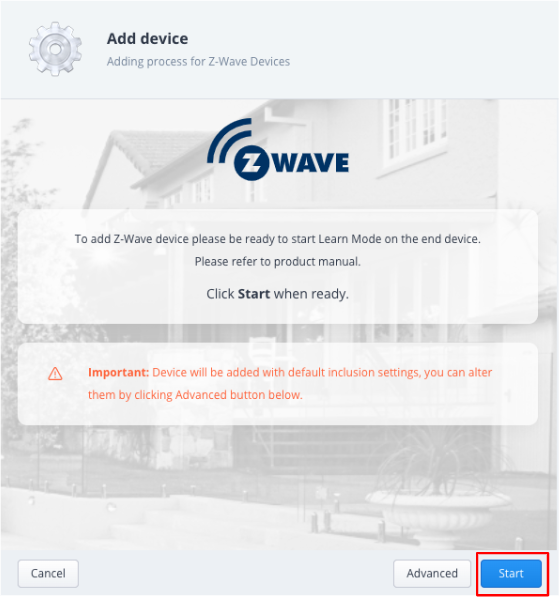
6. While the hub is in inclusion mode, click the main button 3 times as quickly as possible, and the LED's will start blinking blue to indicate communication. The LED's will turn solid green for 2 seconds when inclusion is successful, or will turn red if inclusion fails.
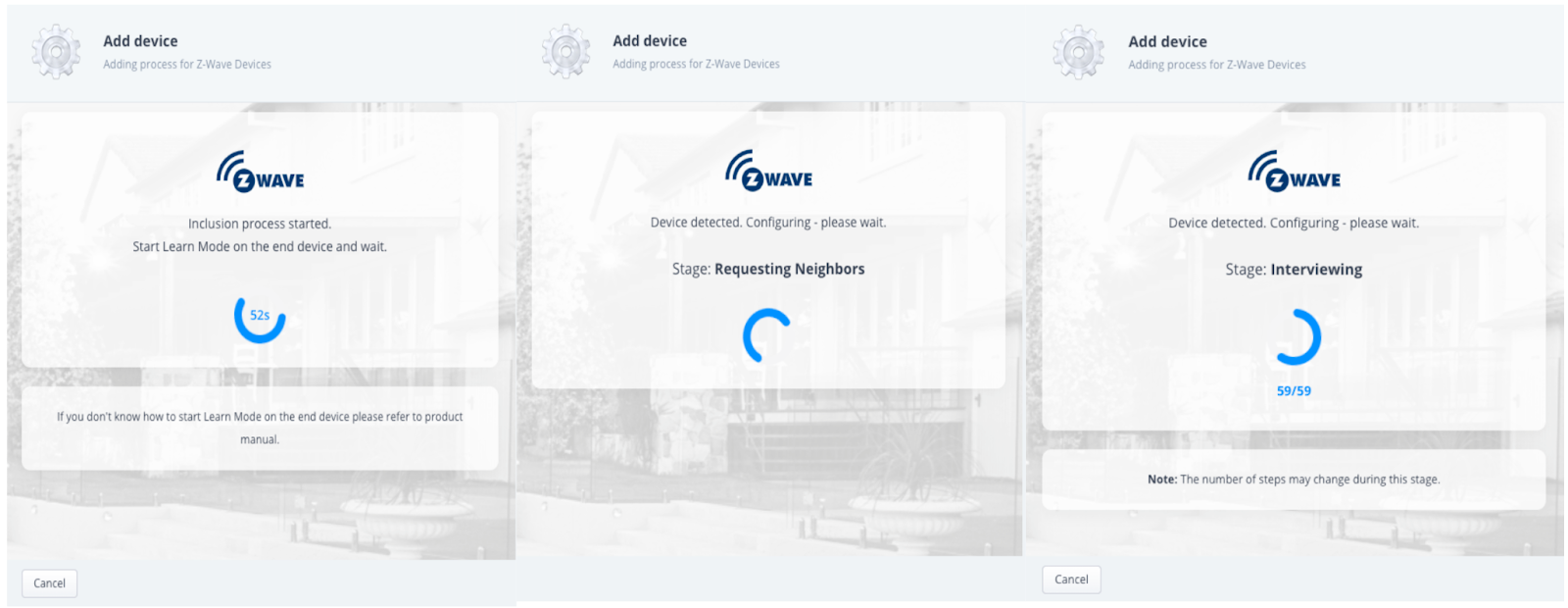
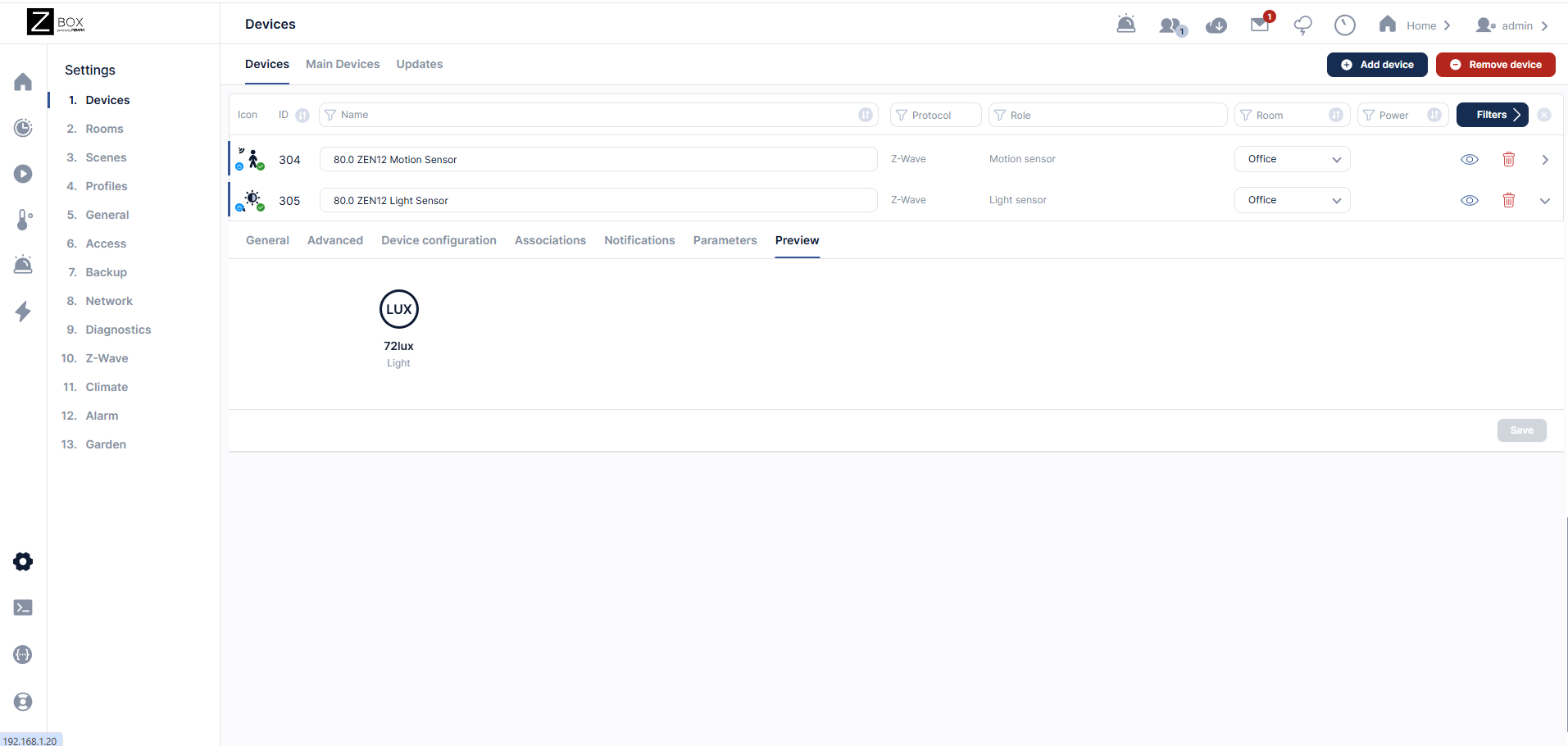
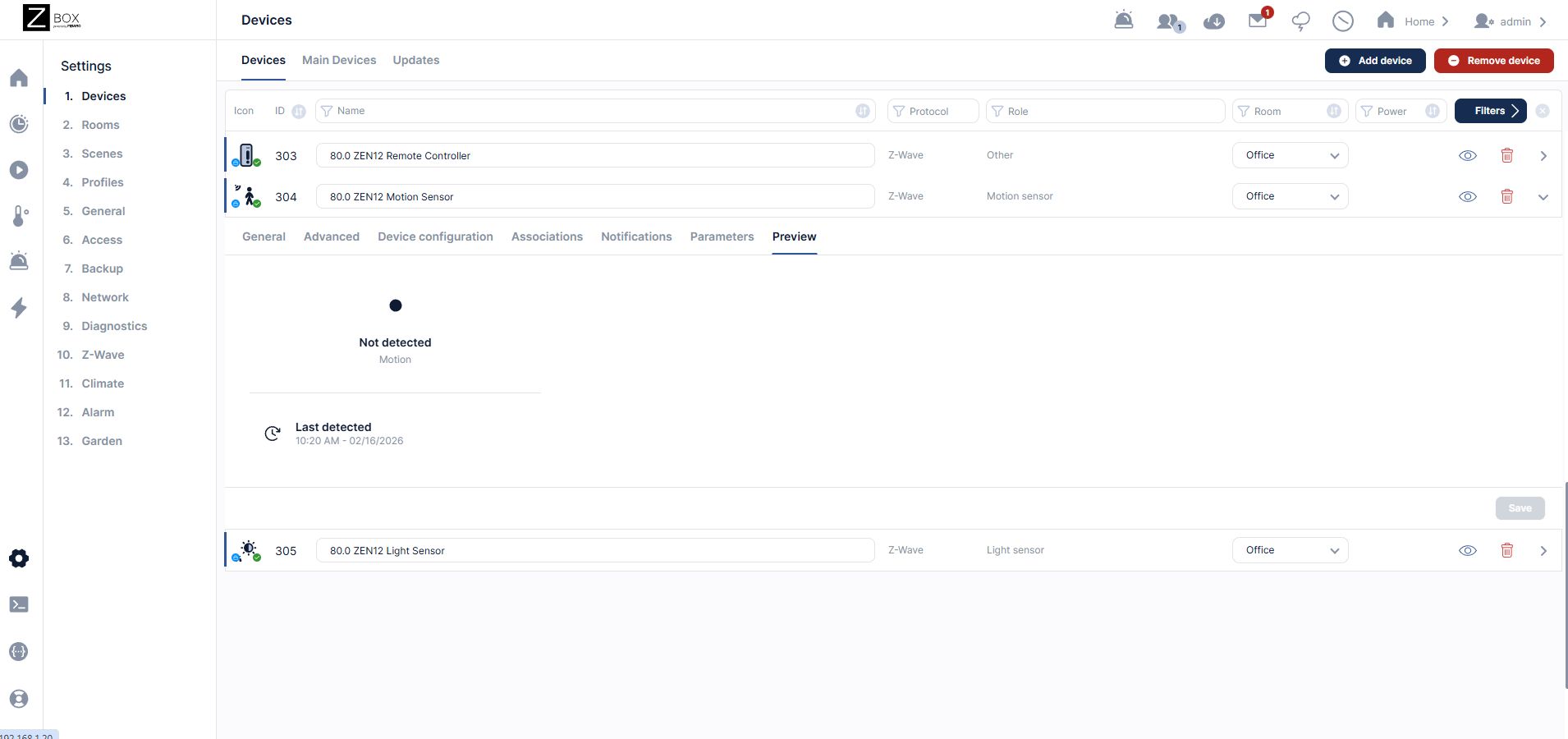
7. Once the device is detected successfully, you will see the list of all child devices that have been detected. The ZEN12 Motion Dimmer will display with the main multilevel switch (dimmer), a remote control device for programming scene control, the motion sensor, and the lux sensor:
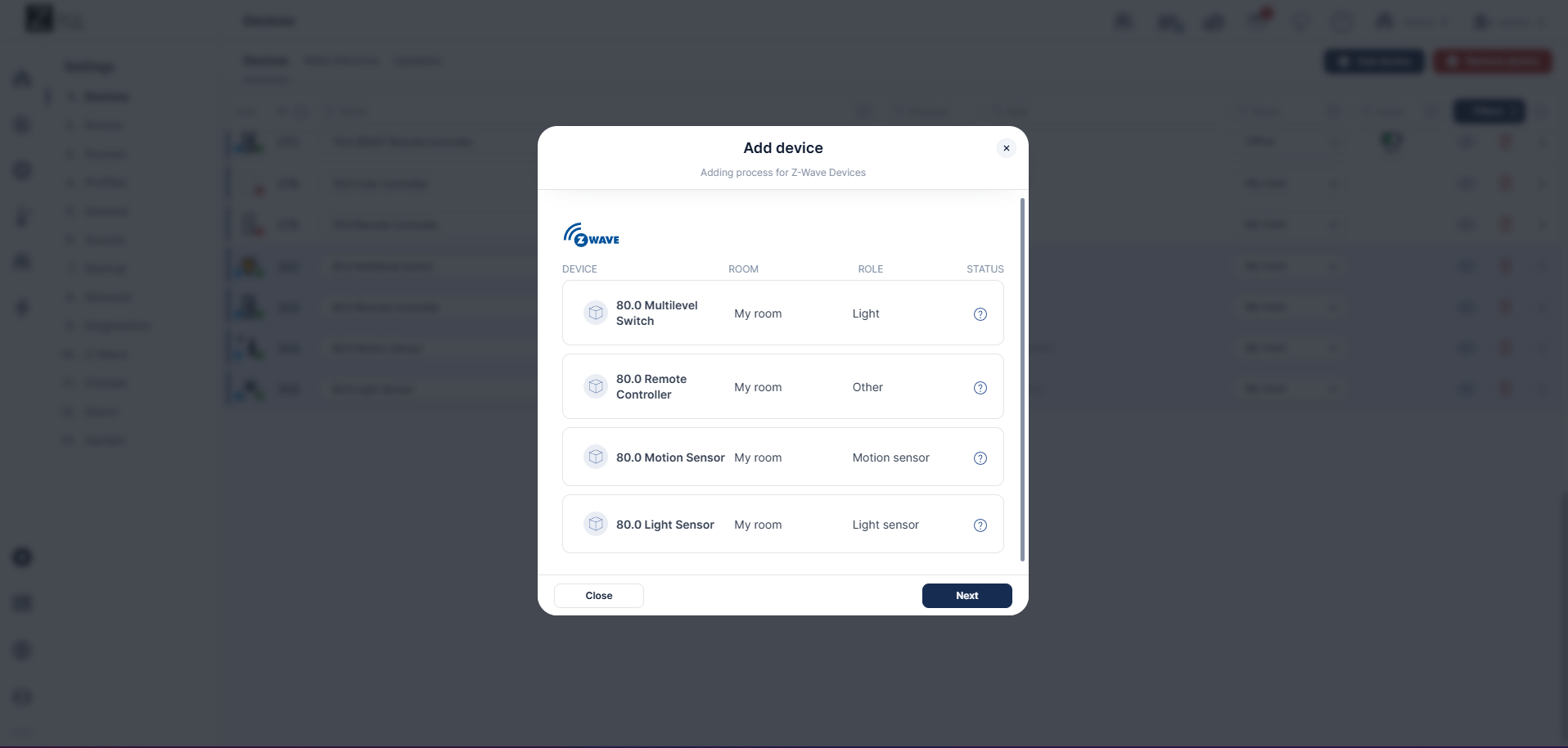
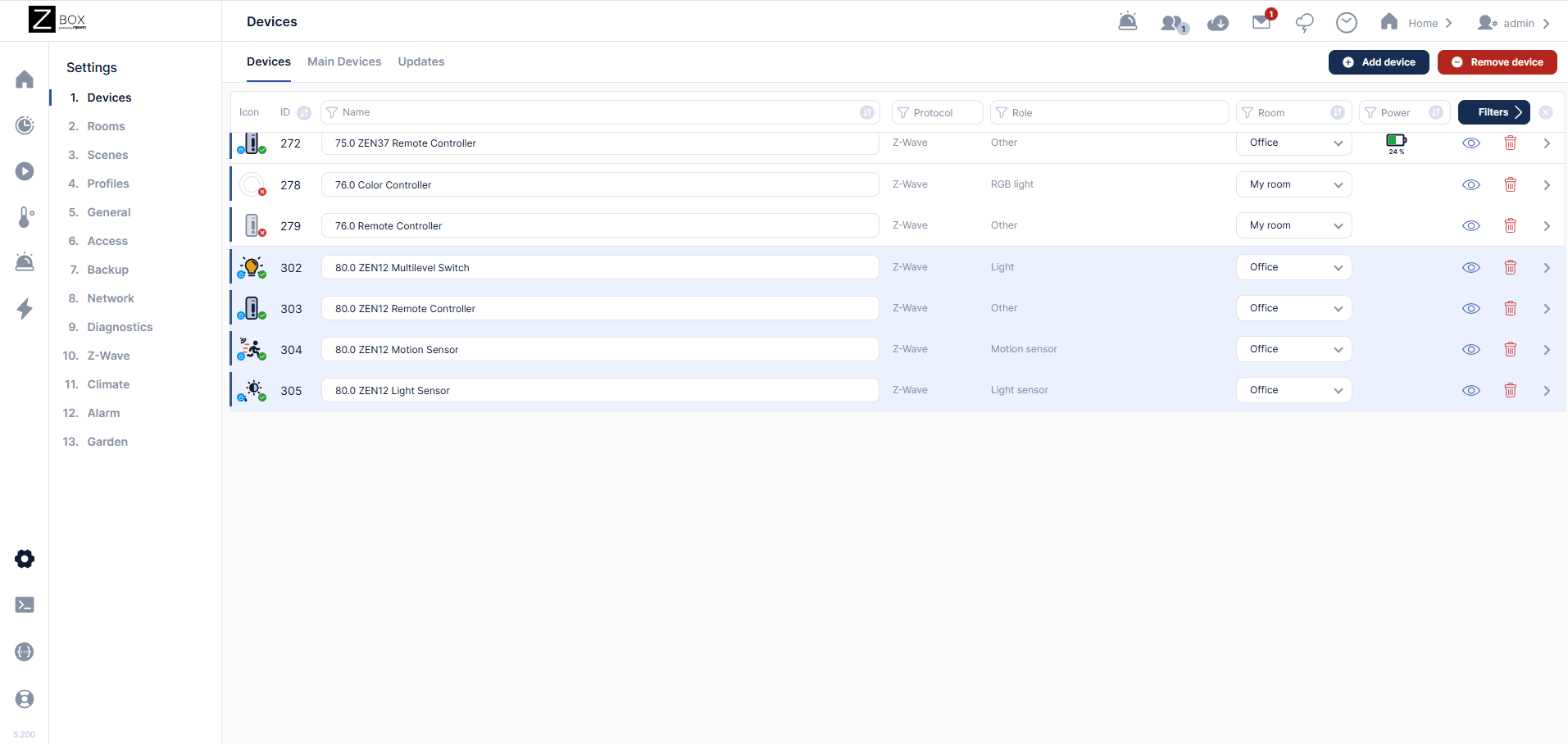
8. Click Next. Rename your device and assign it to a room. Click Next.
9. Click Finish once you are done editing all devices.
ZEN12 Mesh Inclusion From the App
1. Open the Z-Box Hub app on your mobile device.
2. Click More in the bottom navigation menu.
3. Click on + Add Devices.
4. Click on Z-Wave Protocol and follow the same inclusion steps as described for the WEB UI above.
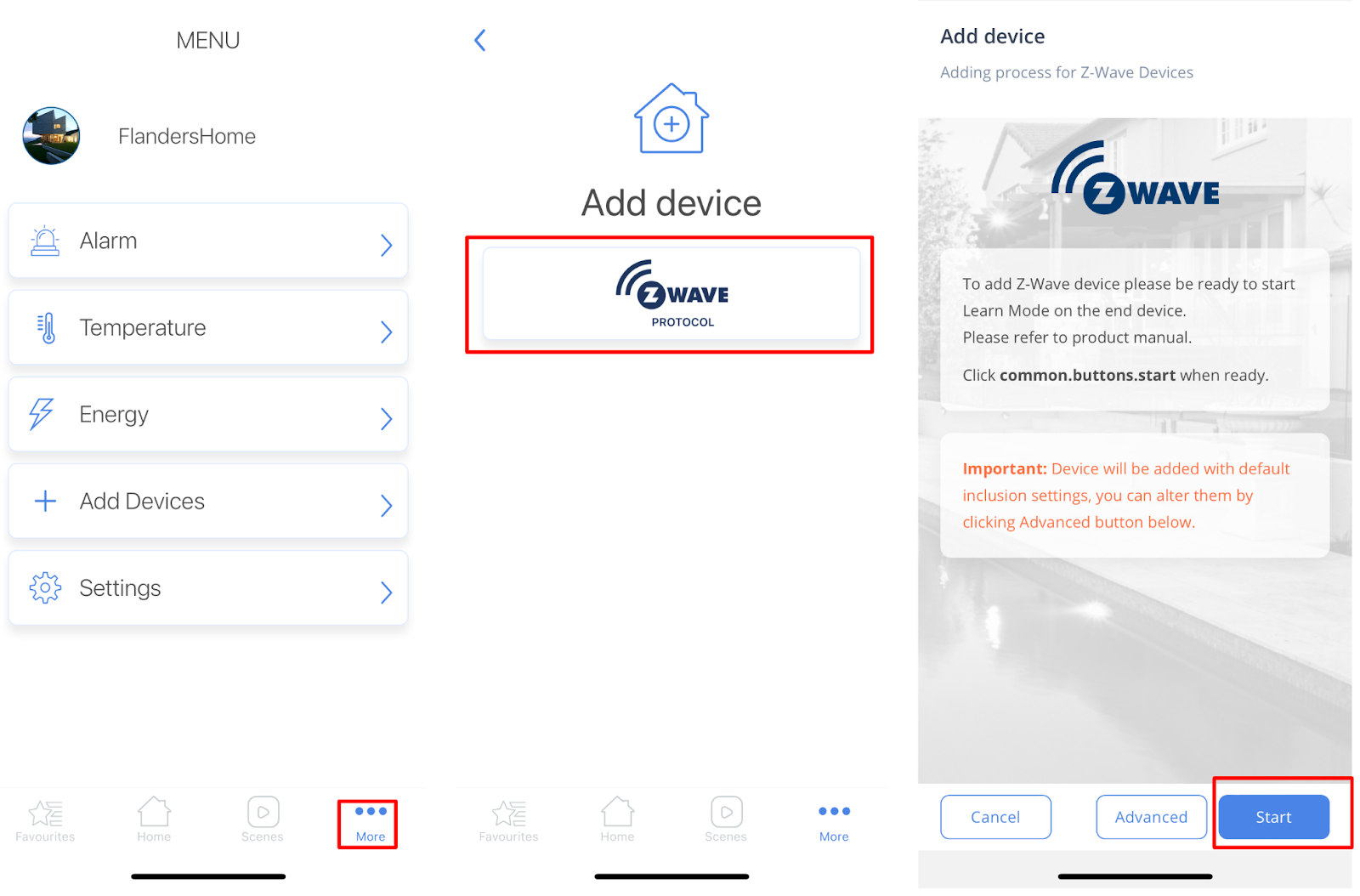
5. Make sure you can physically access your ZEN12 Dimmer and click Start on the screen.
6. While the hub is in inclusion mode, click the main button 3 times as quickly as possible, and the LED's will start blinking blue to indicate communication. The LED's will turn solid green for 2 seconds when inclusion is successful, or will turn red if inclusion fails.
7. Once the device is found, you'll be able to rename it and assign it to its room.
Z-Wave Long Range Inclusion Steps
If you're running Z-Box firmware release 5.172.18 or higher, you have the option to include your Z-Wave Long Range (ZWLR) supporting devices via the new Long Range protocol. Adding via ZWLR can be done both via the Web UI and the app; however, scanning is much easier via the app so that is the process we recommend for ZWLR or SmartStart inclusion.
ZEN12 Z-Wave Long Range Inclusion From the App
Ensure the ZEN12 is NOT powered on at this time. You must initiate SmartStart before powering on the device in step 5.
1. Open the Z-Box Hub app on your mobile device and click More in the bottom navigation menu.
2. Click on + Add Devices.
3. Click on Z-Wave Smart Start Protocol.

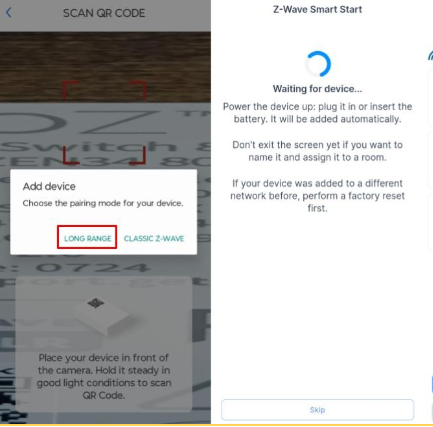
4. Select Long Range and scan the QR code on the device or device package.
5. Z-Wave Smart Start will initialize. Power on the ZEN12. Wait for the device to be configured.
6. You can edit the name, room, icon, etc. for the device. Please note that the Node ID for the device will show a number higher than 255 for ZWLR devices. Nodes 1-255 are reserved for the hub and mesh devices. 256 and higher will be ZWLR nodes in accordance with the Z-Wave Specification.
ZEN12 Display
General Tab
This section shows the device type, manufacturer, endpoint, and firmware version. You can also manage access and select the desired icon for the device.

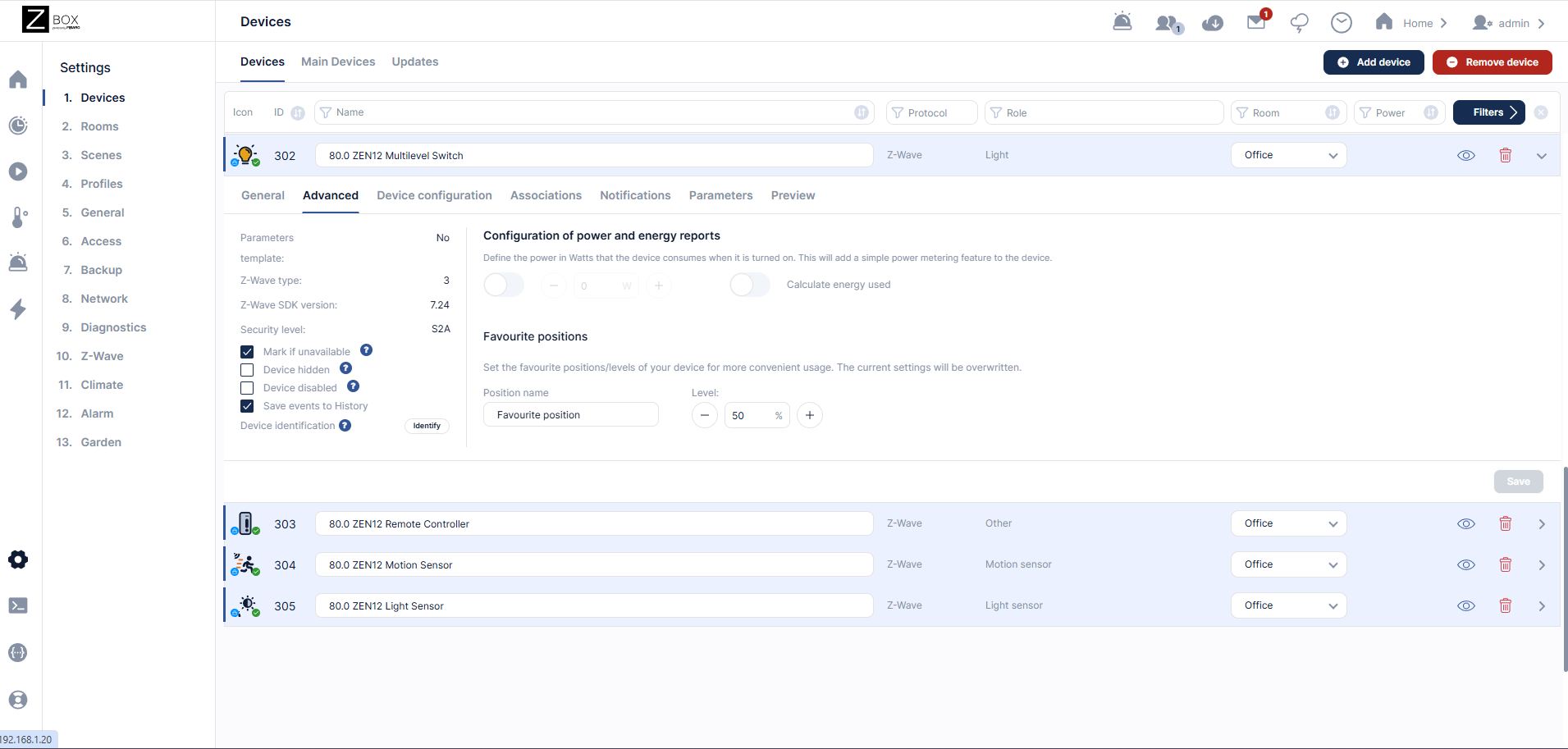
Advanced Tab
This section shows the SDK version and allows you to hide, disable, or identify the device.
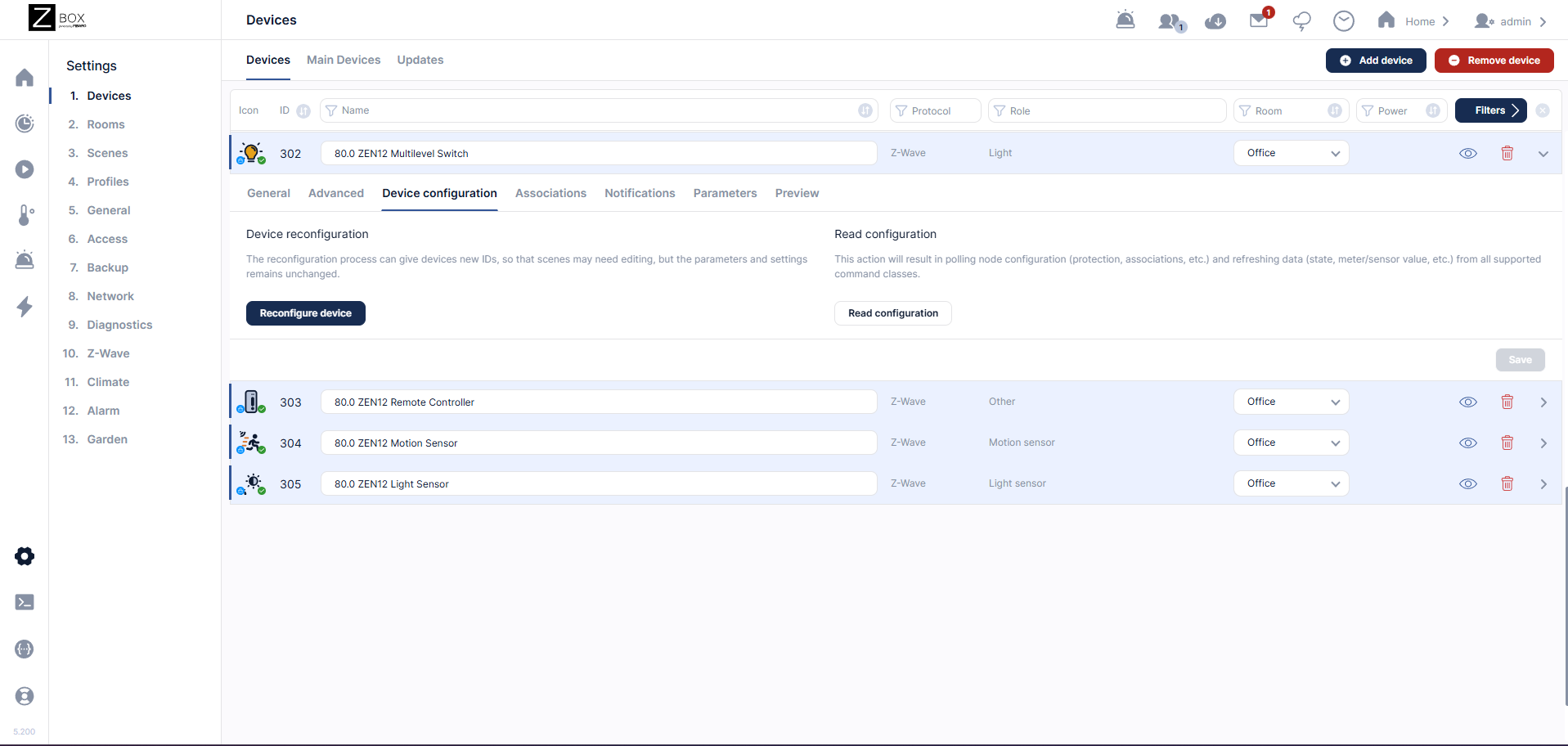
Device Configuration
You can reconfigure the device here or read configuration in this tab.
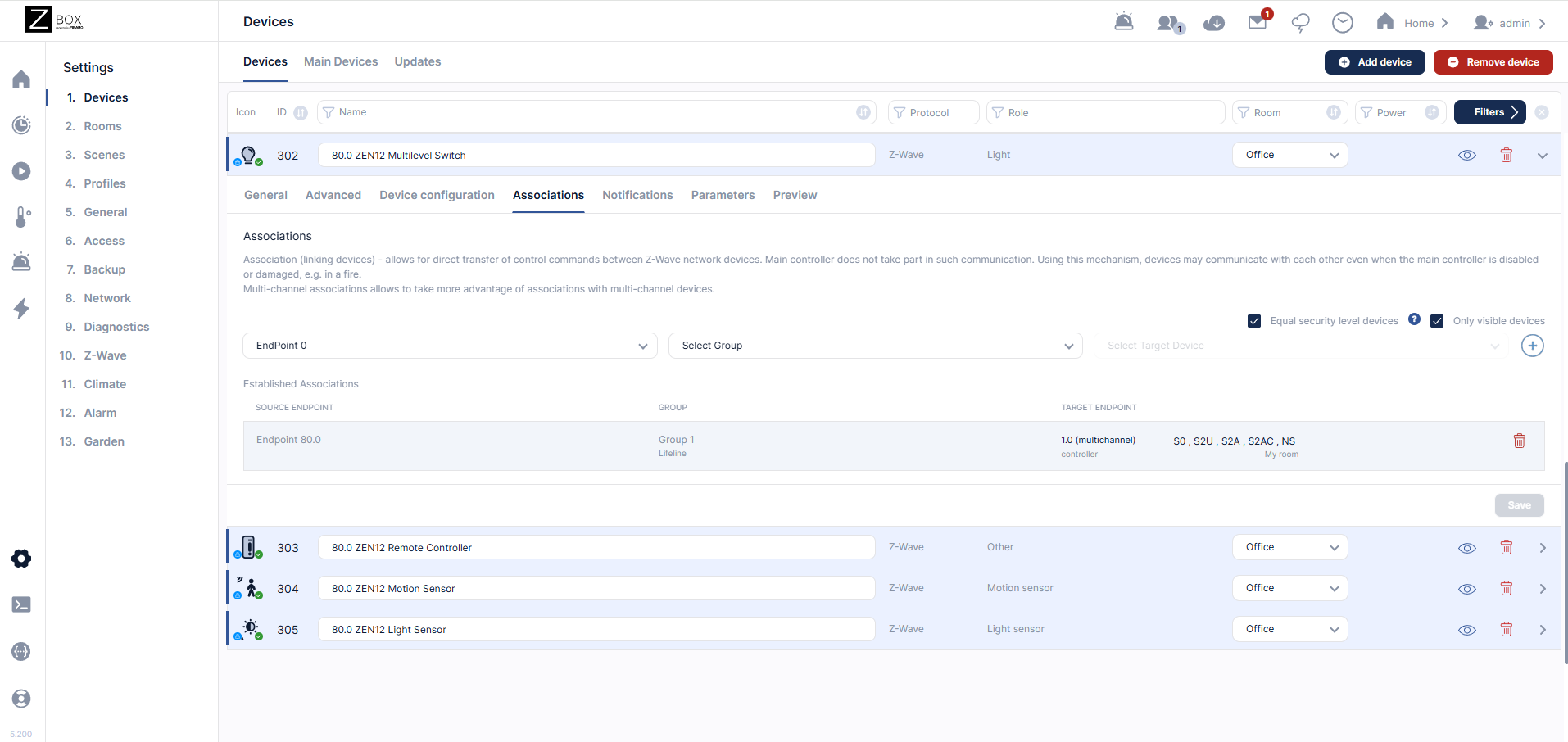
Associations
This is where direct association is set, also displays the lifeline connection to the hub.
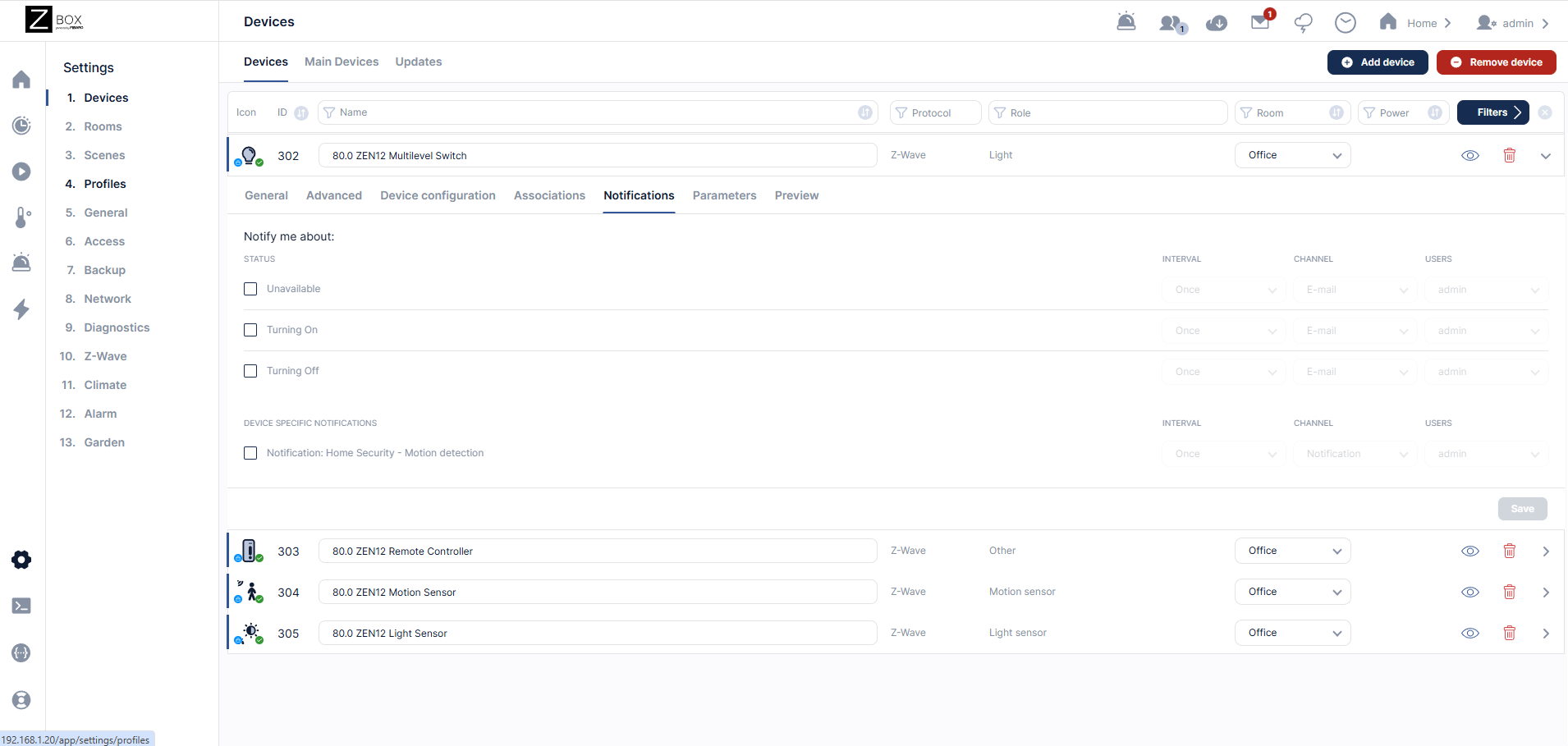
Notifications
Set your desired notifications from this device here.
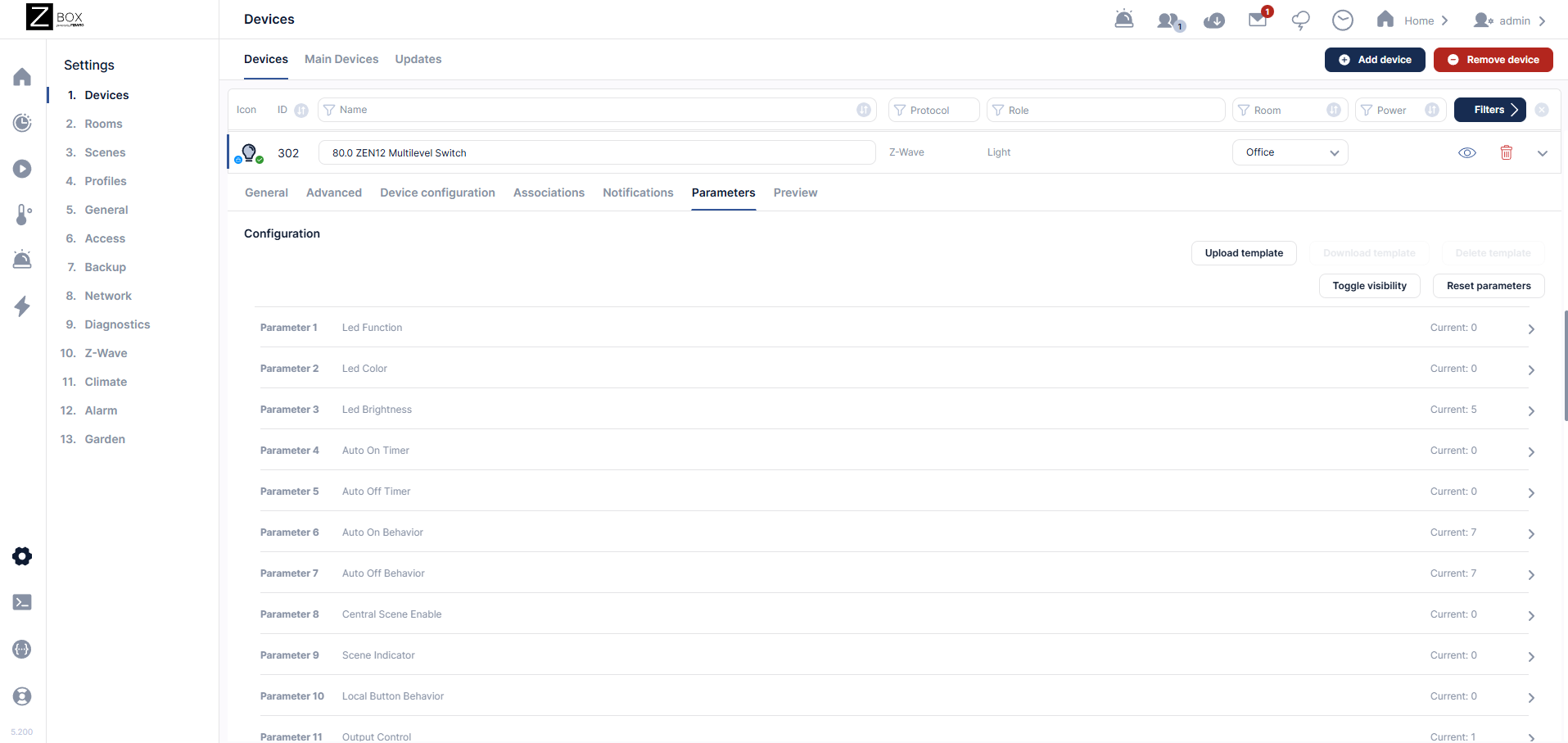
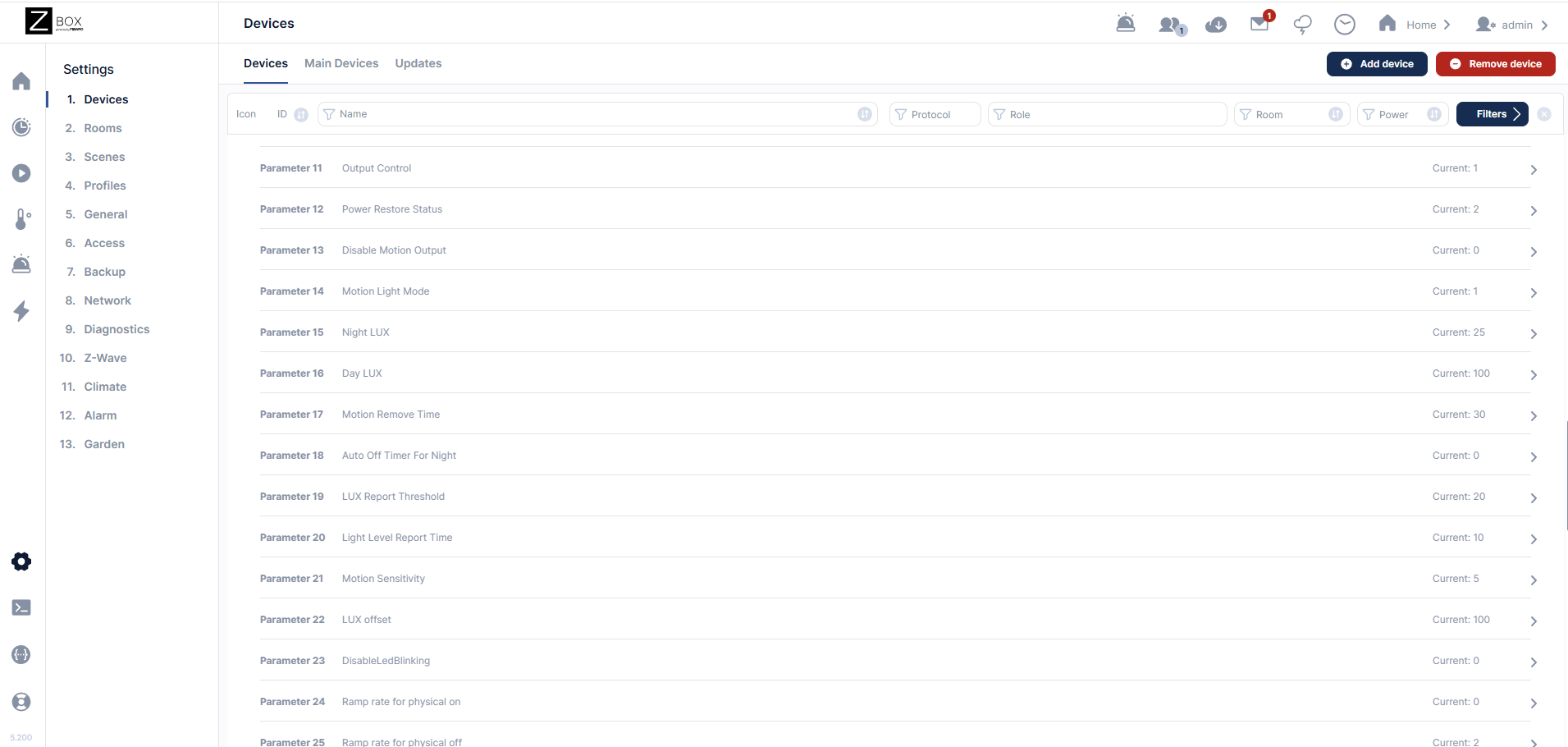
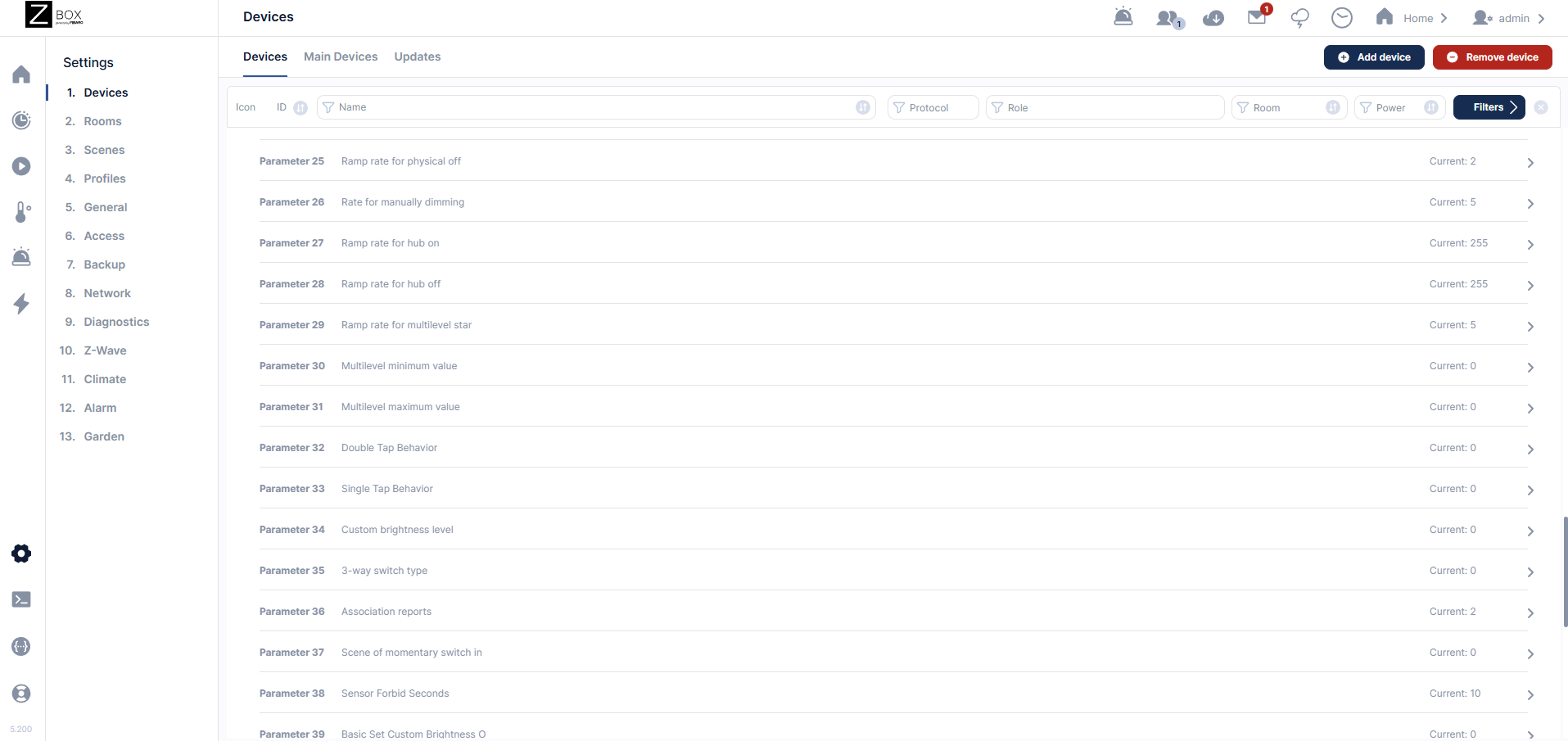
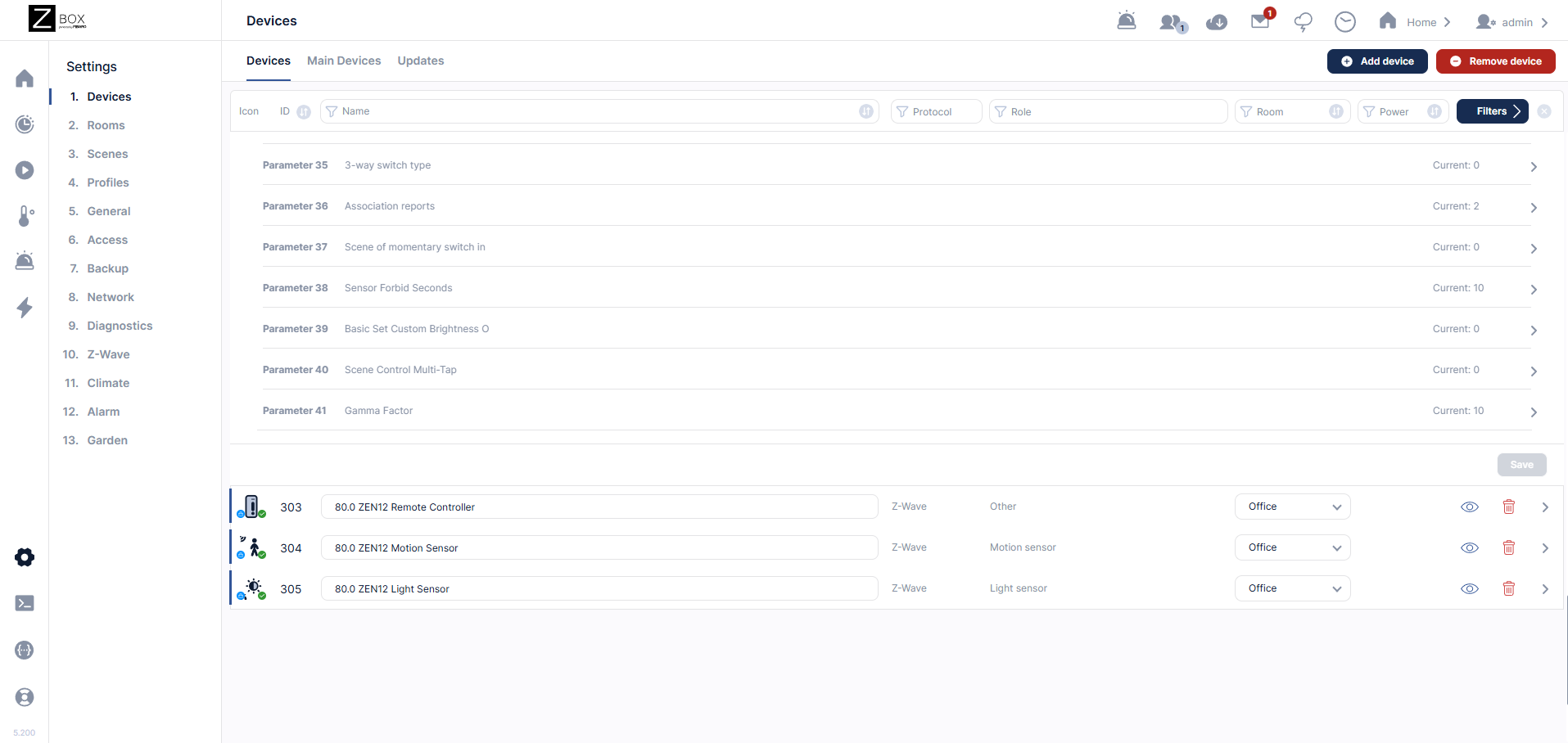
Parameters
For the full list and description of the parameters, check out our dedicated article here.
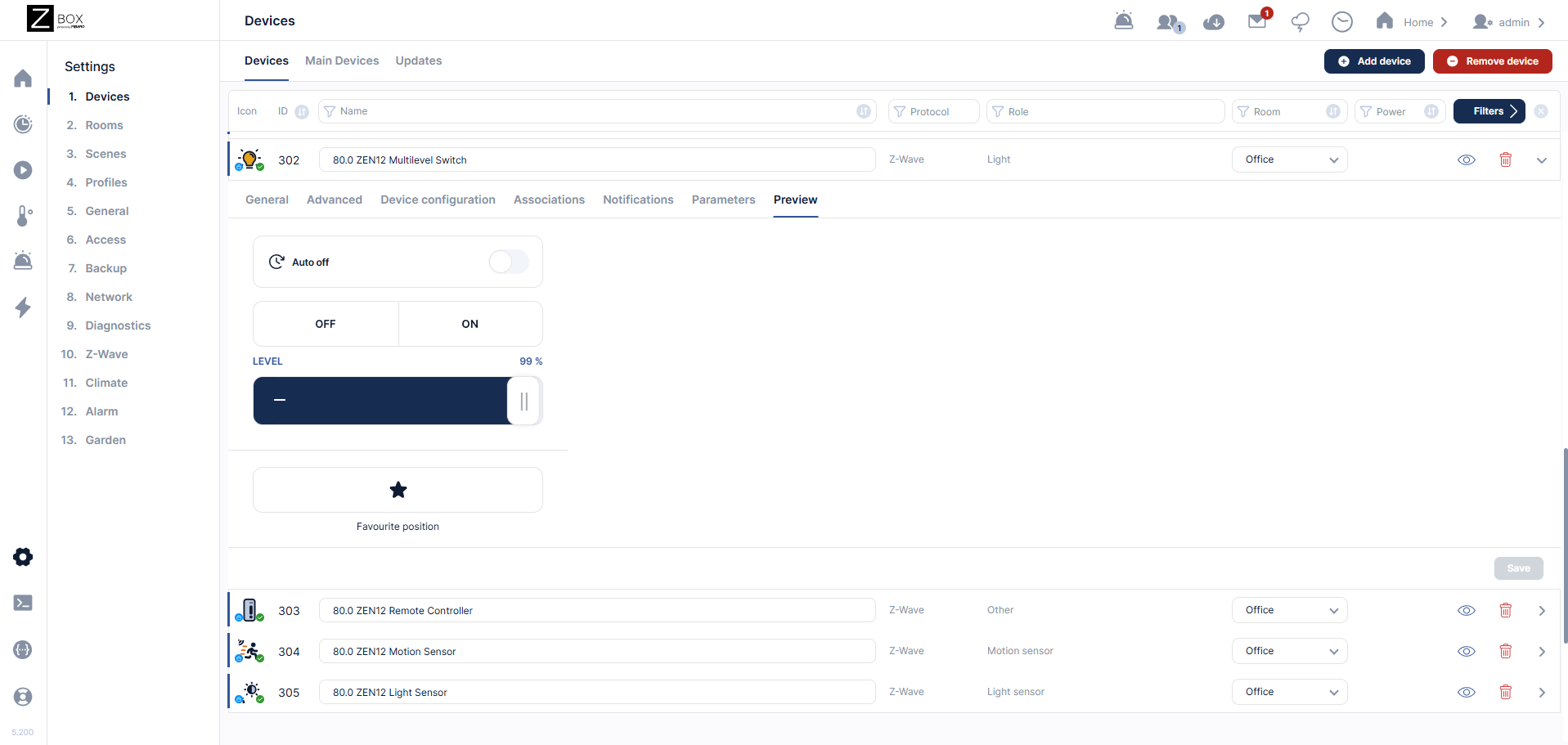
Preview
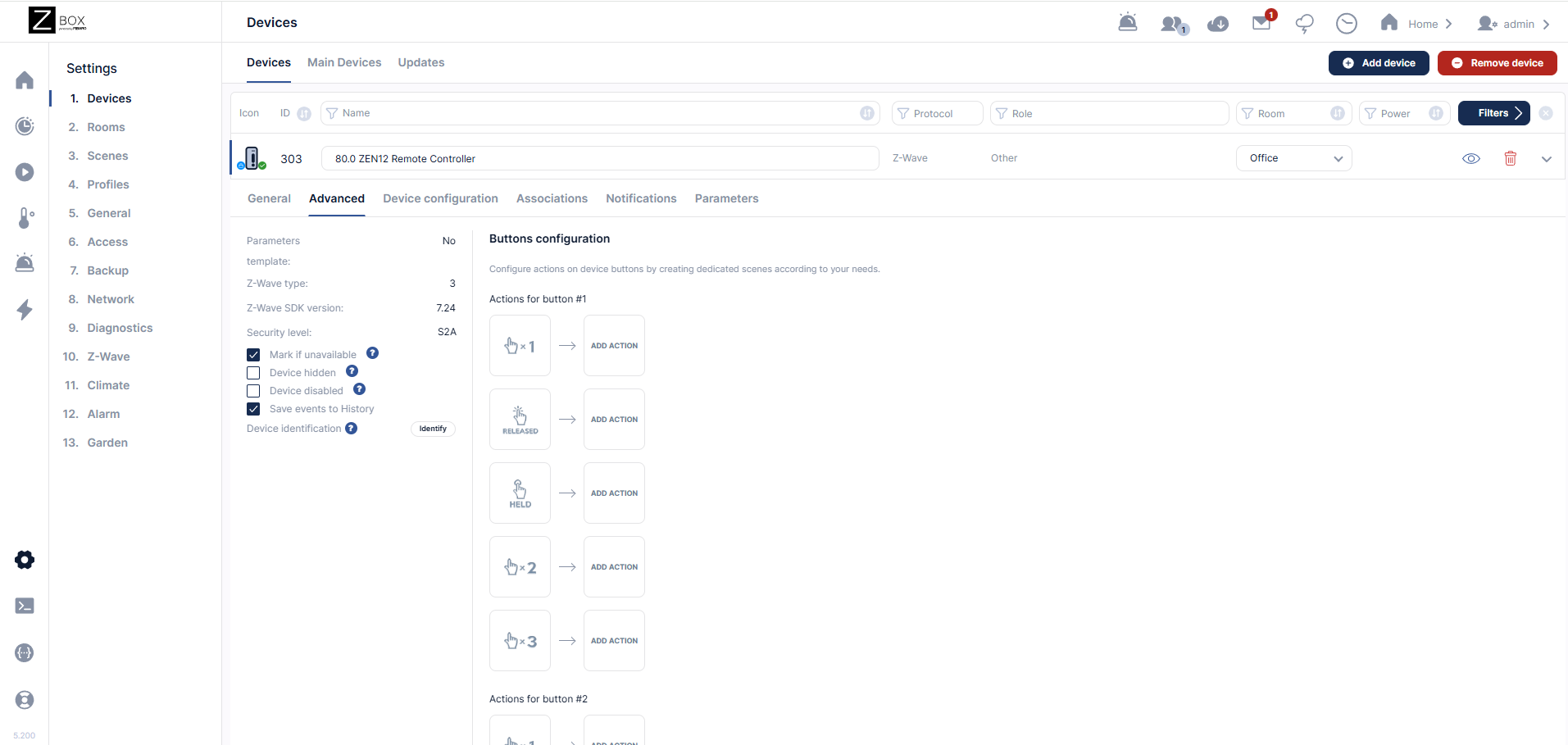
Remote Controller Device
This is where you program central scene actions for the device. Button 1 is the large button, Button 2 is the left dimmer button, Button 3 is the right dimmer button, and Button 4 is utilized only when a ZAC99 Momentary switch is utilized as the secondary switch in a 3-way installation. You'll need to set parameter 35 to value 3, and set parameter 37 to value 1 (enabled).
Motion Sensor
The preview tab illustrates the status for the motion sensor on the ZEN12.
Light Sensor
The preview tab will display the current lux value for the ZEN12 lux sensor.