

If your Q Sensor is having trouble adding to your Hubitat network, then you need to try to exclude it first.
The exclusion process acts as a soft reset for any Z-Wave device, helping with any inclusion or configuration issues. You can do this even if the ZSE11 has never been included to Hubitat: it will simply confirm the exclusion of an “unknown” device. Before you try to remove the device, make sure your Hubitat platform version is up-to-date.
ZSE11 Exclusion Steps
-
Open Hubitat in your Internet browser
-
Go to Devices
-
Click on + Add Device in the top right corner
-
Click on Z-Wave
-
Click on Start Z-Wave Exclusion
-
While the device is searching for a device, press and release the Z-Wave button 3 times as quickly as possible
-
The app will indicate when the device is successfully excluded.
Once the process is complete and Hubitat confirms a device was removed, give the inclusion steps for the ZSE11 another try.
SmartStart and Z-Wave Long Range Inclusion Troubleshooting
If exclusion is not successful, if you have previously added this device to your hub, if SmartStart failed, or if the device will not include, please follow the steps below in order. Removing the device from the provisioning list generally resolves most inclusion issues:
Removal of a Z-Wave Plus SmartStart device is a two step process. First remove the device from the app, then factory reset it.
-
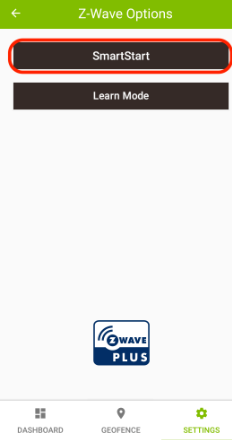
Using the Hubitat Elevation mobile app, navigate to Tools and press the Z-Wave Tools card
-
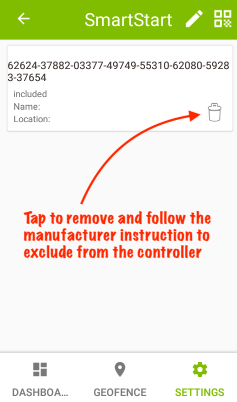
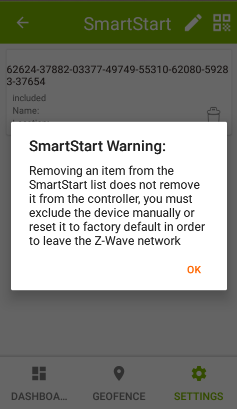
Tap the SmartStart button > Tap the trash can icon to remove a device from the provisioning list. Removing an item from the SmartStart provisioning list does not remove it from the hub. You must also factory reset it, so it will no longer be part of the Z-Wave network.
-
NOTE: Any device that has been removed from the provisioning list, but has not been factory reset or excluded from the Z-Wave network, will be automatically included again if it has power, and it will repopulate the provisioning list showing the Included status.
-
3. The device has now been removed from the provisioning list.
4. Factory reset the ZSE11. After a successful reset, the device will disappear from the device list.
5. Remove the batteries or USB power from the ZSE11 if you plan to include the unit via SmartStart / Z-Wave Long Range.
6. Go through the inclusion steps listed here to include the device (remember, power stays OFF until indicated).
Additional Troubleshooting
-
Try the exclusion process again in case the command from the first run weren't registered correctly.
-
Try bringing the hub closer to the device to see if it connects in a closer location. If it connects without issue in the new spot, then the first location may be out of range or there may be too many interferences in that area.
-
And if you find that your device is connected but it's not responded to remote commands, check out these tips for troubleshooting connectivity.
If you've tried all the above with no luck, let us know! Our team is ready to help.

