


Your ZEN56 RGBW Dimmer can be quickly added to Home Assistant! We recommend using the new JS Z-Wave integration for optimal results
With the new ZWaveJS integration of Home Assistant, your smart home setup becomes more seamless, robust, and future-ready. We strongly recommend upgrading to this integration to ensure your Zooz devices are recognized and function correctly.
The latest Z-Wave JS UI now supports Z-Wave Long Range (ZWLR), significantly extending the reach and reliability of your network. Even better, you now have the flexibility to use both traditional Z-Wave mesh and ZWLR devices on the same hub—giving you the best of both worlds. And with SmartStart QR code scanning now supported, device inclusion has never been quicker or easier.
When deciding which method to use, we recommend reading more about Z-Wave Long Range and how it differs from the Z-Wave mesh, as well as when to choose mesh vs ZWLR in the following two articles:
Z-Wave Long Range FAQ's
All About Z-Wave Long Range
Mesh or ZWLR is established at the time of inclusion; if you wish to change a currently included device from mesh to ZWLR or vice versa, this can only be done by excluding the device and re-including with the proper method.
Important Note: A steady, blinking green is the standard state for the device; as long as the unit has power, it will blink green at a steady pace. When you are attempting to include or exclude the device, the clicks need to happen as fast as possible; if the clicks are not completed fast enough, the device will not enter inclusion or exclusion mode. You will know you have clicked fast enough when the LED indicator begins flashing rapidly.
Standard Mesh Inclusion
-
Wire the ZEN56 per the diagram and instructions in the manual. The LED indicator will be a slow, blinking green.
-
In Home Assistant: open Settings > Devices & Services > Z-Wave .
-
Click Add Device > Search for Device.
-
When Home Assistant displays the following message: "Your Z-Wave controller is now in inclusion mode. Follow the directions that came with your device to trigger pairing on the device," click the Z-Wave button 3 times as quickly as possible (the LED indicator will start flashing green rapidly). If it does not start flashing rapidly, you did not click the Z-Wave button quickly enough; please try again as quickly as possible.
-
If asked to enter the security PIN, enter the PIN located on the back of the relay, next to the Z-Wave Plus logo.
-
The LED indicator will rapidly blink green to signal communication, and turn green for 2 seconds if inclusion is successful or turn red for 2 seconds if inclusion fails.
-
Home Assistant will confirm that the ZEN56 was added, and it will be immediately visible in your device list. Within a short time, seconds to minutes, the entities should also be created.
SmartStart and/or Z-Wave Long Range Inclusion
The Z-Wave JS UI integration of Home Assistant now supports Z-Wave Long Range (ZWLR) and with the latest app update (minimum 2025.5), QR code scanning for SmartStart is now supported. You will need to ensure you are using a Z-Wave stick that supports ZWLR.
Ensure the device you want to include is NOT powered on at this time. SmartStart will only work if the device is not powered on until step 6.
1. From the menu, click Settings.
2. Choose Devices and Services.
3. From the devices page click Add Device.

4. Scan the QR Code from your ZWLR device.
5. Choose Direct Long Range.

6. Power on your device.
7. The device is now added with ZWLR.

If Home Assistant is having trouble recognizing the device, check out the troubleshooting steps here.
Display Screenshots
Main Device Screen
The Device Info screen in Z-Wave JS is a hub for understanding and managing an individual Z-Wave device. It provides a detailed snapshot of the device's capabilities, current status, and communication with your Z-Wave network.
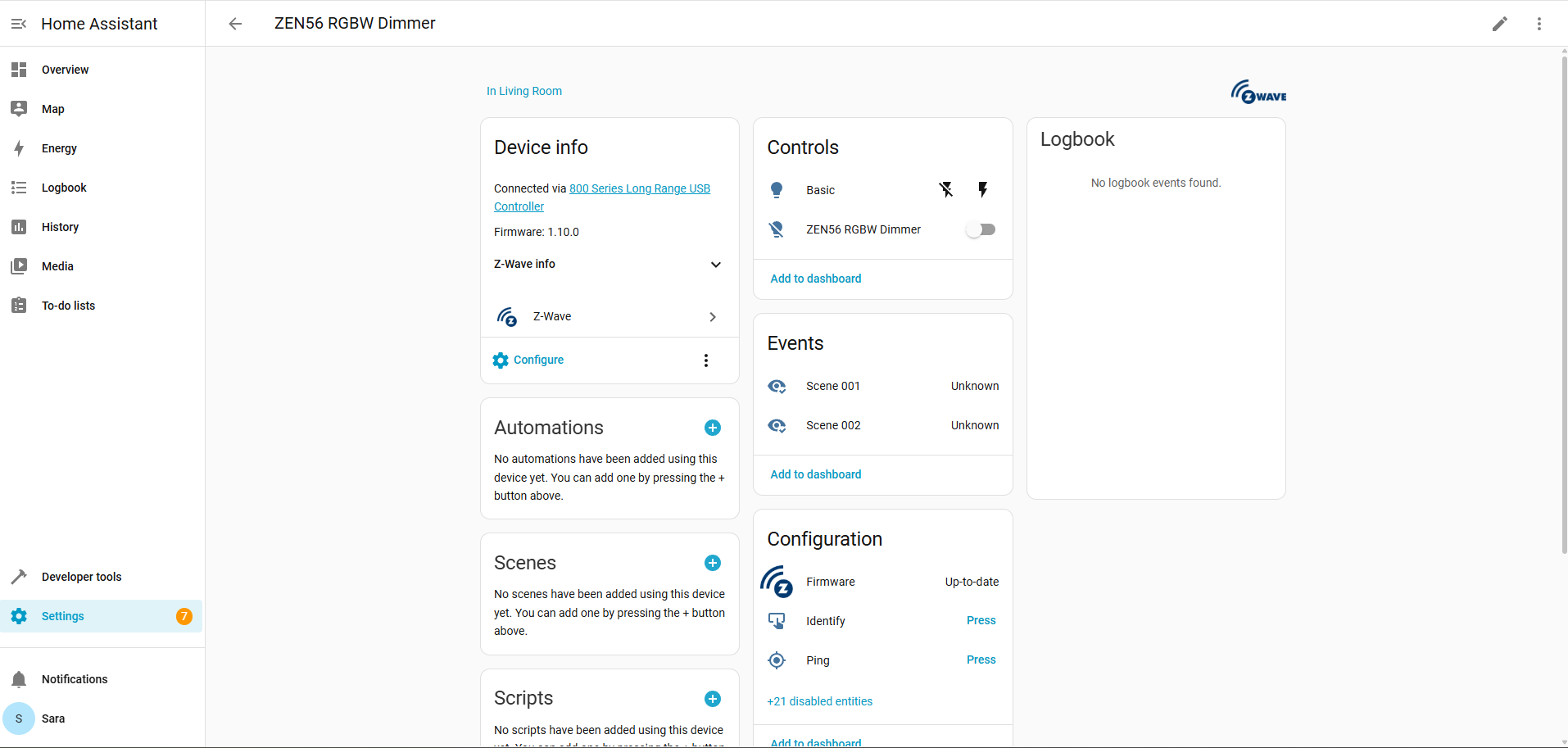
Device Info
This provides information about your device, such as firmware, node ID, security level, connection type (the Blue Z-Wave icon indicates mesh connection; Z-Wave LR will display as Purple). Configure will take you to the Parameters / Settings (see Configuration section below), and the 3 dots will bring up Re-interview, Rebuild routes, Statistics, Update (for OTA firmware updates), Download diagnostics, and Delete.
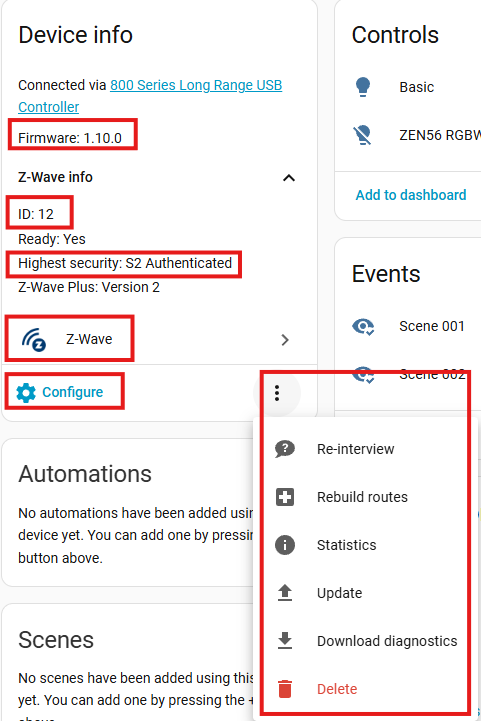
Automations, Scenes & Scripts
These sections are shortcuts to programming your device via scenes/rules, etc.
Automations: Rules that trigger actions automatically when certain conditions are met. Trigger → Condition → Action pattern. Automations run automatically whenever their trigger happens.
-
Example: Trigger: Motion sensor detects movement; Condition: Only after sunset; Action: Turn on a Z-Wave light switch.
-
Use case: Ideal for dynamic, event-driven control of devices. Automations run automatically whenever their trigger happens.
Scenes: A predefined set of states for multiple devices that can be activated together.
-
Example: Scene “Movie Time”: Living room lights dim to 30%, TV turns on, blinds close.
-
Use case: Great for setting a mood or state with one action. Scenes don’t run automatically unless triggered by something (like an automation or a button).
Scripts: A sequence of actions you can run manually or via automation.
-
Example: Script “Goodnight”: Turn off all lights, lock doors, turn on outdoor lights.
-
Use case: Useful for more complex, sequential actions that may include delays, conditions, or multiple device types. Scripts can be run manually, by automations, or by scenes.
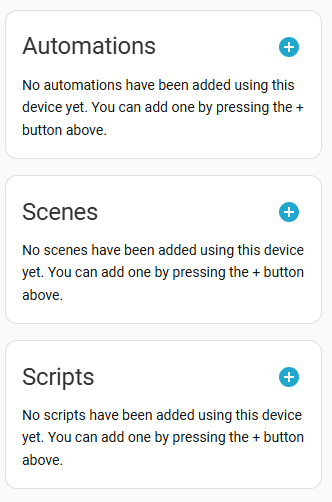
Configuration
These are the device parameters (also called advanced settings). To access this page, cilck the blue cogwheel Configure button in the Device Info Tab. This is where you can customize your device. See here for more information on the ZEN56 Advanced Settings.
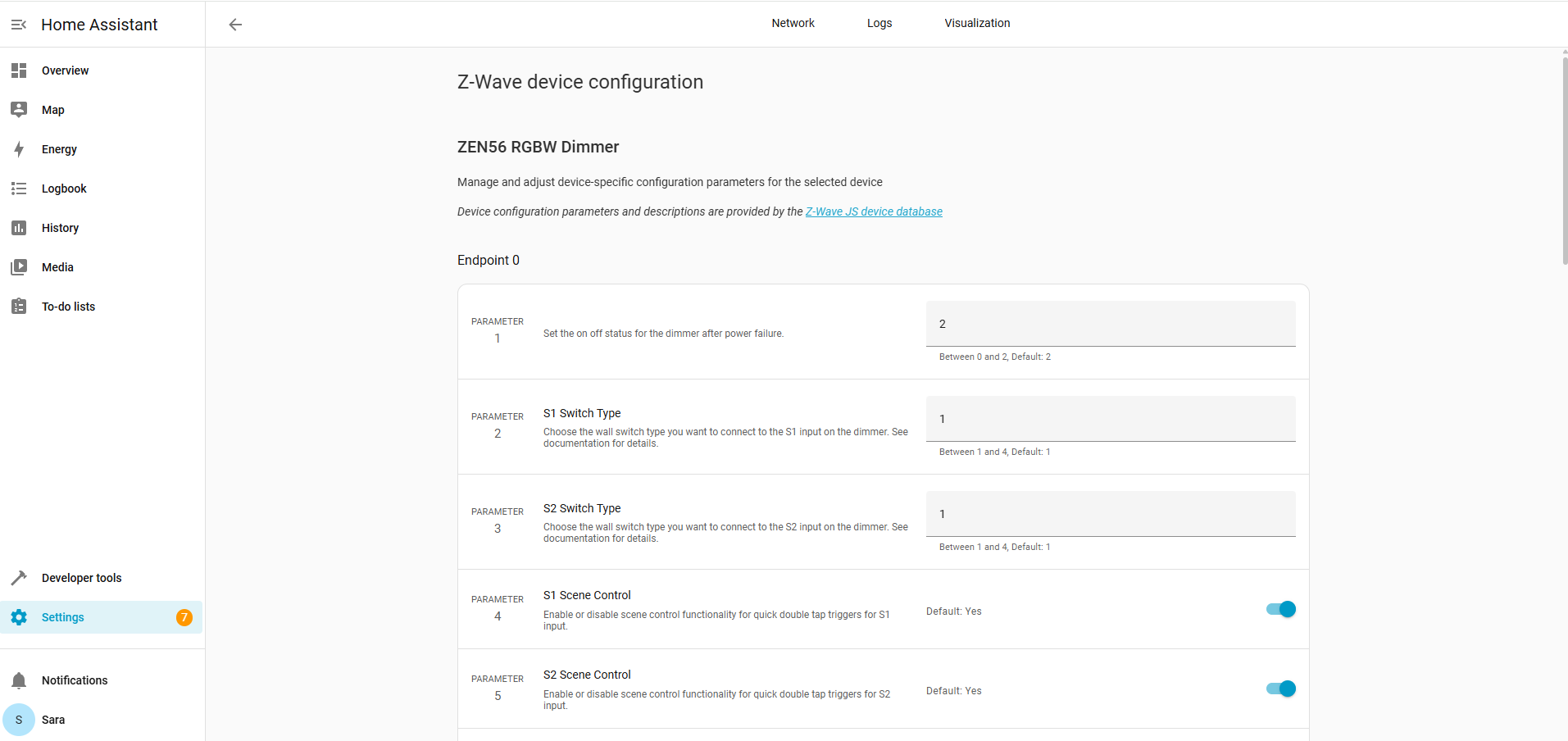
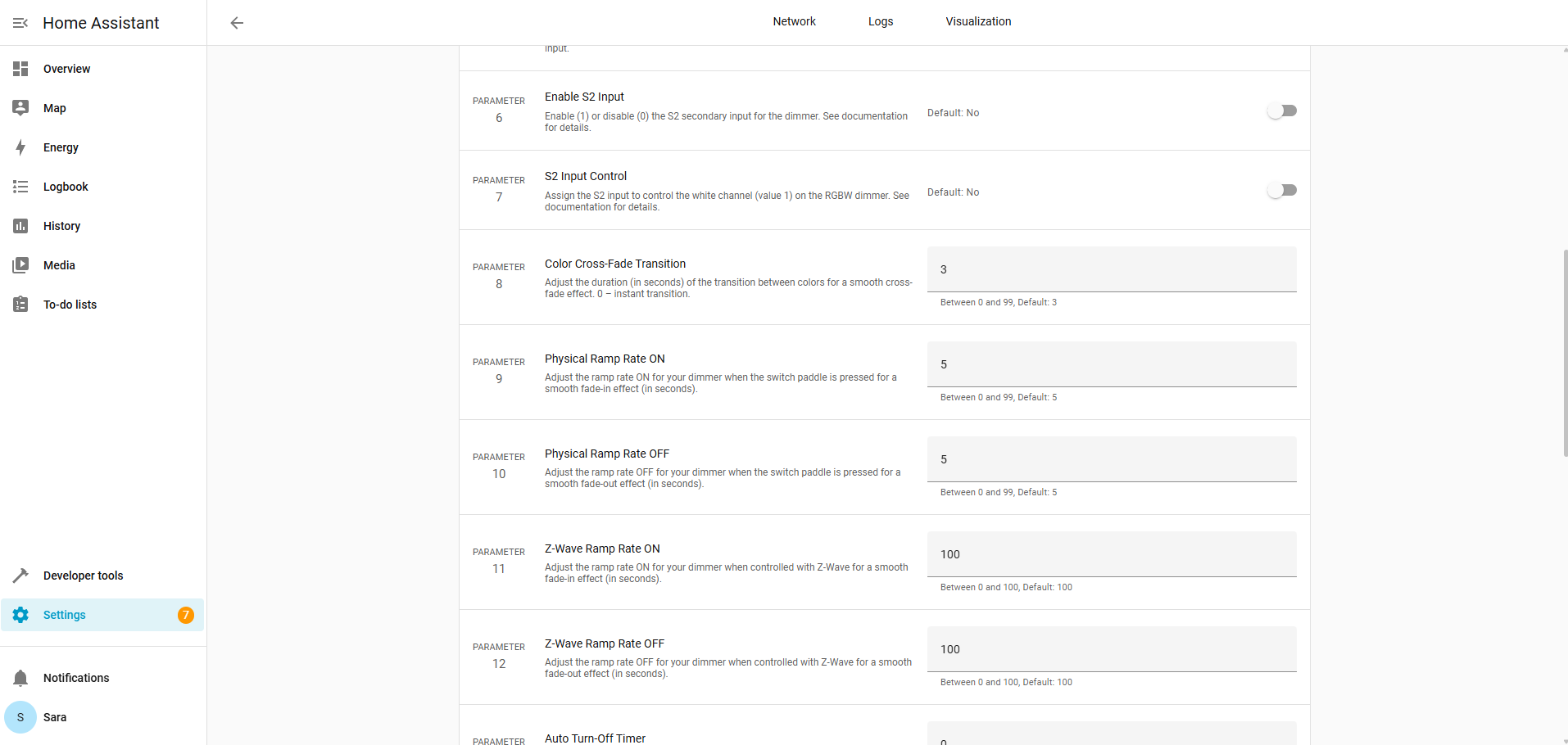
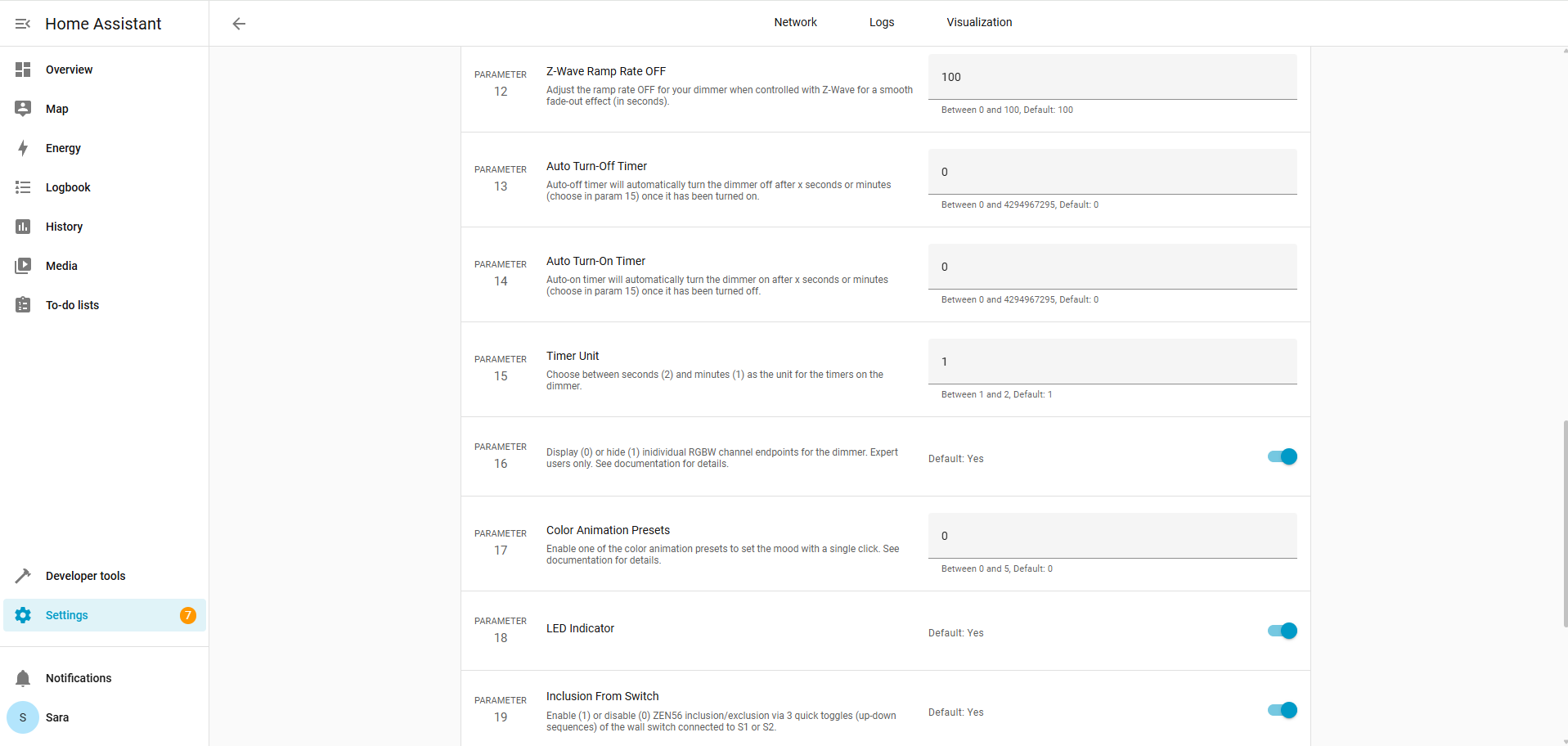
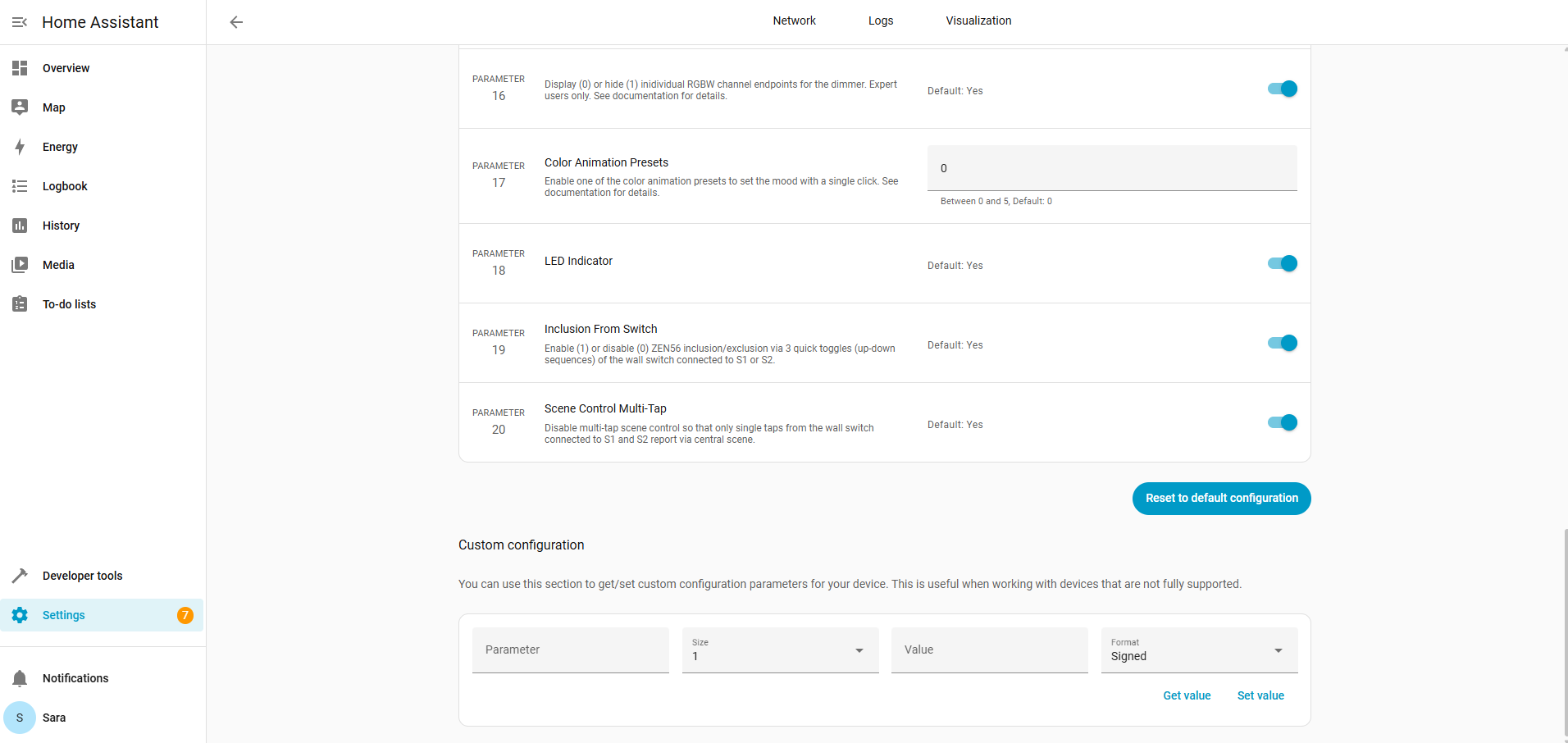
Controls
The ZEN56 will display in the Controls section with Basic and the device name. You can simply hide one these in the interface, as this is a Home Assistant display duplicate. To hide it, click on the control you wish to hide, click on the Settings Cogwheel, then click Visible to off.
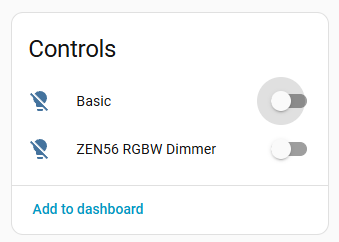
The controls screen enables you to set some pre-set favorite colors and turn the device on and off, as well as dim and brighten using the slider. The screenshot below shows how it displays when you click on the Control device:

Events
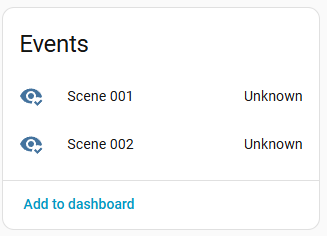
The Events tab shows raw messages, and Scene 001 and Scene 002 are identifiers for the physical button actions or programmed scene actions on that device.
Configuration
The configuration tab will let you see if there is a firmware update available for your device, as well as identify or ping your device.
-
Identify: Sends a command to the device so it physically signals itself so you can tell which device it is. The ZEN56 LED indicator will blink when Identify is pressed.
-
Useful for confirming which physical device matches a Z-Wave node in your network.
-
-
Ping: Sends a network-level “are you alive?” message to the device and checks whether the hub can communicate with the device and measures its responsiveness. Useful for troubleshooting network issues, especially for devices that are unresponsive or for testing connectivity after moving a device.
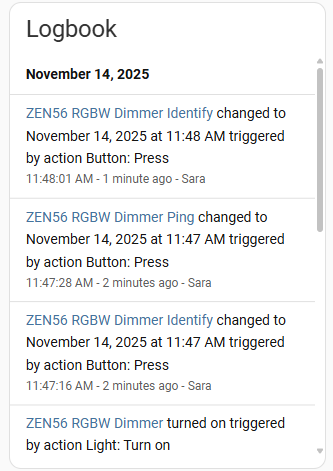
Both Identify and Ping actions will show in the Logbook.

Logbook
The Logbook in Z-Wave JS shows a human-readable history of your devices’ activity, including state changes, scene triggers, and sensor updates, making it easy to review what happened over time. It’s essentially a chronological summary of events for troubleshooting or monitoring.
We'll be happy to help if you have any other issues or questions! Just reach out to us!

