

Trouble including the ZEN12 Motion Dimmer to Hubitat? Exclusion is the best place to start; it's simply a soft reset that prepares your device for inclusion.
This can be done even if the device has never been connected to your hub.
Exclusion Steps
-
Open Hubitat in your Internet browser
-
Go to Devices
-
Click on + Add Device in the top right corner
-
Click on Z-Wave
-
Click on Start Z-Wave Exclusion
-
While the hub is searching for a device, click the main button 3 times; all the LED's will blink magenta. The LED's will turn solid green for 2 seconds when excluded successfully and the LED's will be solid red for 2 seconds if exclusion fails.
-
The app will indicate when the device is successfully excluded.
Once you have successfully excluded your ZEN12, follow these steps to re-include your dimmer to Hubitat.
SmartStart and Z-Wave Long Range Inclusion Troubleshooting
If exclusion is not successful, if you have previously added this device to your hub, if SmartStart failed, or if the device will not include, please follow the steps below in order. Removing the device from the provisioning list generally resolves most inclusion issues:
Removal of a Z-Wave Plus SmartStart device is a two step process. First remove the device from the app, then factory reset it.
-
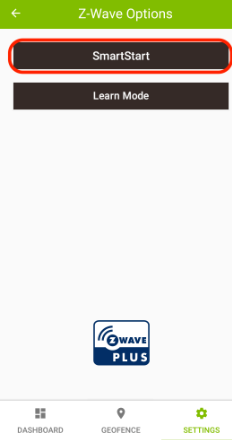
Using the Hubitat Elevation mobile app, navigate to Tools and press the Z-Wave Tools card
-
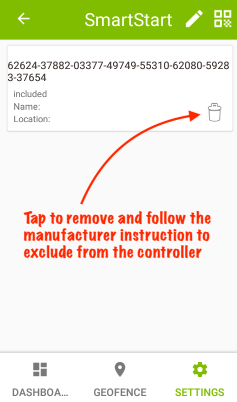
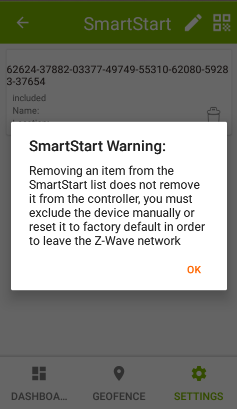
Tap the SmartStart button > Tap the trash can icon to remove a device from the provisioning list. Removing an item from the SmartStart provisioning list does not remove it from the hub. You must also factory reset it, so it will no longer be part of the Z-Wave network.
-
NOTE: Any device that has been removed from the provisioning list, but has not been factory reset or excluded from the Z-Wave network, will be automatically included again if it has power, and it will repopulate the provisioning list showing the Included status.
-
3. The device has now been removed from the provisioning list.
4. Factory reset the ZEN12. After a successful reset, the device will disappear from the device list.
5. Remove the ZEN12 from power if you plan to re-include the unit via SmartStart / Z-Wave Long Range.
6. Go through the inclusion steps listed here to include the device (remember, power stays OFF until indicated).
Additional Troubleshooting
-
Try the exclusion process again in case the command from the first run weren't registered correctly.
-
Try bringing the hub closer to the device to see if it connects in a closer location. If it connects without issue in the new spot, then the first location may be out of range or there may be too many interferences in that area.
-
And if you find that your device is connected but it's not responded to remote commands, check out these tips for troubleshooting connectivity.
If you've tried all the above with no luck, let us know! Our team is ready to help.

