

Your ZEN12 Motion Dimmer will work great with SmartThings with the custom driver installed. The driver ensures your device is correctly recognized on SmartThings and ensures access to all available advanced settings.
Once you have installed the custom driver linked above, you can follow the steps below to include the device to SmartThings.
Inclusion Steps
-
Power the relay up
-
Tap the plus icon in the home screen of the SmartThings app
-
Tap Device
-
Tap "Scan QR code." Scan the QR code printed on the back of the relay
-
Input the 5-digit pin
-
On the SmartThings app, select the hub and room you'd like the device added to and click Next
-
When the app says "Get your device ready to connect", click the main button 3 times as quickly as possible, and the LED's will start blinking blue to indicate communication. The LED's will turn solid green for 2 seconds when inclusion is successful, or will turn red if inclusion fails.
-
A few seconds later, the app will display a new device on the screen.
-
Click Done
Inclusion Troubleshooting Steps
If your ZEN12 Motion Dimmer is having trouble being added, begin the exclusion process to assist with any configuration or inclusion issues. It can be done even if the unit hasn't been added before:
-
Tap on your hub in the home page of the app or find it under Devices in the SmartThings app
-
Tap the three dots in the top right
-
Tap Z-Wave Utilities
-
Tap Z-Wave Exclusion
-
While the app is searching for a device, click the main button 3 times; all the LED's will blink magenta. The LED's will turn solid green for 2 seconds when excluded successfully and the LED's will be solid red for 2 seconds if exclusion fails.
-
The app will indicate when the device is successfully removed. Tap Done
Still having troubles? Check out the troubleshooting steps linked here.
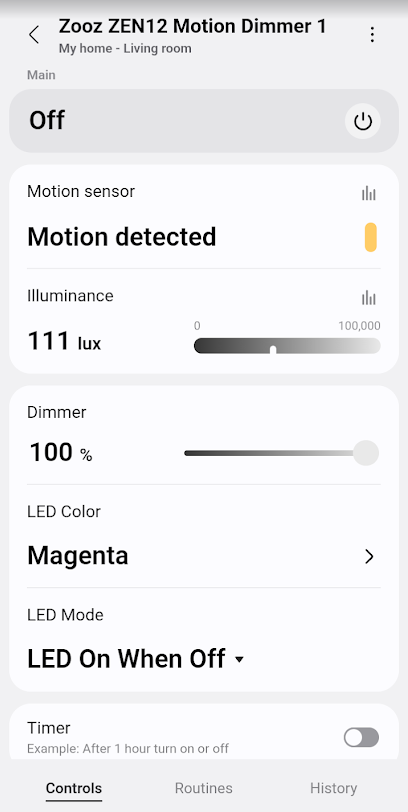
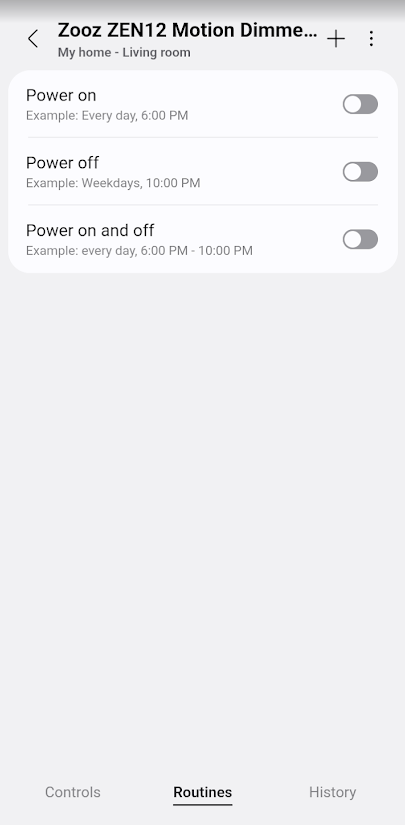
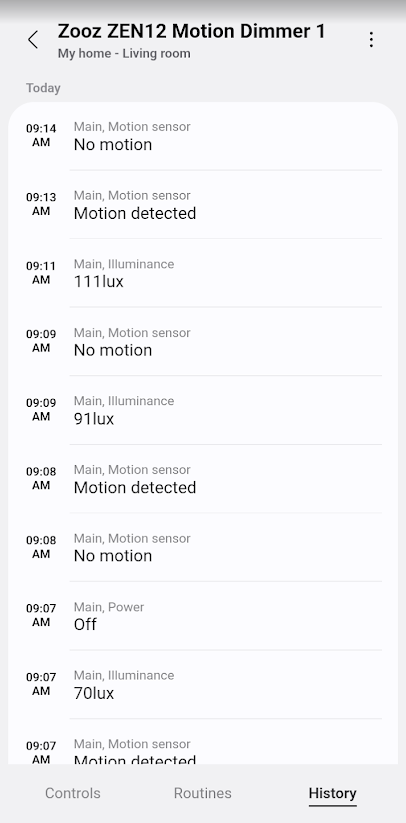
ZEN12 Display
Below we've included how the ZEN12 should display for you in the SmartThings app with the custom driver installed:
1. Controls
2. Routines
3. History
4. Settings
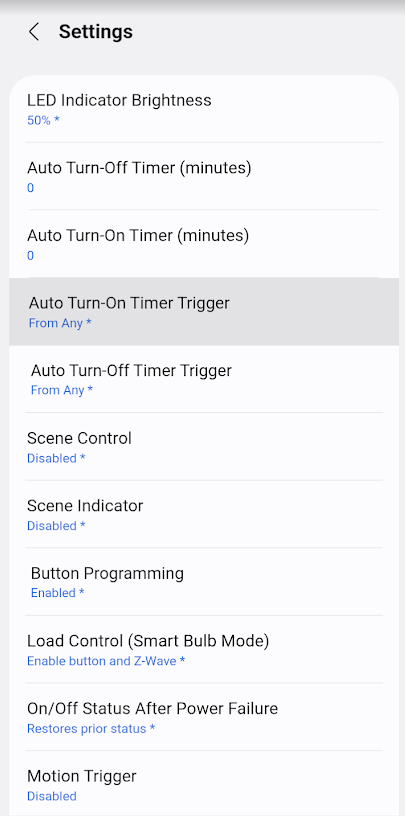
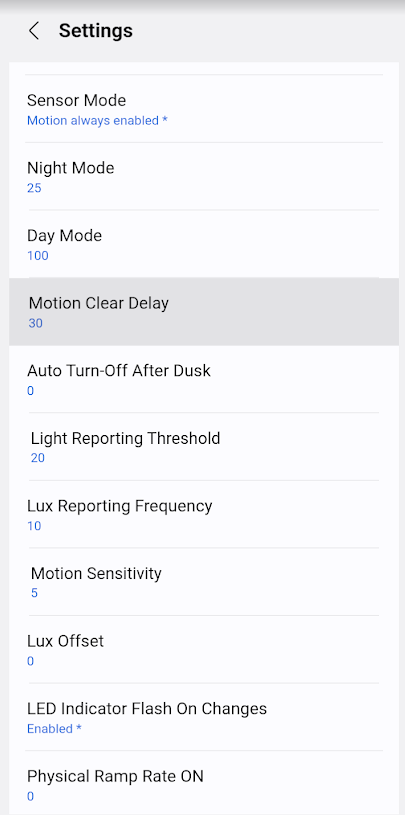
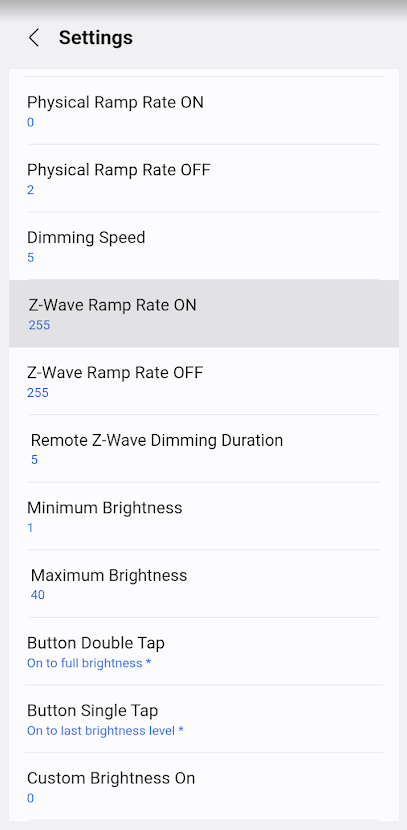
5. Settings cont.
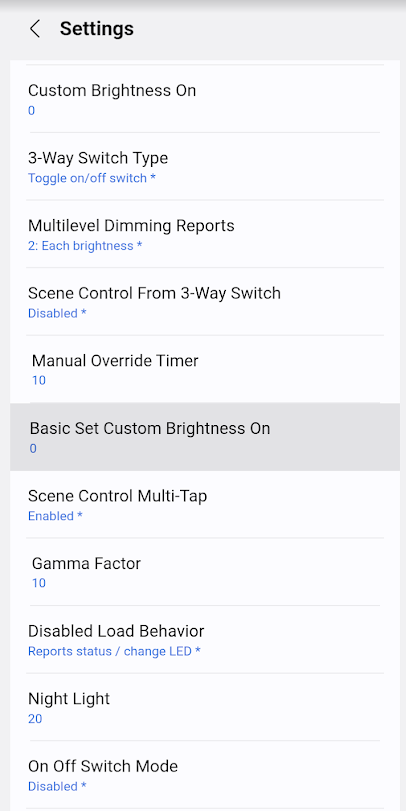
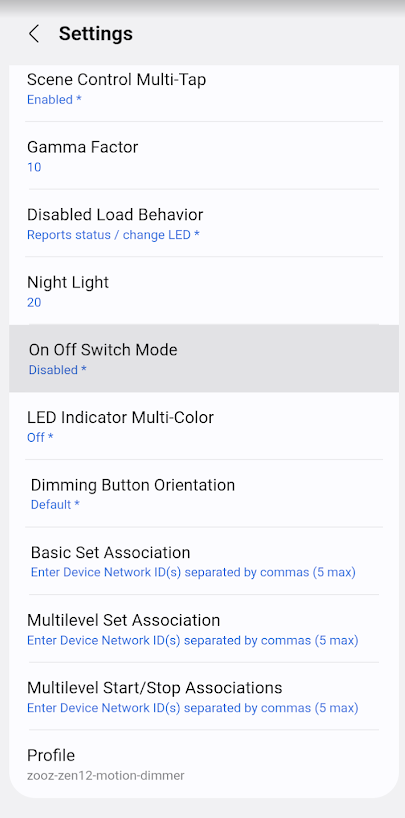
Let us know if you have any questions!

