


If you're having issues including your Wall Remote to Home Assistant, exclusion is the first thing to try. It may sound counter-intuitive, but excluding a device is simply a soft, hub-based reset that resolves most inclusion or configuration issues.
A device doesn't need to be included first to be able to be excluded.
Exclusion Steps
-
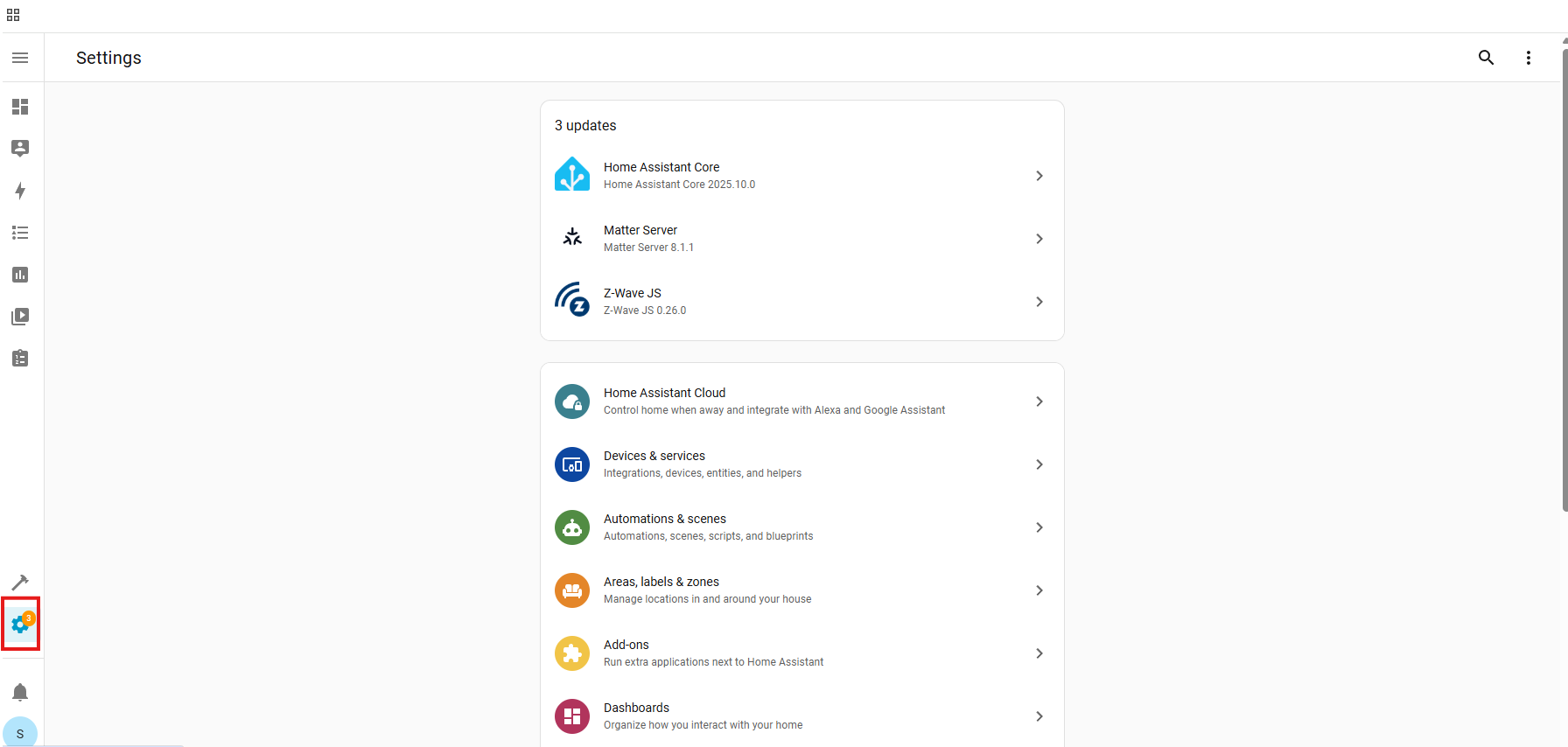
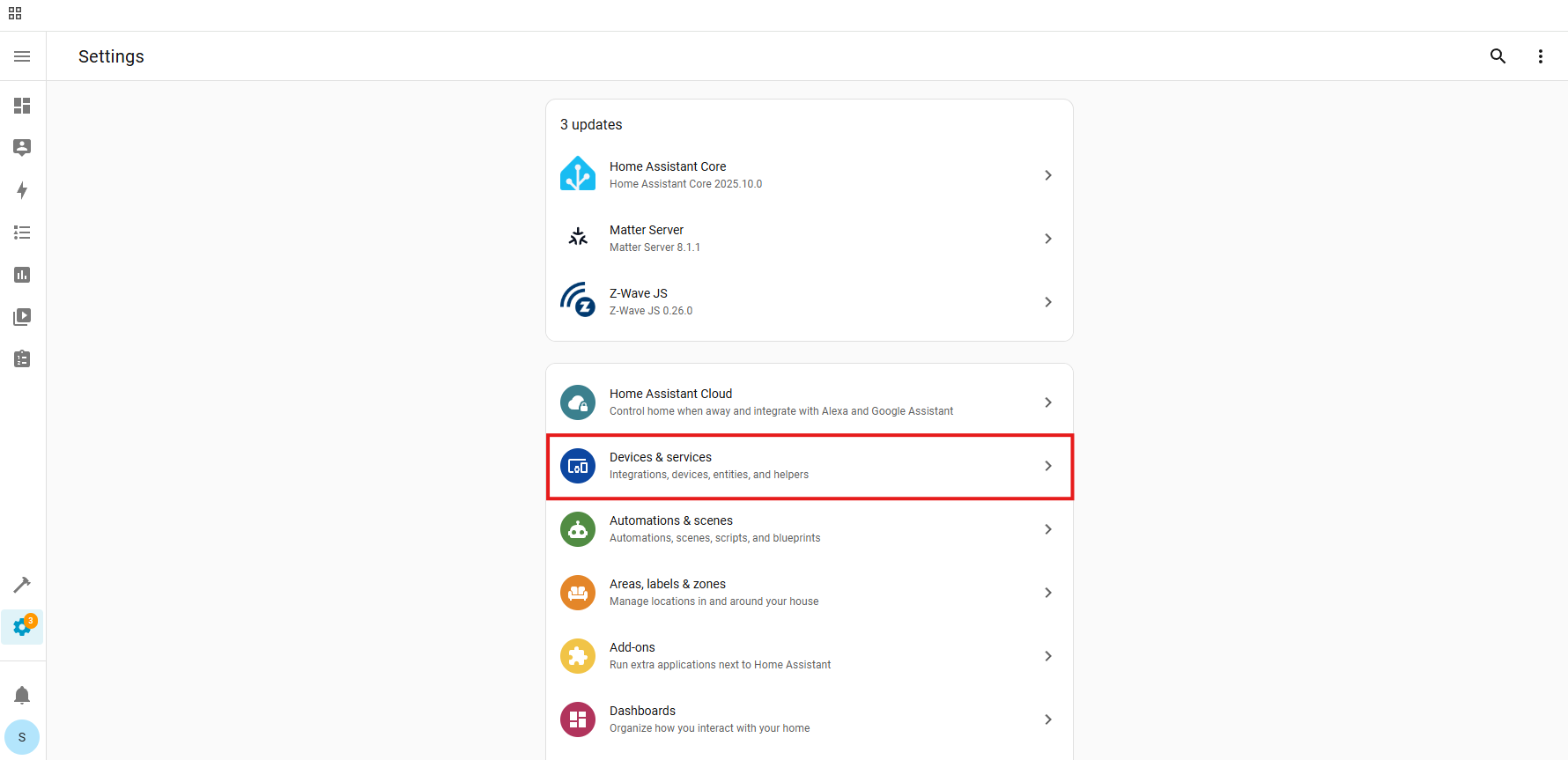
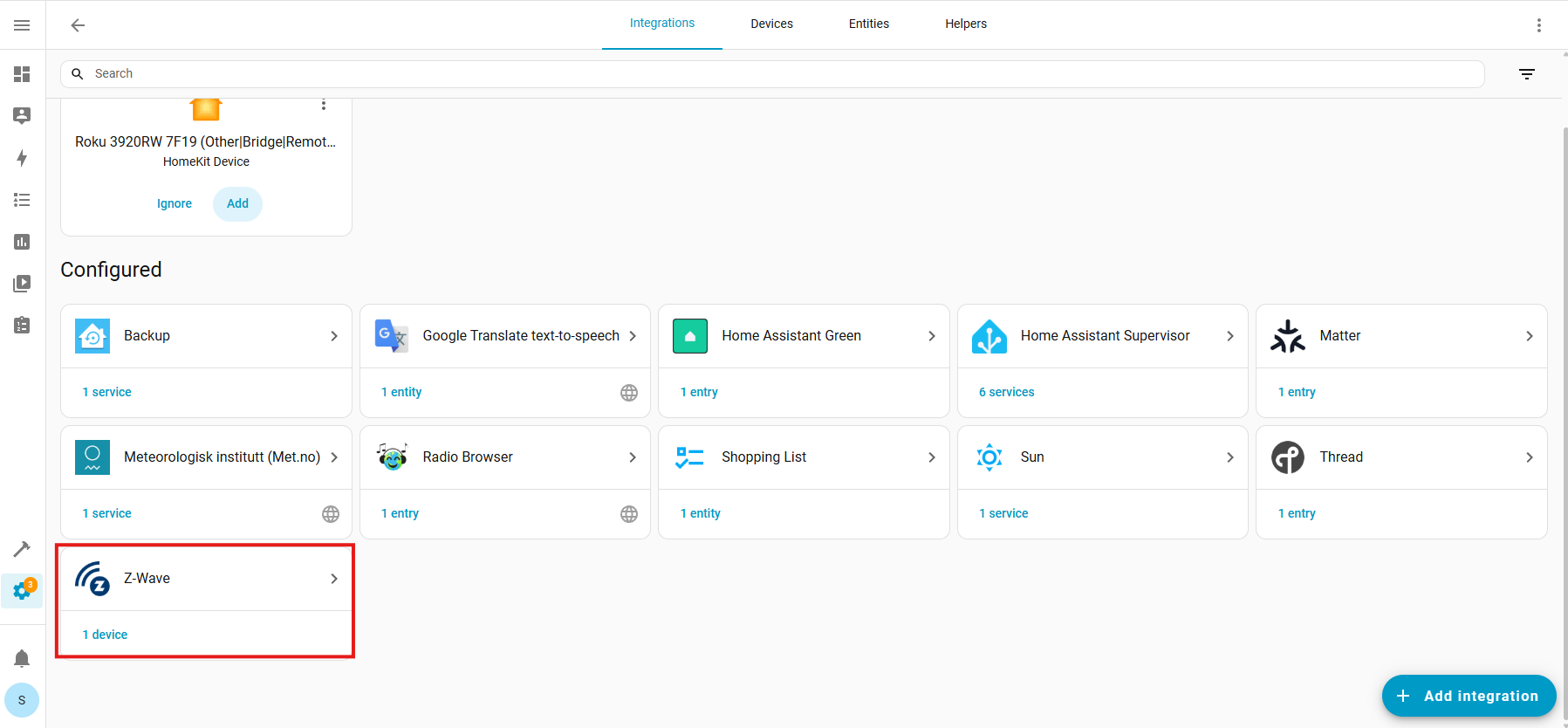
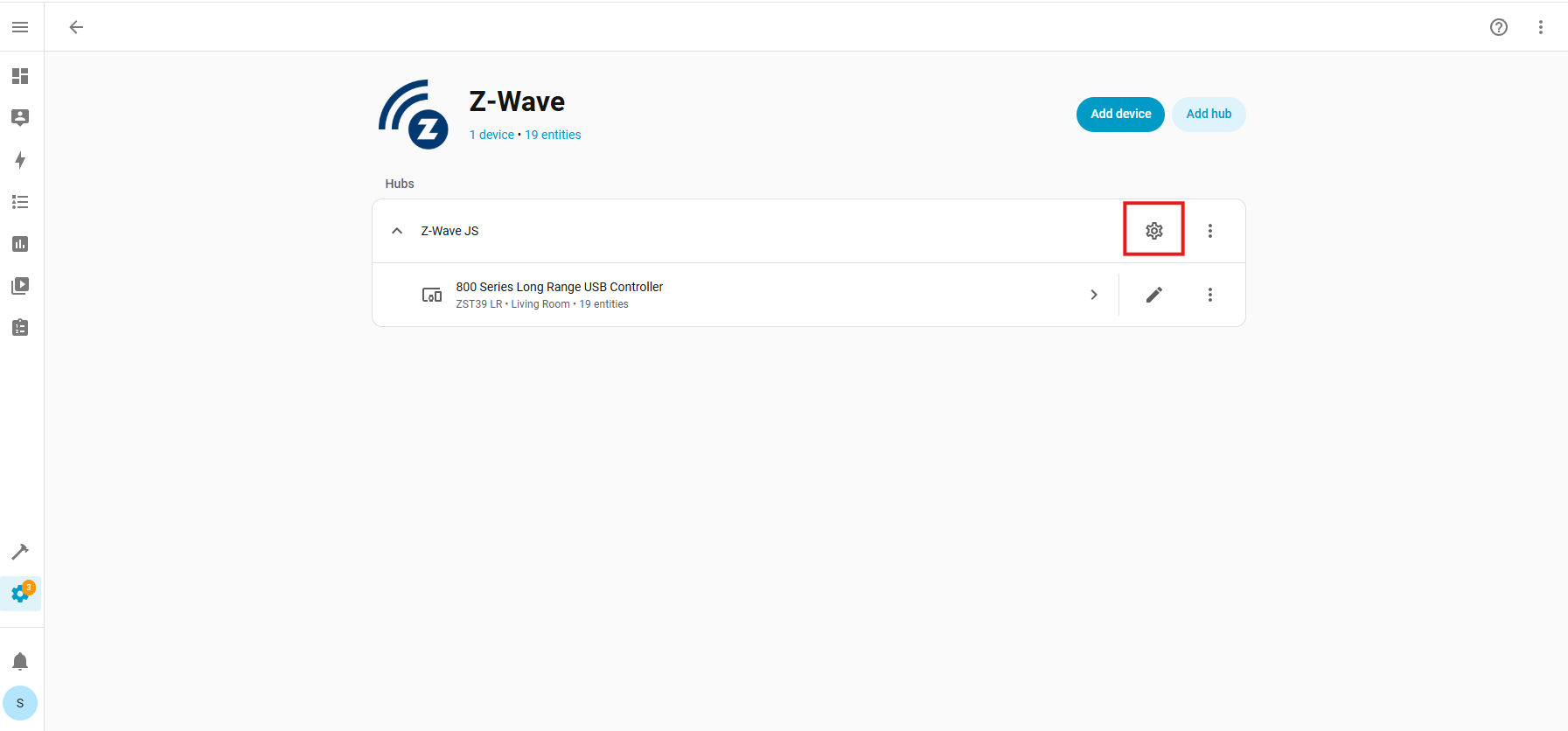
In Home Assistant: open Settings > Devices and Services > Z-Wave > Cogwheel > Options (Manage network routes and remove devices) > Remove foreign device > Remove.
-
Click the middle button 6 times quickly (the LED indicator will start flashing)
-
Home Assistant will confirm that the device was removed, and you should now be able to add it to your system
After exclusion is confirmed, try adding the device back to Home Assistant again.
SmartStart and Z-Wave Long Range Inclusion Troubleshooting
If exclusion is not successful, if you have previously added this device to your hub, if SmartStart failed, or if the device will not include, please follow the steps below in order. Removing the device from the provisioning list generally resolves most inclusion issues:
1. Check if the device is in the provisioning list:
- Settings:
- Devices & Services:
- Z-Wave:
- Configure Cogwheel:
- Provisioned Devices:
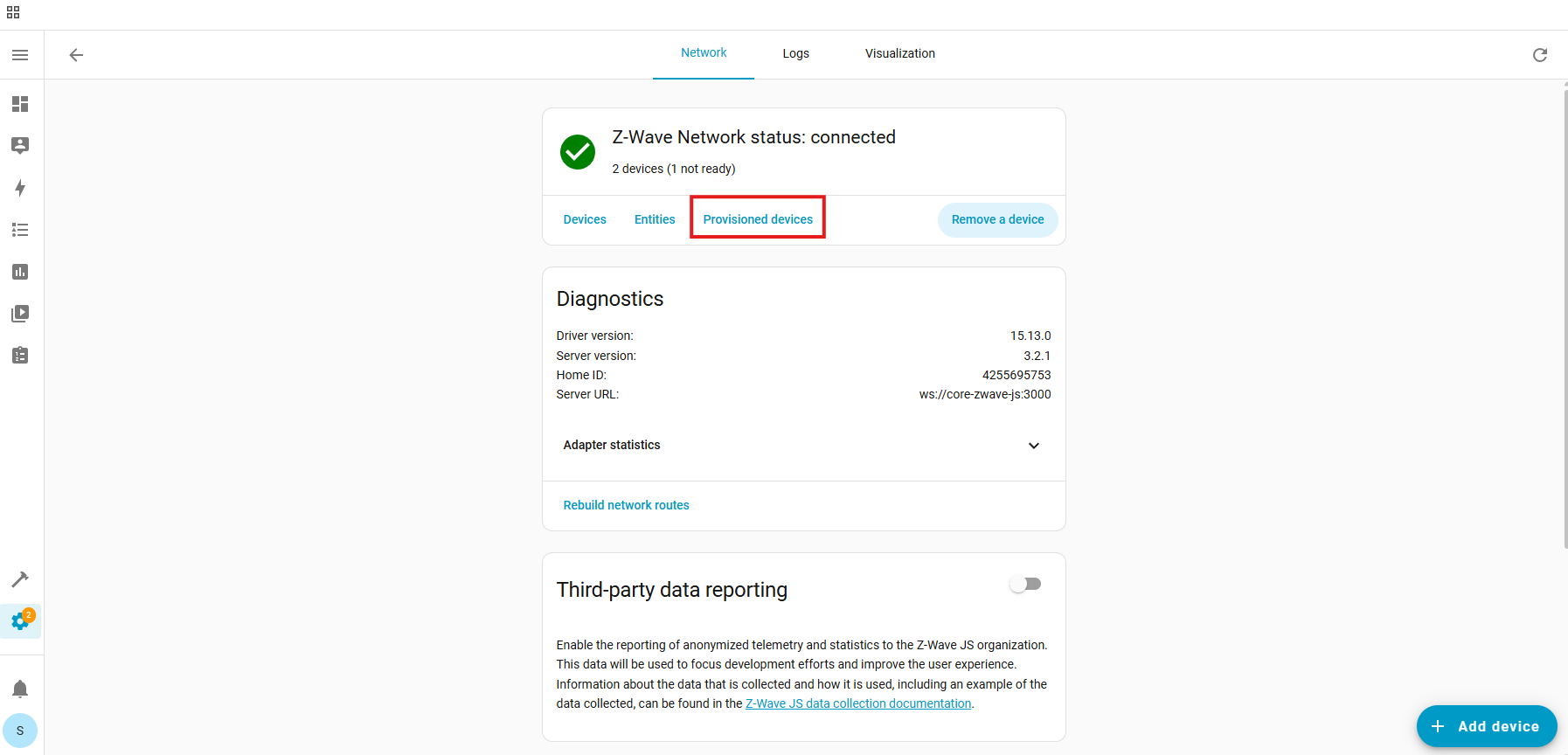
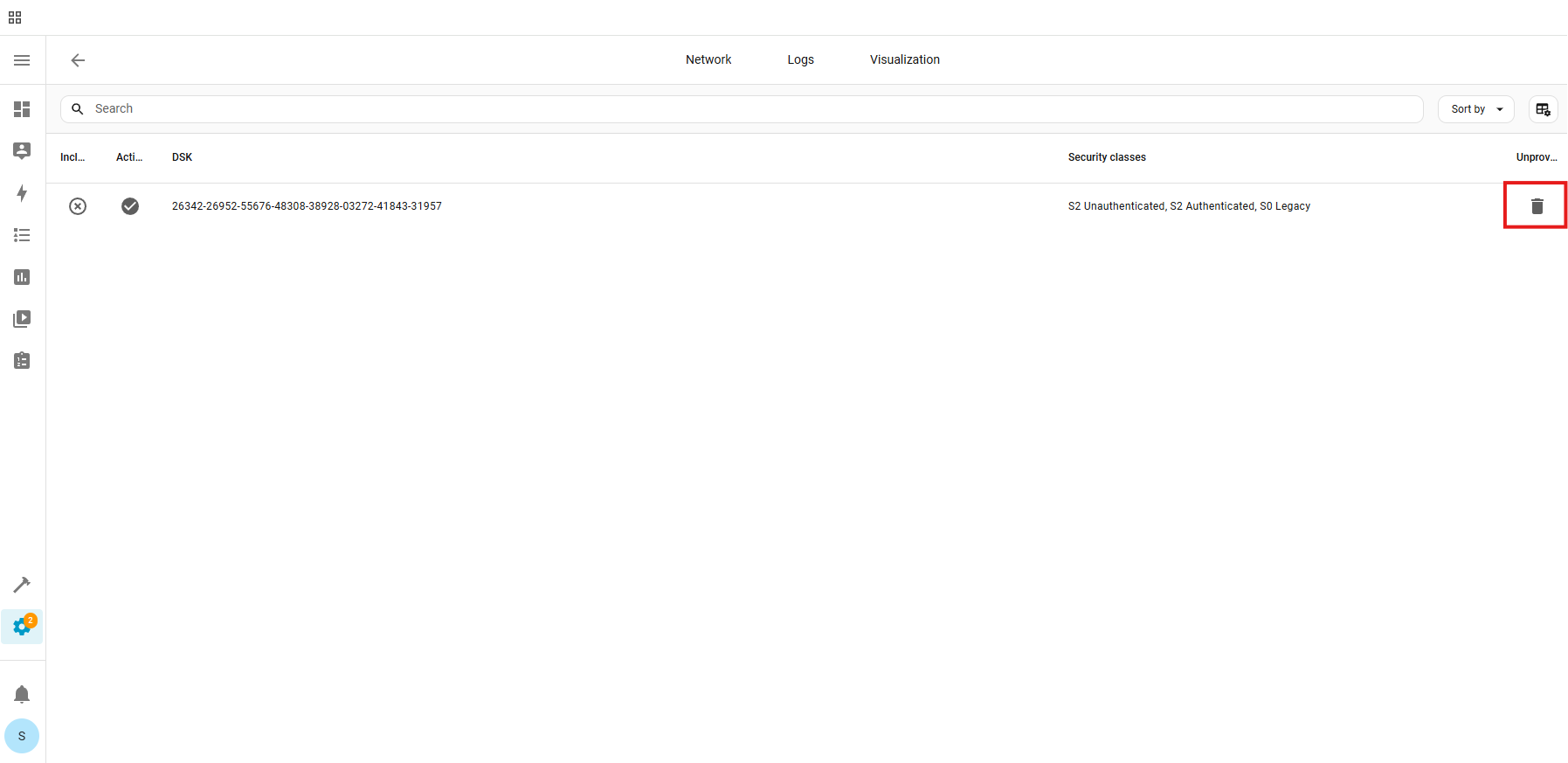
- Trash Icon (identify device by the DSK number):
- Unprovision:
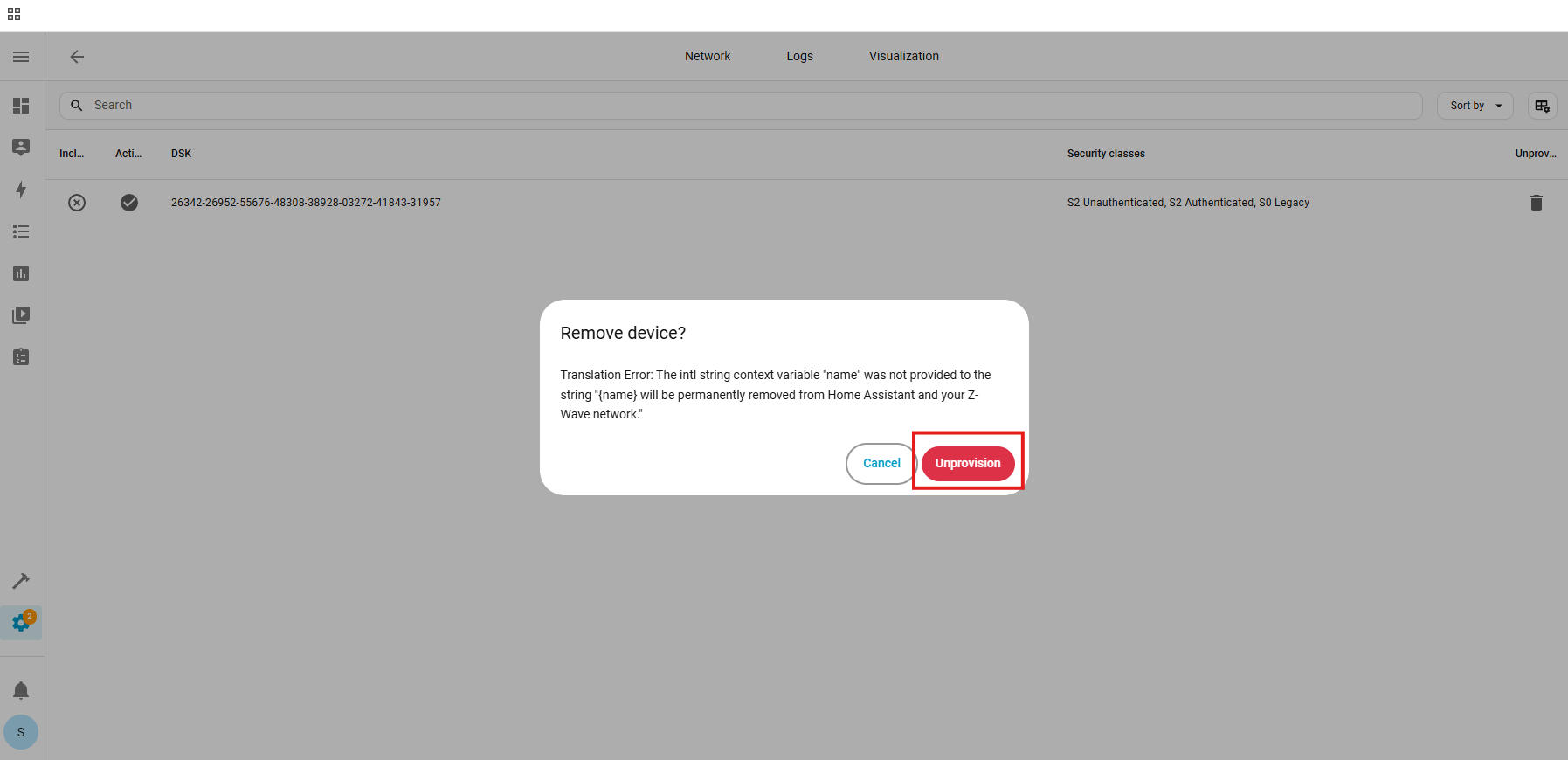
The device has now been removed from the provisioning list.
2. Factory reset the ZEN37. After a successful reset, the device will disappear from the device list.
3. Go through the inclusion steps listed here to include the device.
- Since you have now activated the device and you now want to use SmartStart or to include the remote via Z-Wave Long Range, you will need to ensure you are running at least base firmware 2.10. Once confirmed, you can scan the QR code and press any button on the ZEN37. This will re-set the broadcasting interval clock to allow the remote to be included via SmartStart.
If that didn't work, here are some troubleshoots we find helpful:
- Try the exclusion process again! It's possible the exclusion commands from the first run weren't registered correctly.
- If you attempted to add the Wall Remote Switch in Secure Mode initially, try adding it again in non-secure mode to rule out any configuration issues related to security levels.
- Double check that the switch is powered: you should see the LED indicator react to paddle presses.
- Try bringing the switch closer to the hub, especially if there was a large distance initially. If you have a hand-held secondary controller, this would be the time to bring it out! If the switch connects from the new spot, it's likely that the original location was out of range or there was some type of interference in that location.
- And if you find that your switch is connected but it's not responded to remote commands, check out these tips for troubleshooting connectivity.
If you've tried all the above with no luck, let us know! Our team is ready to help.

