

Setting up a virtual 4-way on Hubitat lets you pair three Zooz switches or dimmers to control the same light—without needing a wired connection between the switches. In this setup, the main switch or dimmer is rewired as a single pole, while the remote units connect to power, neutral, and ground only.
There are three ways to program this configuration: Direct Association (recommended), Central Scene, or Rules (scenes).
-
Direct Association allows the switches to communicate directly outside of the hub—ideal when both are added via the standard Z-Wave mesh network (this will not work for switches that are included using Z-Wave Long Range).
-
Central Scene relies on hub communication and scene commands, a perfect choice when using Z-Wave Long Range.
-
Rules/scenes are the last option, and only recommended if you're using a hub that does not support Direct Association or Central Scene. This guide walks you through all methods, so you can choose the best fit for your setup.
Please ensure you have followed the correct wiring diagram for the virtual 4-way. There cannot be a wired connection between the smart switches.
1. Direct Association (Recommended)
IMPORTANT NOTES
-
Custom Driver: Hubitat does not natively expose Z Wave direct association settings in most built in drivers, so configuring association groups requires a custom driver. We have the driver code and instructions on installation in our Knowledge Base. We've linked the dimmer and on/off switch drivers for you: Dimmers: Hubitat Dimmer Custom Driver. On / Off Switches: Hubitat On/Off Switch Custom Driver.
-
Mesh vs Z-Wave Long Range: Direct Association can only be used when the switches are included to the hub using the standard Z-Wave mesh protocol. Z-Wave Long Range by nature does not allow for device-to-device associations.
-
Security: Devices that will be associated must always be included to the hub with the exact same level of security. All devices in the association must be using S2A, S2U, or no security.
Our unique programming design allows our switches to be directly associated while still maintaining the correct status on each switch. Direct Association allows the switches to be linked together and communicate outside of the hub. Your Z-Wave system needs to support this feature and both switches need to be added to your hub with the same level of security via the mesh (no ZWLR).
We recommend that you use the ZEN71 On/Off switch, ZEN72 Dimmer, ZEN75 Heavy Duty Switch, ZEN30 Double Switch, ZEN32 Scene Controller, or ZEN35 Scene Dimmer models with the latest firmware for this scenario and program them according to the instructions below for the best experience. The ZEN77 (as well as the ZEN73, ZEN74, and ZEN76 can be used in the virtual set-up, but we would recommend these units be wired in the main box with the direct connection to the load as you'll see in our examples below).
To start, we recommend checking the firmware version on your dimmer/switch. The instructions are simpler if you are using firmware higher than 3.30; if your unit is a hardware VER 3.0, please update your unit to the latest available firmware for your hardware version before programming the association.
Dimmer/Switch Settings/Parameter Instructions
-
Main dimmer or on/off switch (connected to load): No changes in settings
-
Remote dimmer or on/off switch (not directly wired to the load): no changes in settings (as long as you are on firmware higher than 3.30).
- If you have an earlier firmware, you will need to set Parameter 7 to value 11 (ONLY if your firmware is earlier than 3.30; this will break the direct association if used on firmware 3.30 or later.
Set the Association
On/Off Switches:
Set the association for Group 2 (Basic Set On/Off) only, adding the device ID's for the other switch in the group. So, if switch A is your main switch and switch B and C are your remote switches, add switches B & C to Group 2 on switch A, add switch A & B to Group 2 on switch C, and add A & C to Group 2 on Switch B.
A: B & C to Group 2
B: A & C to Group 2
C: A & B to Group 2
-
IMPORTANT: The remote switches can then only be used from the paddles (you need to hide them in your interface not to trigger them via Z-Wave) while any Z-Wave or wireless control of the light needs to happen from the main switch A. This will ensure all devices stay in sync at all times.
Dimmers:
Set the association for Group 3 (Multilevel Set) only, adding the device ID's for the other dimmers in the group. So, if switch A is your main dimmer and switch B and C are your remote dimmers, add B & C to Group 2 on dimmer A, add A & B to Group 2 on dimmer C, and add A & C to Group 2 on dimmer B.
A: B & C to Group 2
B: A & C to Group 2
C: A & B to Group 2
-
IMPORTANT: The remote dimmers can then only be used from the paddles (you need to hide them in the UI not to trigger them via Z-Wave) as any Z-Wave or wireless control of the light needs to happen from the main dimmer A. This will ensure all devices stay in sync at all times.
In our below example, we're using the ZEN76 On/Off Switch as the main switch (directly wired to the load: this is the only recommended way to utilize the ZEN76 in the virtual installation if you need to) with the ZEN71 On/Off Switch and the ZEN75 Heavy Duty Switch in the remote boxes (connected to power line, neutral, and ground only).
In the control panel, ensure the three devices you are associating are included with the exact same level of security, and that all are included via the mesh network.
1. First, you'll need to get the device ID's for both switches / dimmers. Click Devices > DNI column. Save these numbers, as you will utilize them in the next steps.
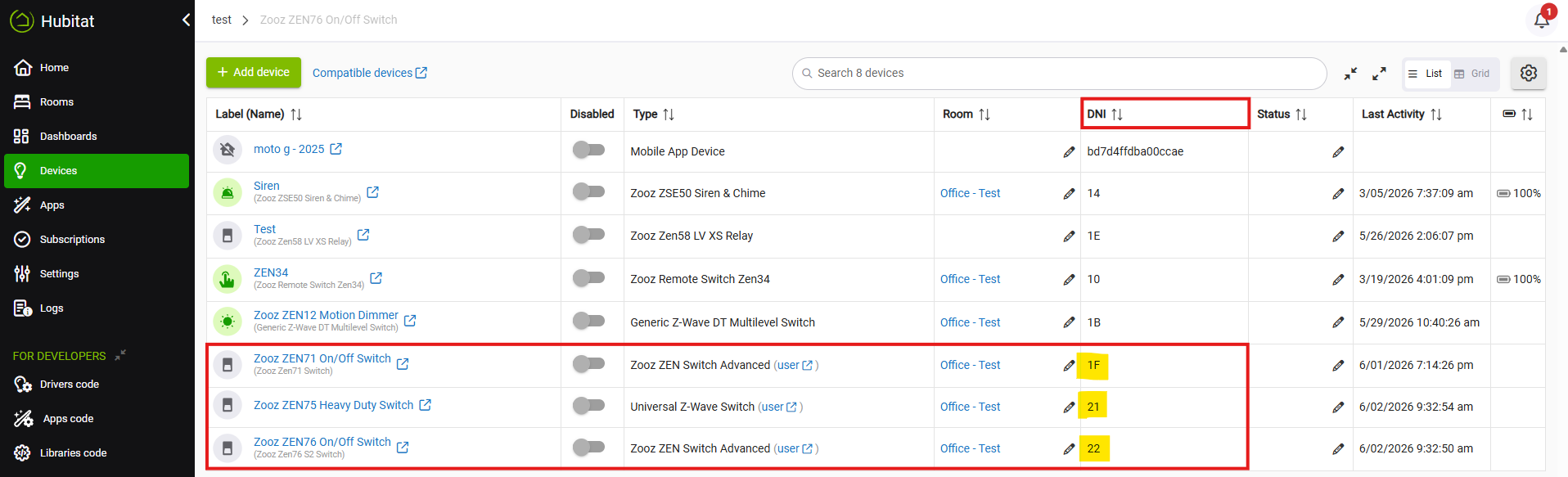
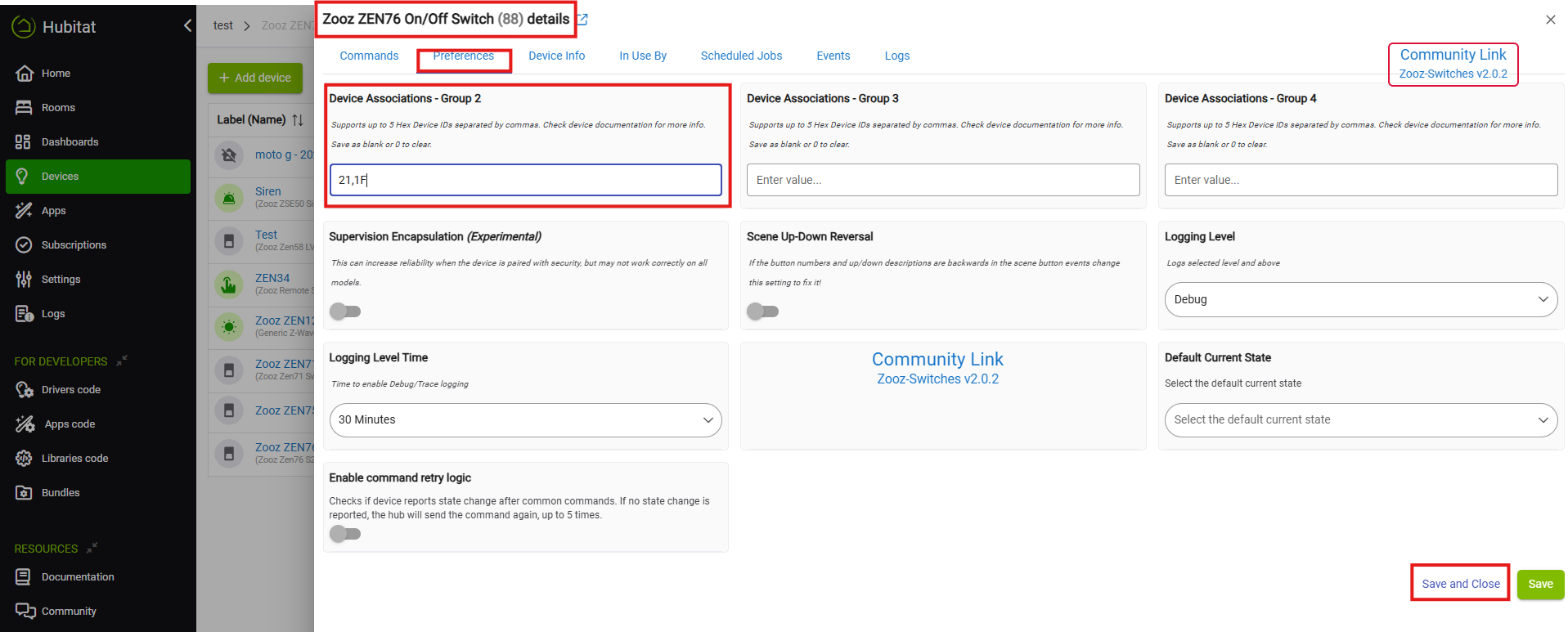
2. Go back to the devices screen and select your main switch / dimmer (ZEN76 in this example) > Preferences > scroll down until you see the Device Associations Groups.
If you have a dimmer, you will add the Device ID from the remote dimmers in Device Associations - Group 3. Since we're working with on/off switches in our example, add the Device ID's from your remote switches from step 1 into Device Associations - Group 2 > Save and Close.
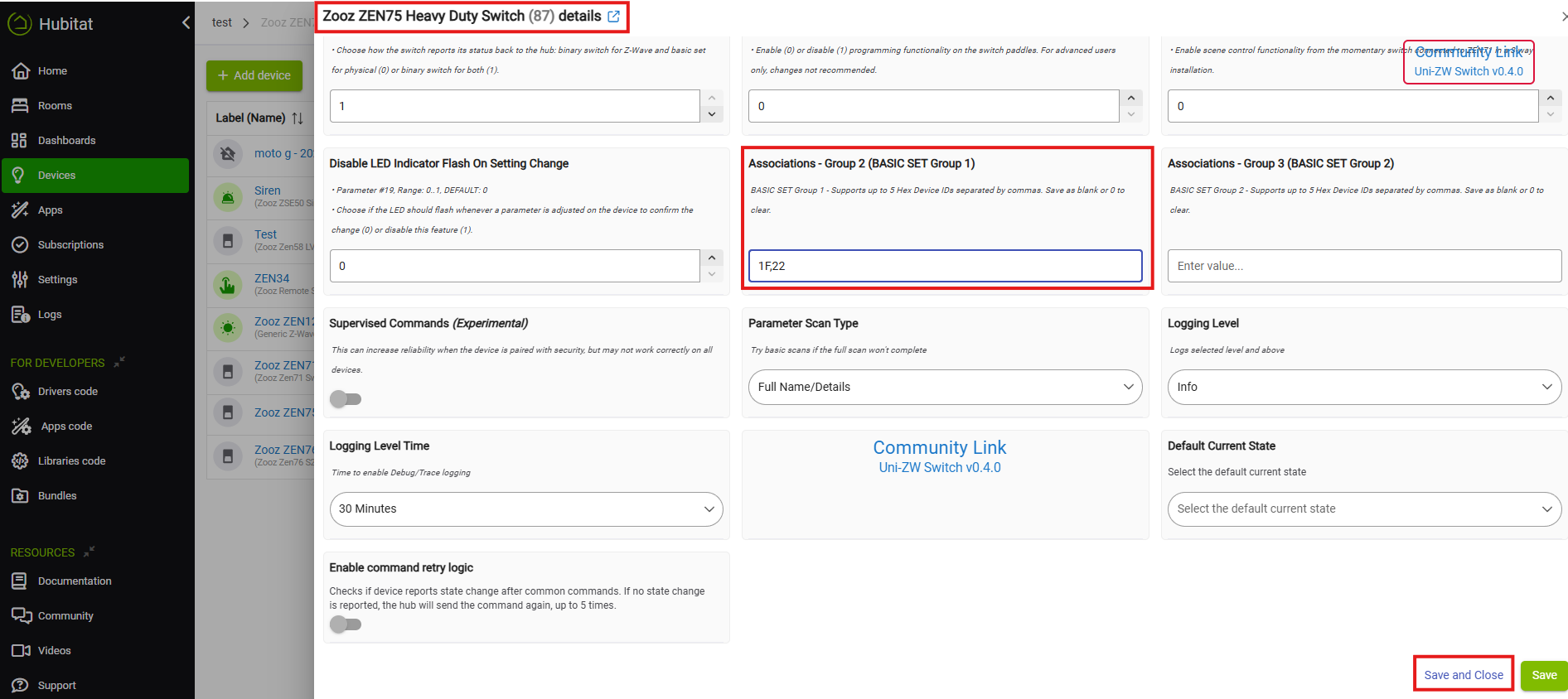
3. Repeat for your first remote switch dimmer, adding the main and second remote switch/dimmer to the association group (Group 2 for on/off, Group 3 for dimming). Here we're starting with the ZEN75 (remote) and adding the Device ID for the main switch (ZEN76) and the second remote switch (ZEN71).
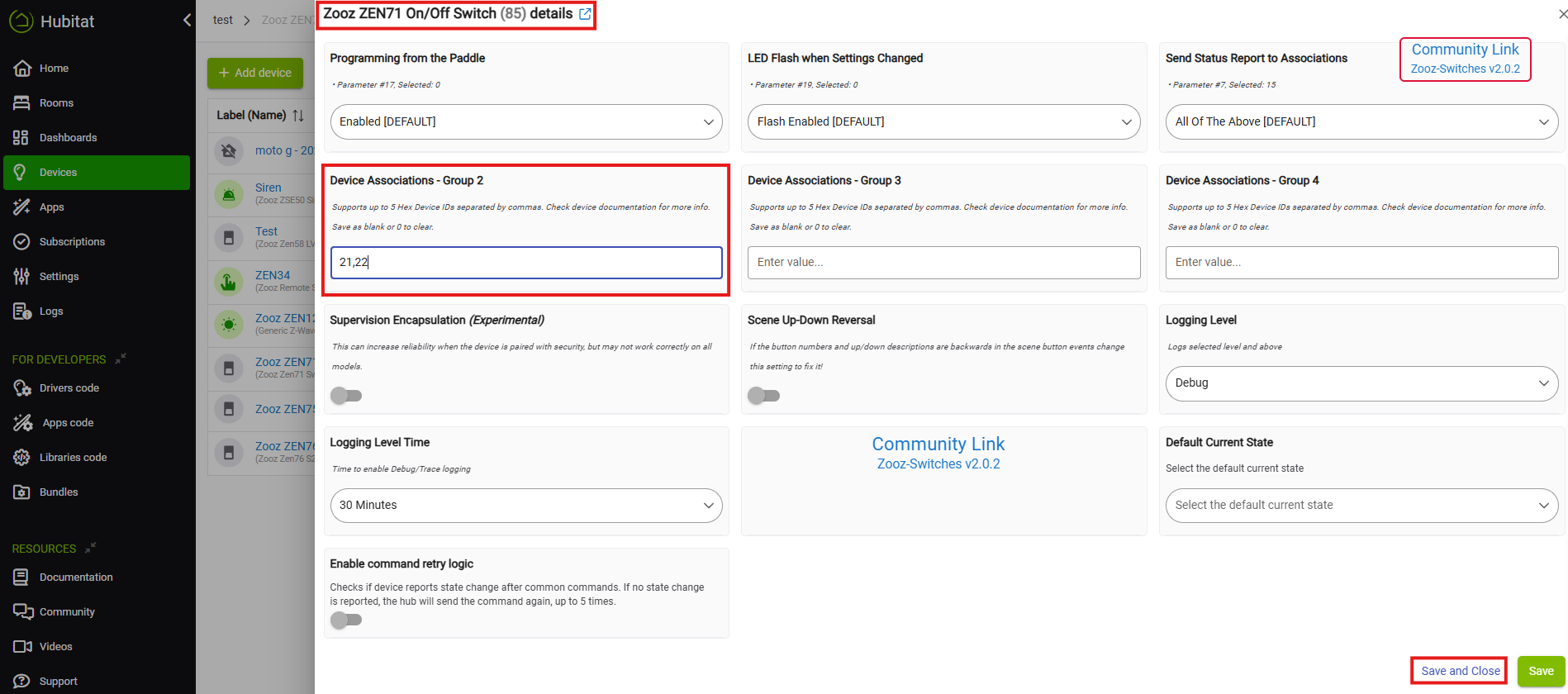
4. Repeat for the last remote switch/dimmer, adding the main and first remote switch dimmer to the association group (Group 2 for on/off, Group 3 for dimming). Here we're finishing with the ZEN71 (remote) and adding the Device ID for the main switch (ZEN76) and the first remote switch (ZEN75).
That's it! You can now control the light from all locations in your virtual 4-way.
2. Central Scene
This option uses Z-Wave’s built-in command structure. When you tap, double-tap, or hold a switch button, the switch sends a Central Scene notification directly to the hub. The hub interprets these commands and executes the linked automations, such as turning another switch on or dimming a light. Central Scene programming happens at the protocol level—it’s part of the Z-Wave standard—and doesn’t require you to manually build multiple automations for each possible action. However, in a virtual 4-way the switches themselves don’t stay perfectly synchronized because the LED indicators rely on local device states, not hub commands. Central scene uses the status reported by each switch.
This option would be selected if your switches are included to your hub via Z-Wave Long Range.
Important Notes
-
This type of communication between the devices requires that your hub is active and operational.
-
The paddle on your switch will now be treated like a button on a remote control that's pressed or held - it will send only this information to the hub and should not be treated as an additional on/off device with its own status.
-
After you add the switch to the hub, you need to go to the advanced settings to enable scene control on your device (it's disabled by default). If you don't change the setting first, your programming won't work.
When creating a virtual 4-way setup using Central Scene programming, only the remote switches need to have Scene Control enabled—the ones that aren't directly connected to the load.
The load switch (in the below example, a ZEN76 wired to the light) already controls the light locally. When you press its paddle, it turns the connected load on or off directly through wiring, so there’s no need for it to send scene commands. This switch will simply receive on/off or dim commands from the hub when the remote switch is used.
The remote switches (in the below example, a ZEN71 and a ZEN75 that are powered but not wired to the light) are the ones that must have scene control enabled. Because they don't have a load connection, they rely on Central Scene notifications to tell the hub what action should occur. The hub then runs an automation to control the load switch accordingly.
Example setup:
-
Scene 001 (upper paddle single press) → triggers a hub automation to turn the ZEN76 on
-
Scene 002 (lower paddle single press) → triggers a hub automation to turn the ZEN76 off
If you're using dimmers, you can also configure dimming from the remote switch by holding and releasing the paddle and using Start Level Change and Stop Level Change commands.
In short:
-
The remote (no load) switches → Scene Control enabled.
-
The load-connected switch → Scene Control disabled. You can have this enabled if you prefer to use this for other multi-tap options, it simply isn't required in the below virtual 4-way example.
-
The hub manages the logic, translating scene events into load actions.
This method allows full virtual 4-way functionality even when Direct Association isn’t available, such as when the switches are included via Z-Wave Long Range.
Programming Steps
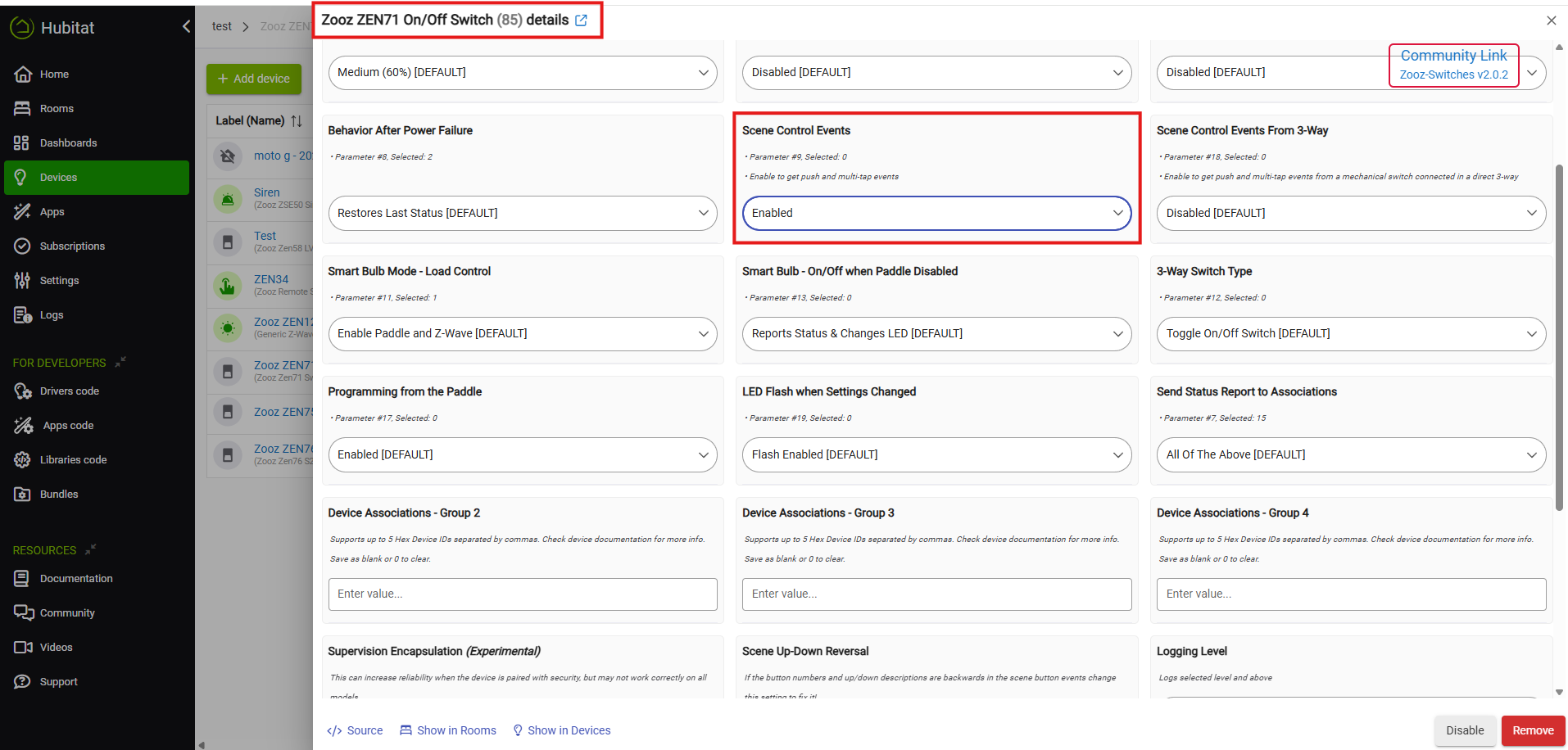
1. Enable scene control on the first remote (no load) switch / dimmer. Devices > ZEN71 > Preferences > Enable Scene Control Events.
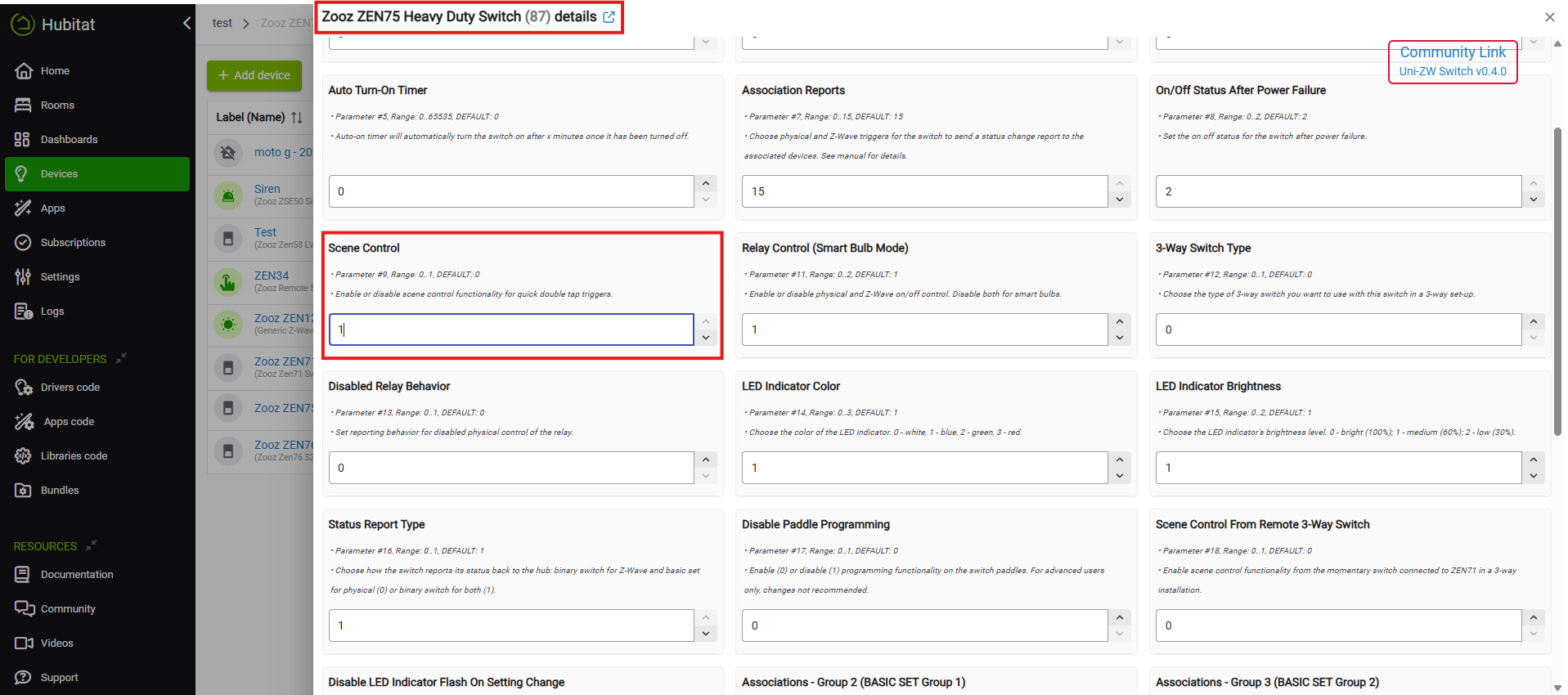
2. Enable scene control on the second remote (no load) switch / dimmer. Devices > ZEN75 > Preferences > Enable Scene Control Events.
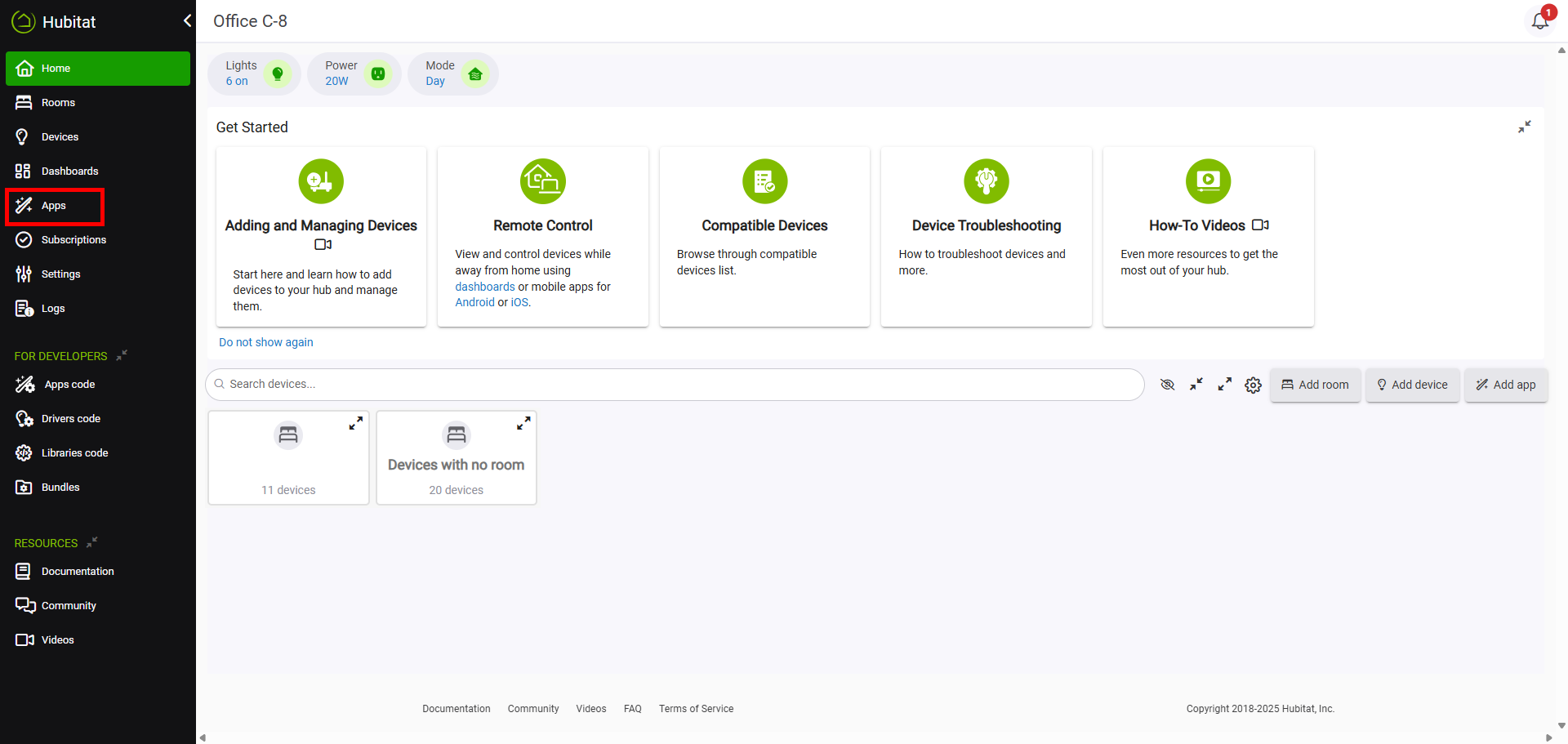
3. Click on Apps in the left side menu.
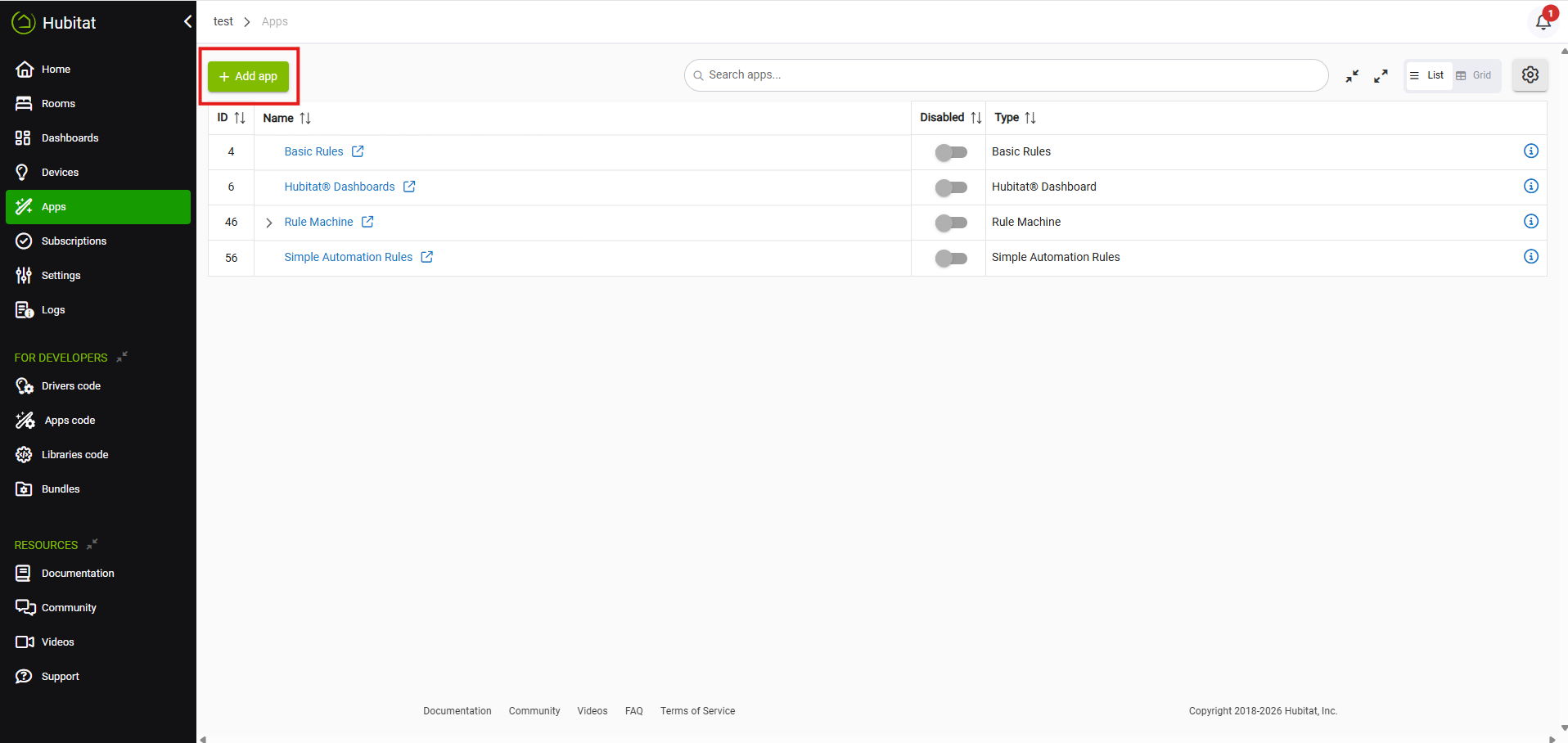
4. Click on "+ Add App" in the top left corner.
5. Select Simple Automation Rules.
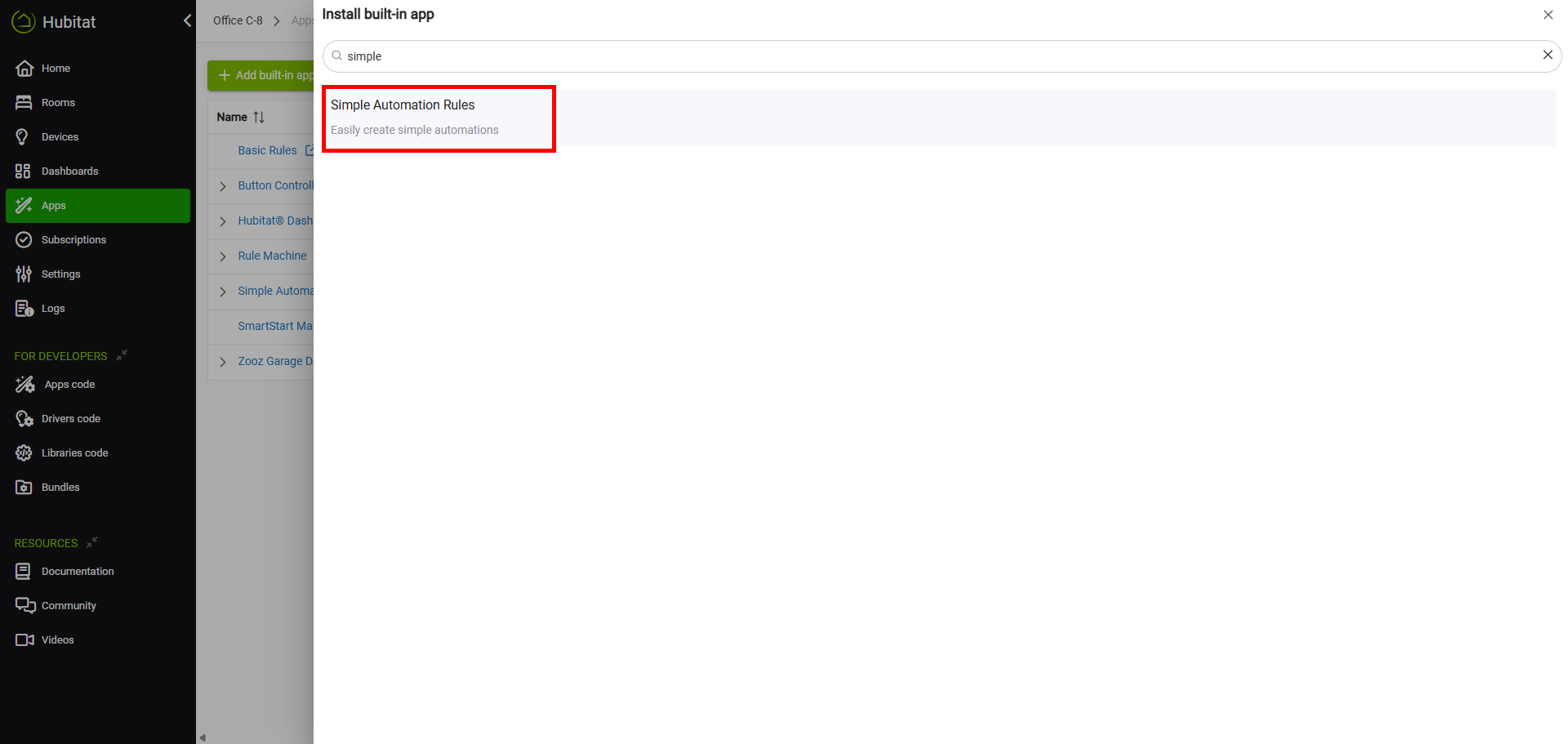
6. Click on the Simple Automation Rules app under Apps now that you've added it.
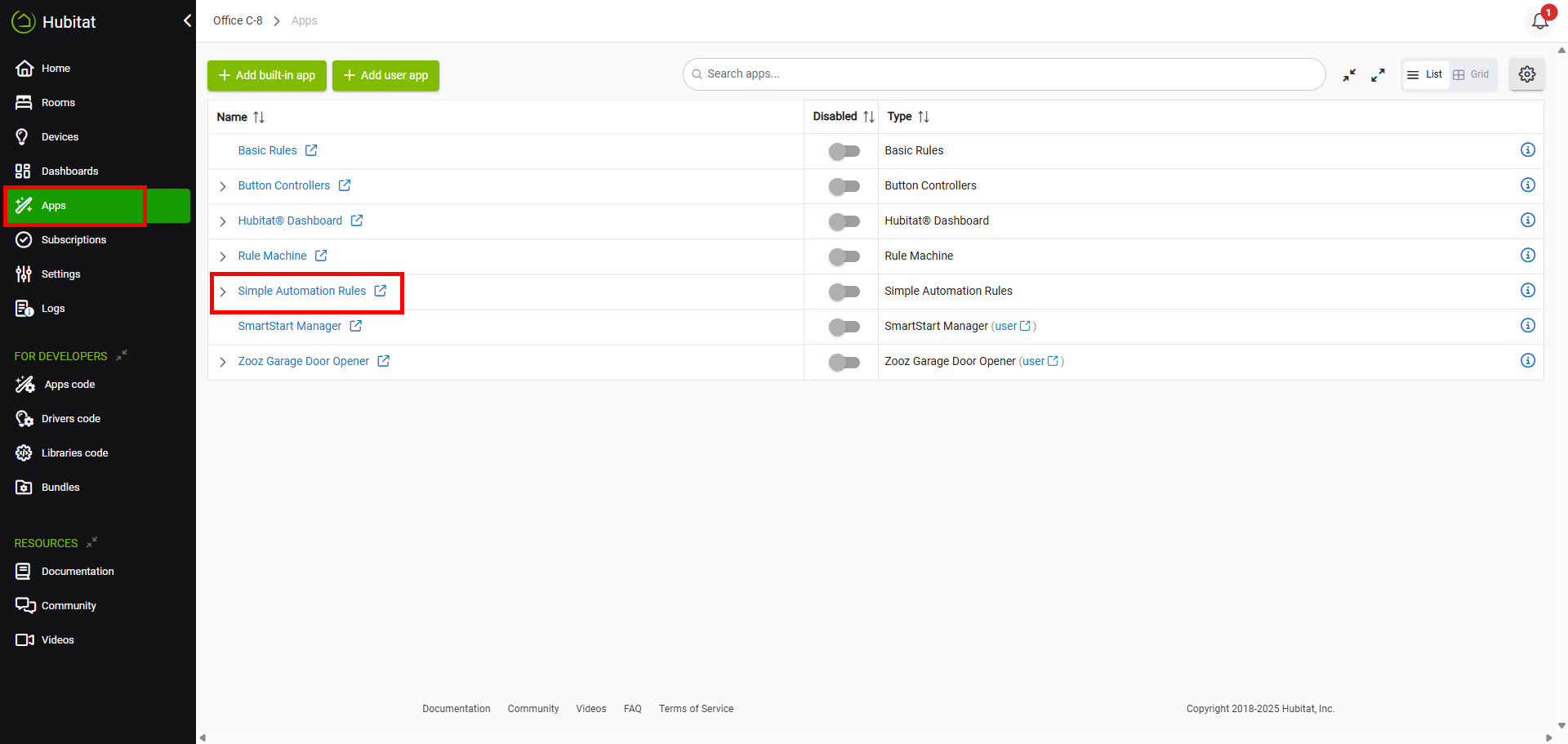
7. Click on Create New Simple Automation Rule.
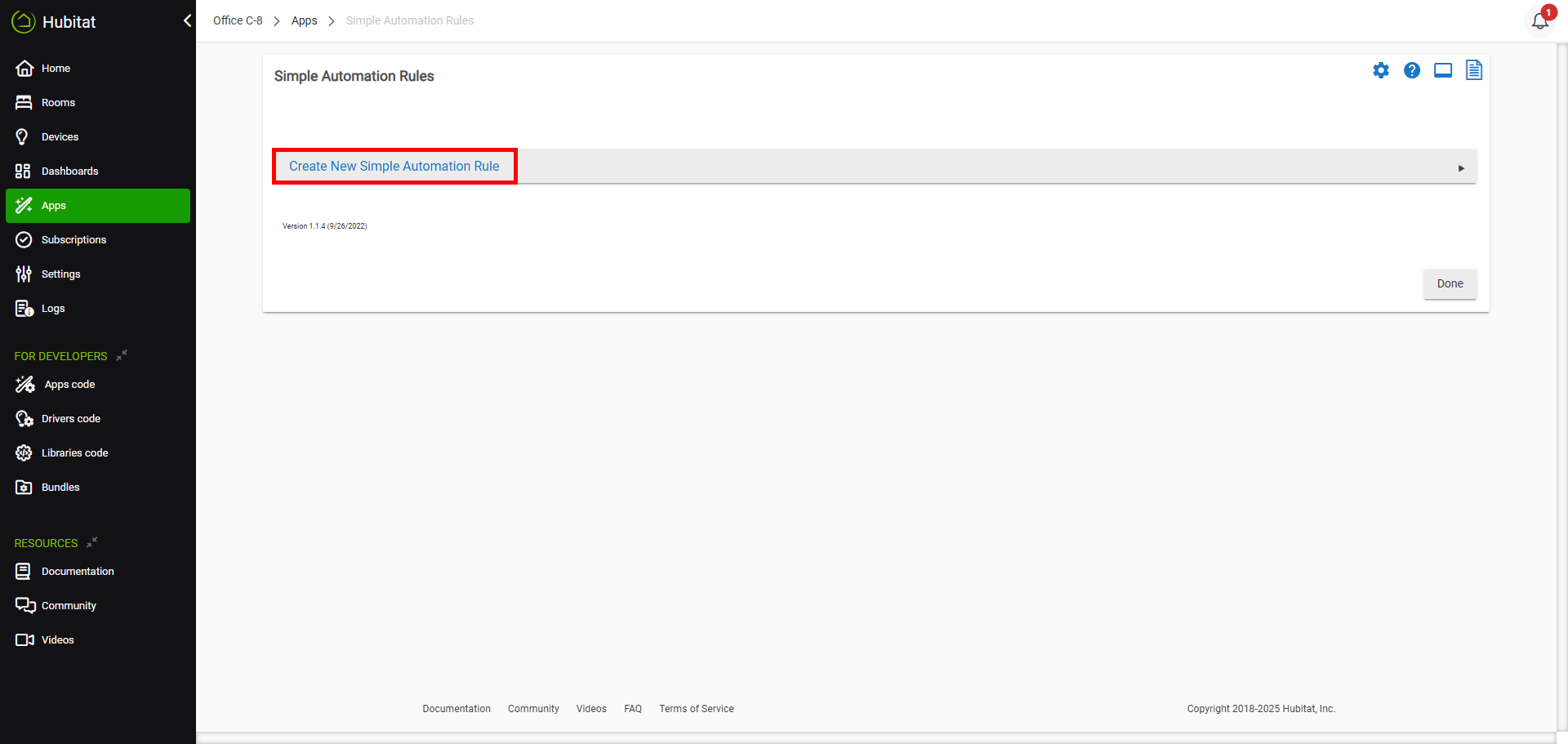
8. Which lights do you want to automate?: Select your main switch / dimmer here > click Update.
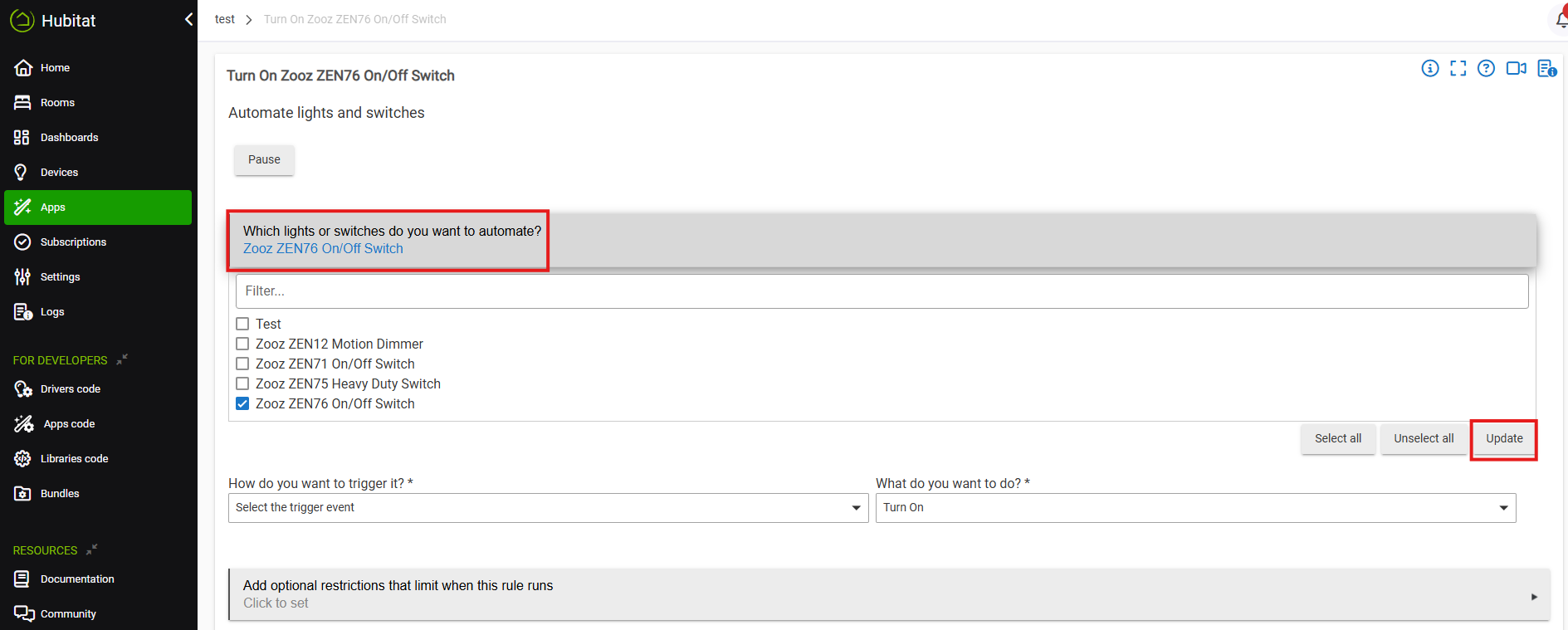
9. How do you want to trigger it?: select Button Pushed/Held
What do you want to do?: Turn on
Which button?: 1 (this is the upper paddle on any Zooz paddle switch)
Turn on when?: Pushed
Click Done.
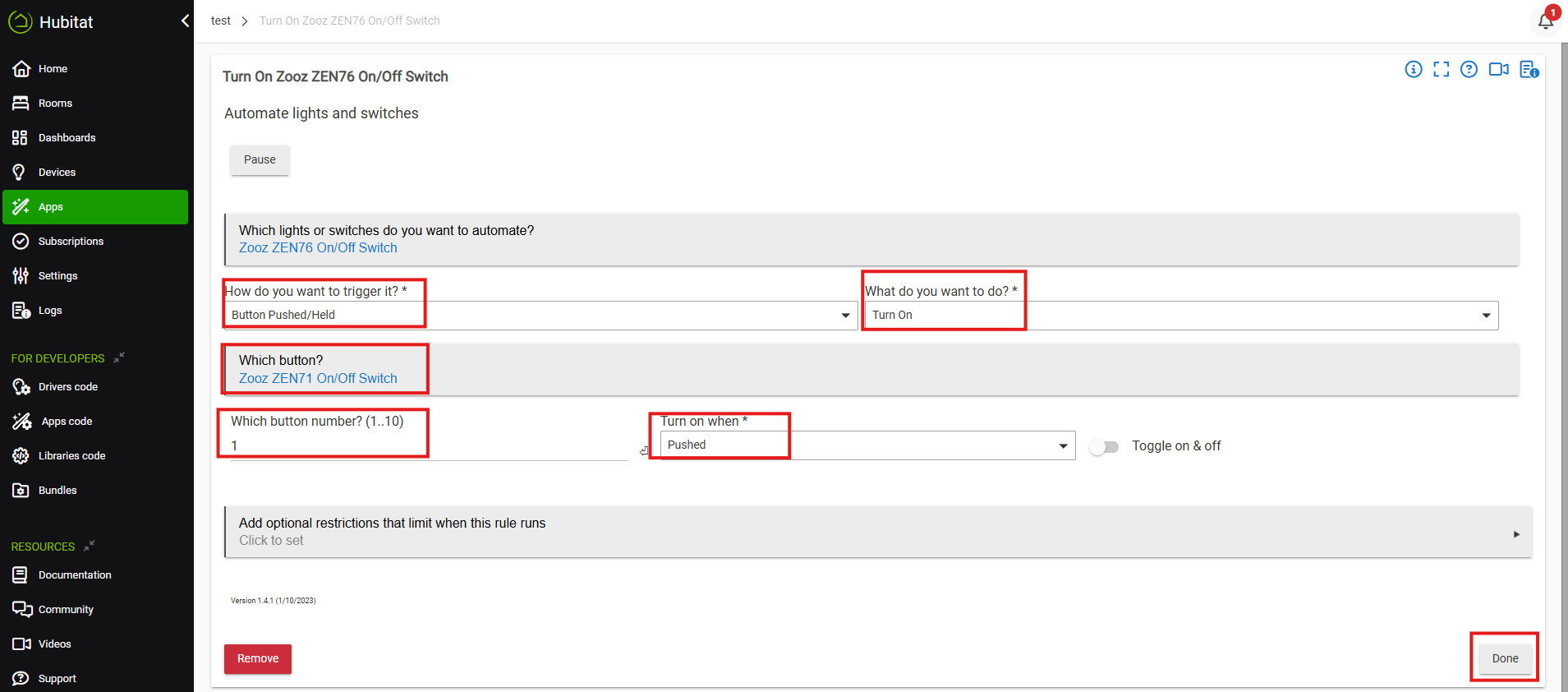
10. Repeat, now using button 2 on the remote ZEN71 to turn off the main ZEN76:
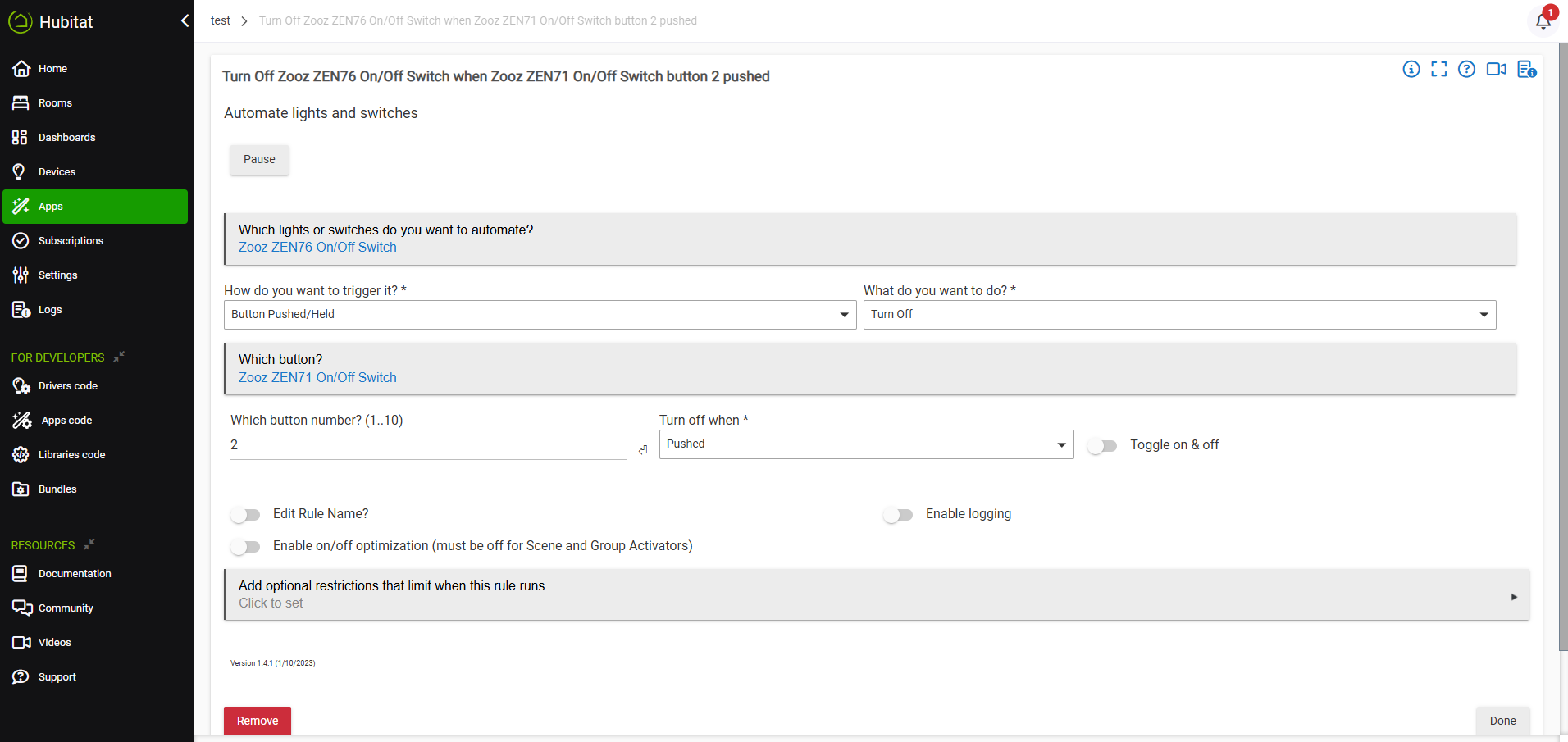
11. Repeat for the second remote switch / dimmer (ZEN75):
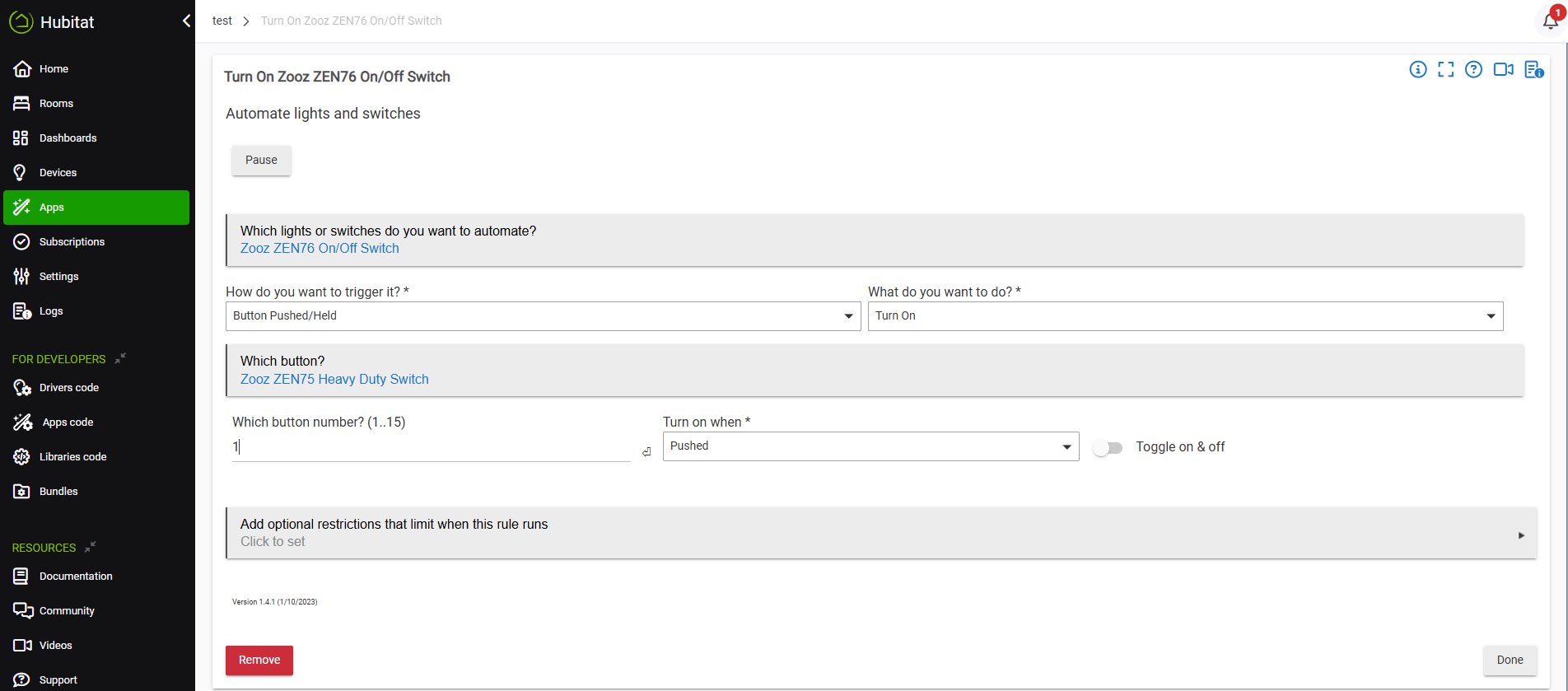
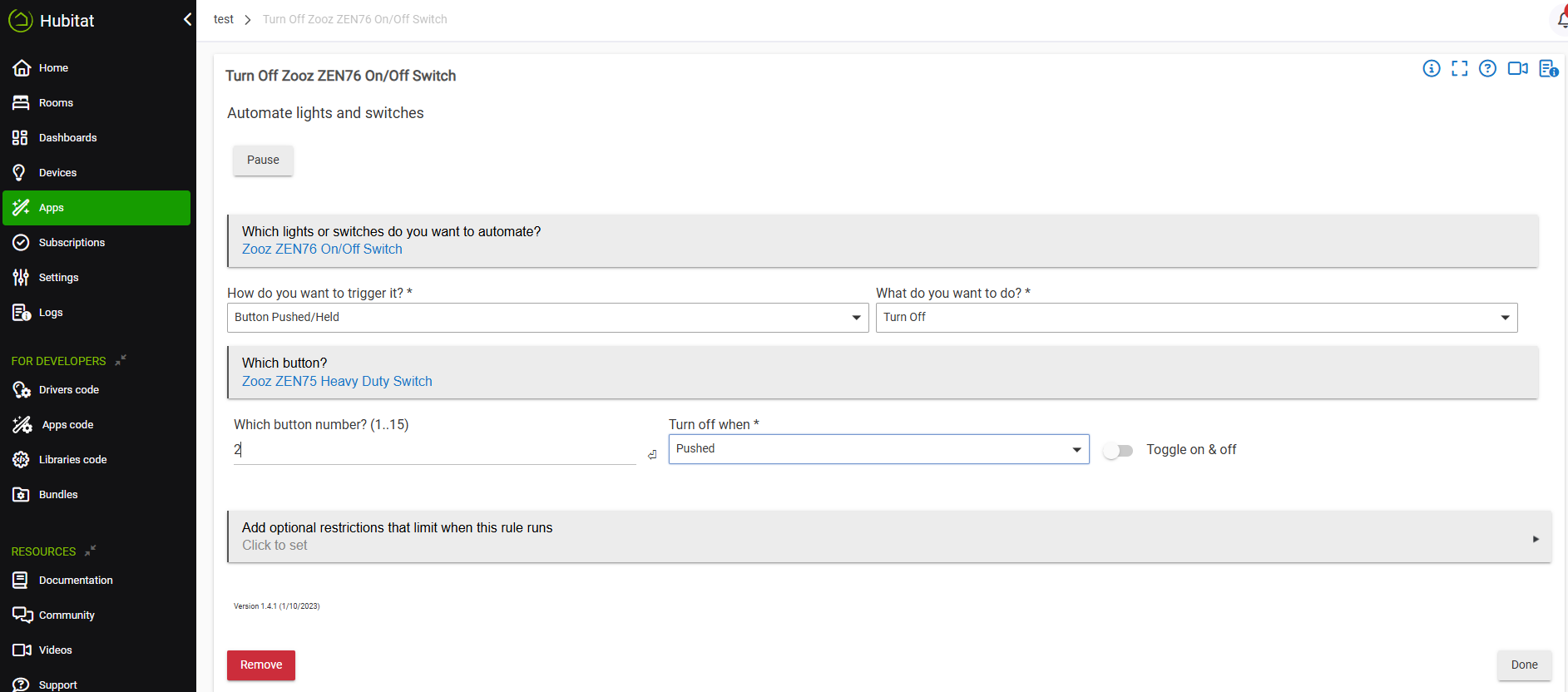
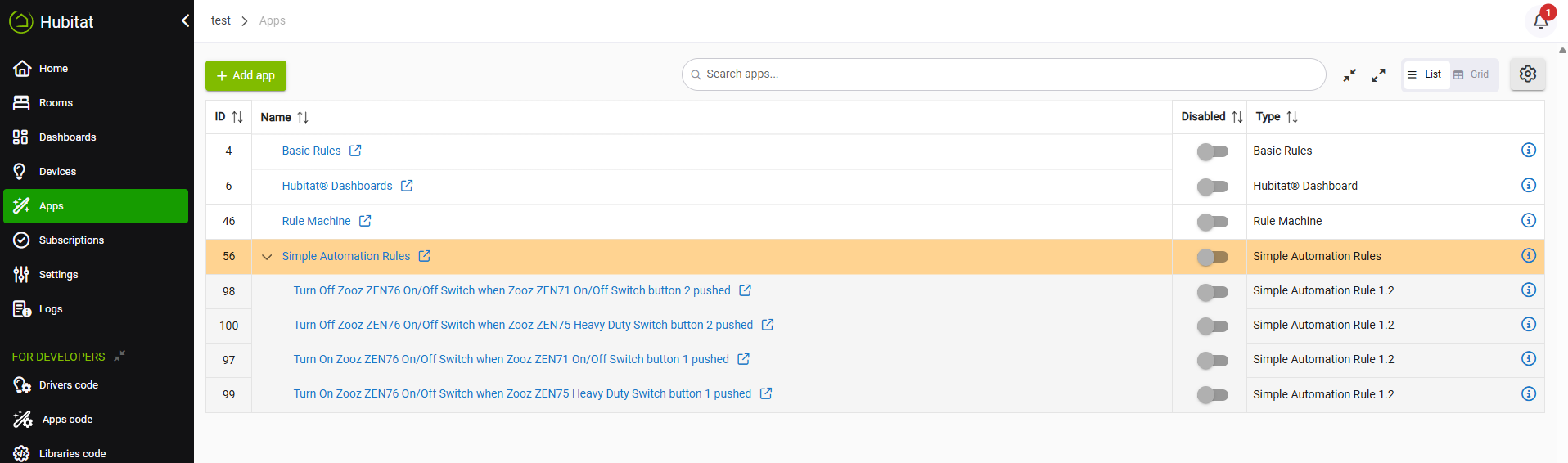
12. You'll see 4 new central scene automations and can now control the light from any switch in the virtual 4-way:
3. Smart Rules
In most interfaces, this is simply called scenes. This is a higher-level automation feature managed entirely by the hub. Instead of using Central Scene commands, you manually define a set of actions for each event—turn this device on, set that one to 50%, etc. To make three switches behave like a 4-way, you’d typically need six separate scenes: one for turning on from switch A, one for turning off from A, one for turning on from B, one for turning off from B, one for turning on from C, and one for turning off from C. While this keeps all switches and their LED indicators synchronized, it generates more Z-Wave traffic and adds complexity, since every state change must be processed by the hub and distributed to all devices involved.
Since Hubitat supports Direct Association and Central Scene, these methods are recommended and Smart Rules would be used as a last resort, unless you require the switch LED indicators to be synchronized. If you cannot use Direct Association if your switches are included via ZWLR and you require the LED indicators to be in sync, then you would use Smart Rules. With Central Scene, the LED indicators will not be in sync because the LED indicators rely on local device states, not hub commands. Smart Rules would keep the LED indicators in sync, but cause more Z-Wave traffic.
-
If switch A is turned on, then turn switch B & C on.
-
If switch A is turned off, then turn switch B & C off.
-
If switch B is turned on, then turn switch A & C on.
-
If switch B is turned off, then turn switch A & C off.
-
If switch C is turned on, then turn switch A & B on.
-
If switch C is turned off, then turn switch A & B off.
Programming Steps
The Rule Machine app works well for smart rules. You can follow steps 2-3 above in the Central Scene instructions to download a new app and install Rule Machine.
You'll set up 6 rules as noted above, and we've done two as an example for you below. Rules use the status of each device as the trigger, so if the ZEN71 is turned on, turn on the ZEN76 / ZEN75 and vice versa:
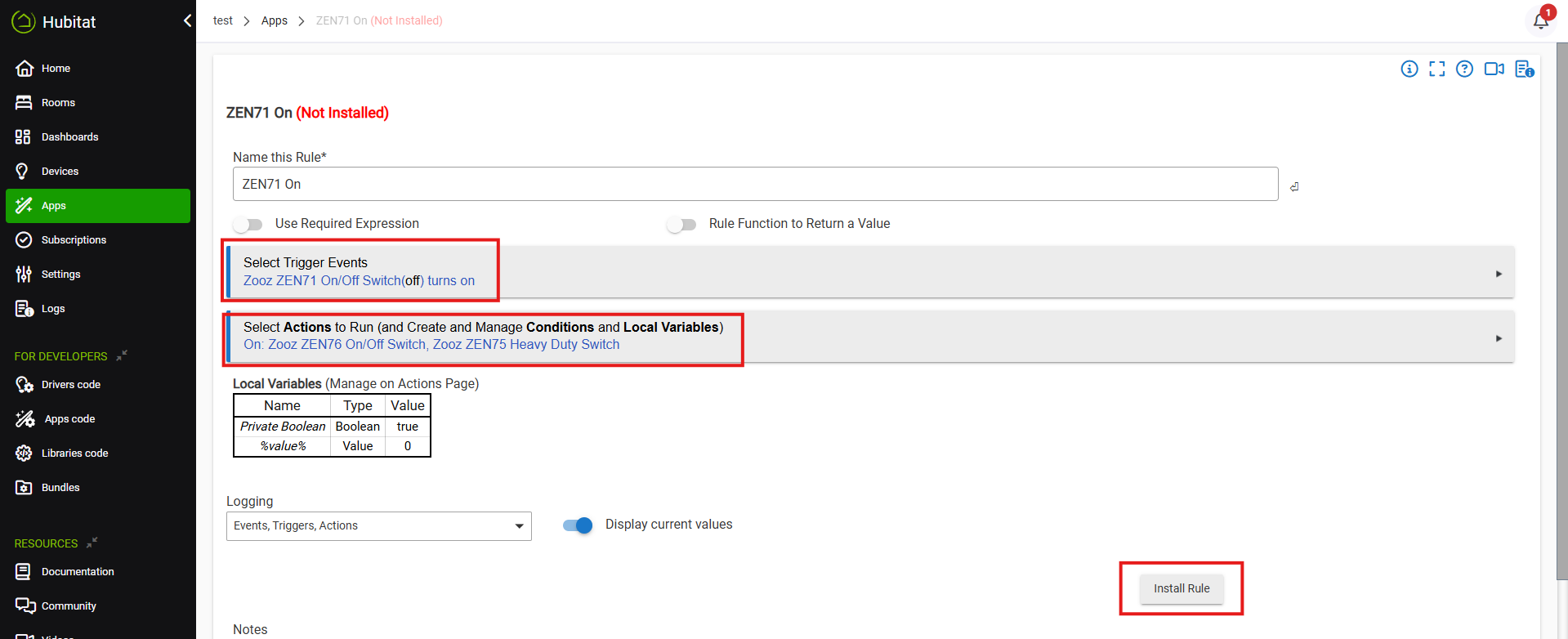
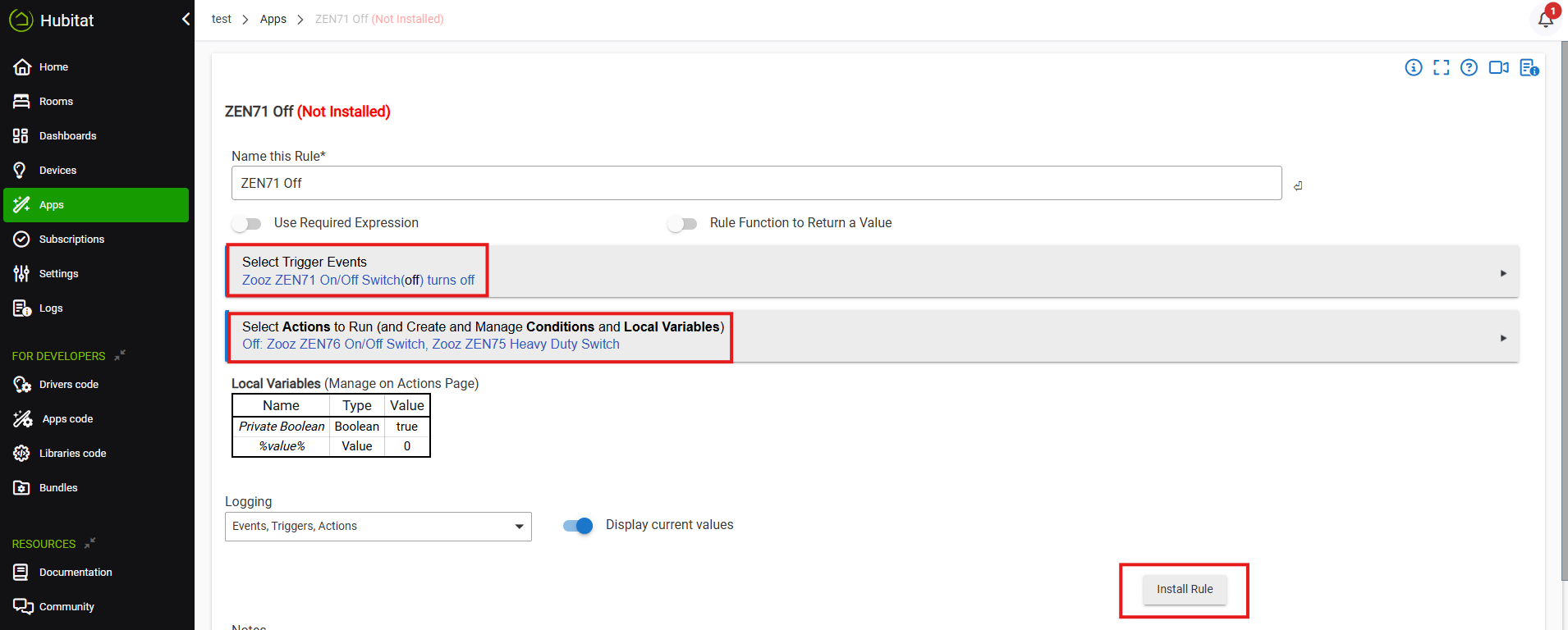
You'll end up with 6 new automation rules based on the status of each switch. You can now control the load from any switch in the virtual 4-way while maintaining swich and LED indicator status.

