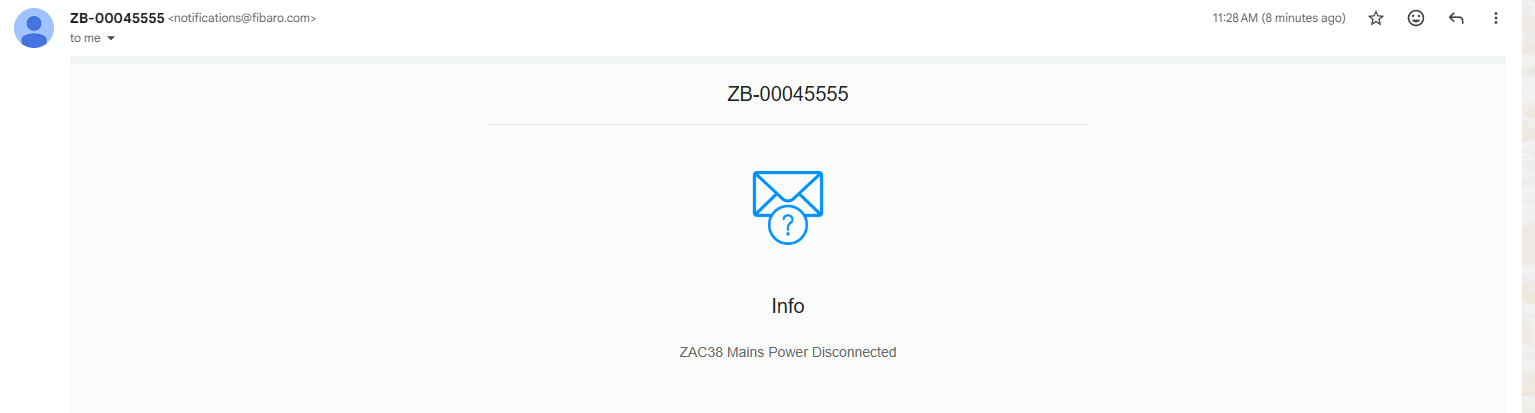
The ZAC38 Range Extender includes a built in backup battery that allows it to continue operating even when mains power is lost. When the device detects a transition from mains power to battery power, it reports this change to the Z Wave network. This power status change can be used by your hub as a reliable event trigger.
In this knowledge base example, we will walk through how to use the power outage event to send a notification to the user. However, the same reported event can be used for any type of automation you want to create. This includes sending alerts, triggering scenes, activating other devices, or combining it with additional conditions in your automation system.
The key concept is that the ZAC38 actively reports when it switches from mains power to battery backup (and vice versa), and this report can be leveraged as a trigger in your hub to build flexible and meaningful automations around power loss events.
Creating a Device Triggered Scene
We cover in detail how to create a device triggered scene in the following article:
How To Create Device Triggered Scenes In Your Z-Box Hub
Finalize the Scene
Steps 1-6 in the article above will get you to the block scene builder with the trigger device in the All of These Are True column.
-
Choose the location: Office in this example
-
Select the device: ZAC38 Range Extender
-
Choose the trigger: Notification: Power Management
-
Choose which trigger: AC mains disconnected
This sets the trigger as the ZAC38 reporting a disconnection from mains power.
Next, in the far right column, you can use any of the listed boxes for the action part of your scene. In our example below, we've elected to send an email notification to the admin with a custom message.
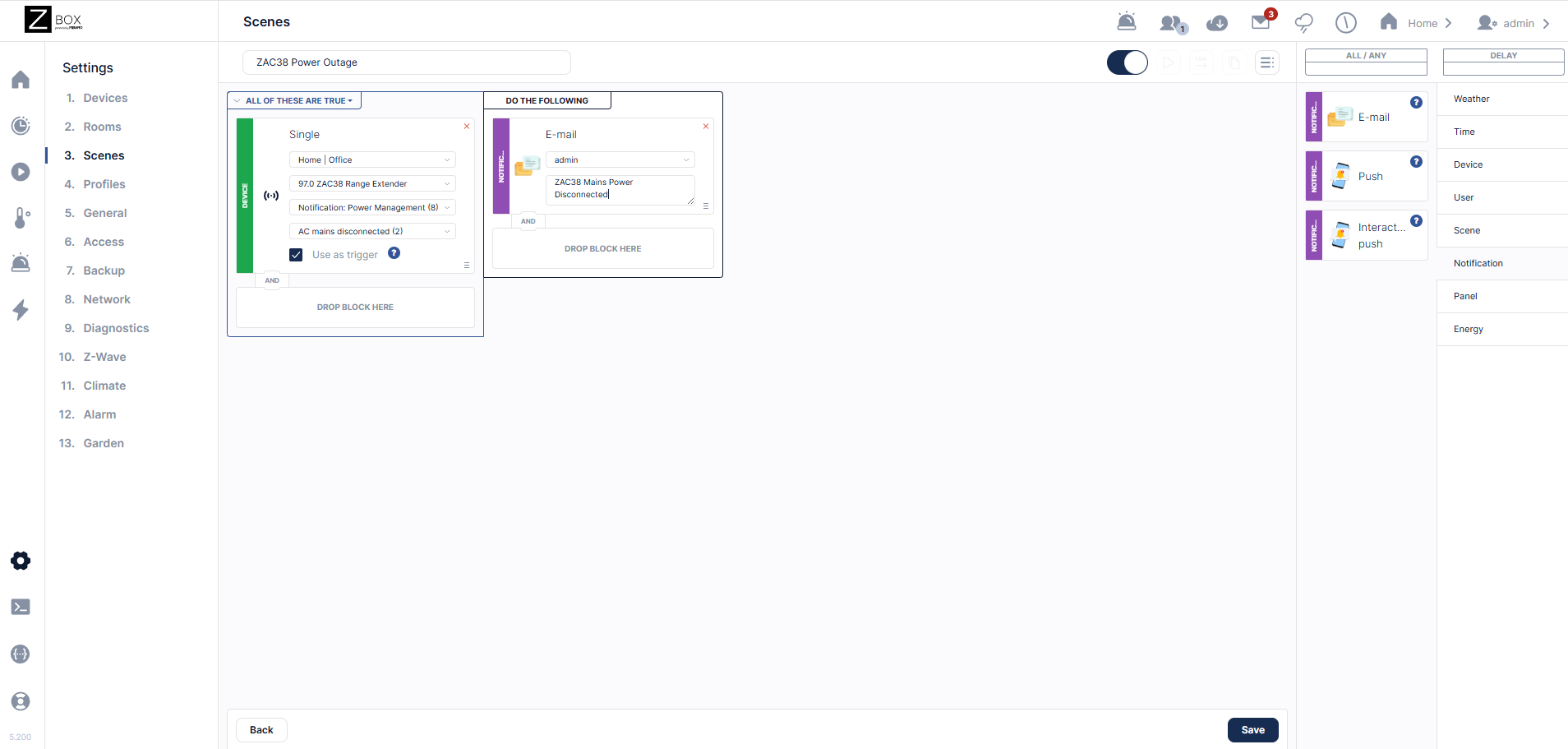
Click Save when you're done. Now, whenever the ZAC38 is disconnected from mains power, you will receive an email notification with your custom message: