


Ready to make your smart home even smarter? In this guide, we’ll show you how to connect your ZSE41 Open | Close Sensor to your Telus SmartHome+ system so you can keep an eye on every door and window. You’ll also find quick tips to solve any connection hiccups along the way.
First, ensure you have an active SmartHome+ Automation subscription and have a SmartHome+ Hub.
Get the TELUS SmartHome+ App
Download the TELUS SmartHome+ app and then log in with your My TELUS credentials. You can download the TELUS SmartHome+ app on Apple App Store or Google Play Store.
Set up your TELUS SmartHome+ Hub
Follow the instructions on the TELUS SmartHome+ Hub set up page. If you have already done this, you can start adding your Z-Wave door and window sensors.
Inclusion Steps
-
Log in to the TELUS SmartHome+ app on your mobile device.
-
In the SmartHome+ app, select the + sign in the top right-hand corner of either your Home tab or Devices tab.
-
Select Device on the bottom sheet that appears.
-
Select Third-party devices from the device category list.
-
Select Z-Wave devices from the connection type list.
-
Select Door/Window sensor from the product type list.
-
Scan the ZSE41 Open | Close Sensor's QR code. You'll find the code on the side or back of the packaging, on the device itself, or on some components inside the box. Ensure the QR code is in focus, well-lit and that there are no objects between your camera and the code.
-
Select the installation location. We recommend including your sensor to the Z-Wave network from the location you want to install it before you actually mount it on the door or window frame to ensure a good connection.
-
Open the sensor’s cover and pull the tab from under the battery to activate the sensor.
-
The LED light will start blinking for around 10 seconds once the sensor is powered.
-
Tap Device is ready button at the bottom of the screen. Your device is being added. This process may take up to 60 seconds.
-
After the device has been added, the app will prompt you to name your device. Enter the name you would like to give to your ZSE41 sensor.
-
Select Save in the top right-hand corner to save your changes.
Mount the ZSE41 Sensor
Below, we've included mounting recommendations for both indoor and outdoor installations. Remember that the gap between the sensor and magnet cannot be greater than .25" and all outdoor mounting must be done with the waterproof case.
Indoor Mounting:
-
Check if the gap between the moving part of the door / window and its frame isn’t greater than 0.25”. The magnet will reliably report status change at 0.25” from the sensor.
-
Place the sensor on the moving part of the door / window and the magnet on the frame so that the grey orientation marks on both parts are directly opposite each other. The sensor should report “closed” to your hub. If it doesn’t, move the sensor and magnet closer together.
-
Once you find the correct position for the sensor and the magnet, use the supplied adhesive tape to fix both parts to your door or window. Test the sensor one last time to make sure it reports as expected.
Outdoor Mounting:
-
Install the product outdoors only with the waterproof case (sold separately).
-
Add the sensor to your hub from the area where it will be installed before mounting it.
-
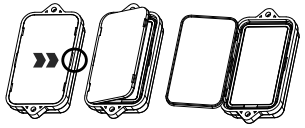
Insert the sensor into the waterproof case, by opening it on the back side as shown below:
Manage Device Notifications
The ZSE41 Sensor will send Open and Closed reports to your Telus SmartHome+ app. These notifications can be managed after setting up the device or in the device settings page. To manage device notifications follow these steps:
-
In the app, navigate to the device page
-
Tap the three dots in the top-right hand corner
-
Select Device settings
-
Toggle device notifications as desired
-
Tap save to confirm your changes
Smart Notifications
Defaults are set to reduce non-critical alerts when Home and increase awareness when Away. Critical alerts always stay on. Home and away modes enable your notifications to respond based on whether someone is home or nobody is. You can switch "Home/Away" modes on your app home screen.
-
Away mode: Most sensors are active. You’ll get alerts if there’s activity or safety concerns while your home is empty.
-
Home mode: Some non-critical alerts are muted, so you get fewer interruptions while someone is home.
Issues adding your sensor to your TELUS SmartHome+ app? Check out the troubleshooting steps here.
Questions? Please don't hesitate to reach out to our team for any device-related questions!

