


Zooz products are officially integrated with the Z-Wave Plus and the Z-Wave JS Front-End of HomeSeer. If you're experiencing issues with accessing the advanced settings of your device or the unit not properly displaying, we would recommend first updating to the Z-Wave Plus or the Z-Wave JS Front-End, then excluding and re-including your device to your network in order for it to be recognized correctly.
Triggering color animation presets is supported via Z-Wave Plus, and we've outlined that below:
How to Trigger a Color Animation Preset
The ZEN56 RGBW Dimmer comes with some fun pre-set Color Animations. Parameter 17 provides options for Fireplace, Storm, Rainbow, Polar Lights, and Police (Strobing Red, White, Blue).
For our example below, we are using the motion-detected state on the Zooz ZSE18 Motion Sensor to trigger the color animation preset for Police on the ZEN56 RGBW Dimmer.
1. In the Z-Wave JS Front-End of HomeSeer, in the top menu, click Events.
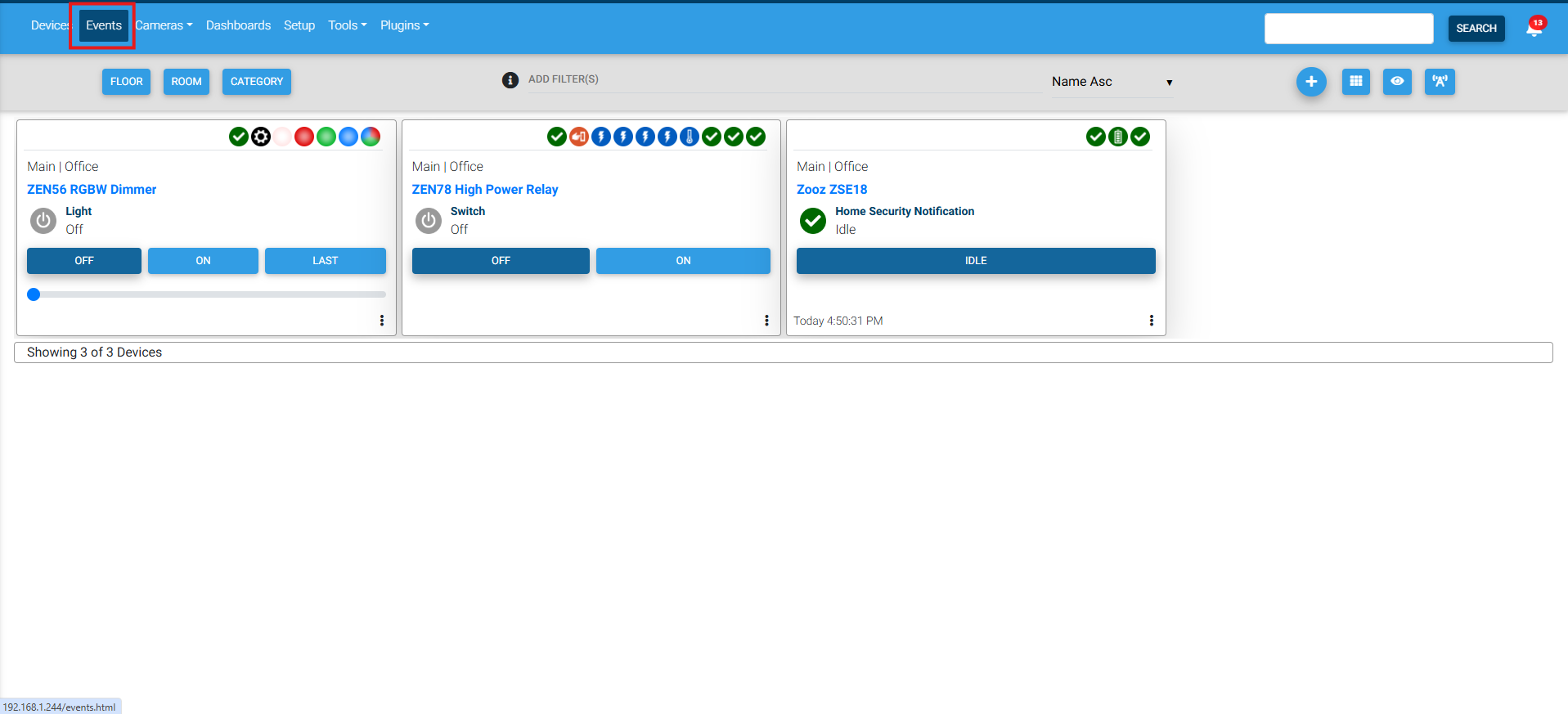
2. Define the Trigger (When) for the event. In the below example, we have the ZSE18 Motion Sensor detecting motion as our trigger event.
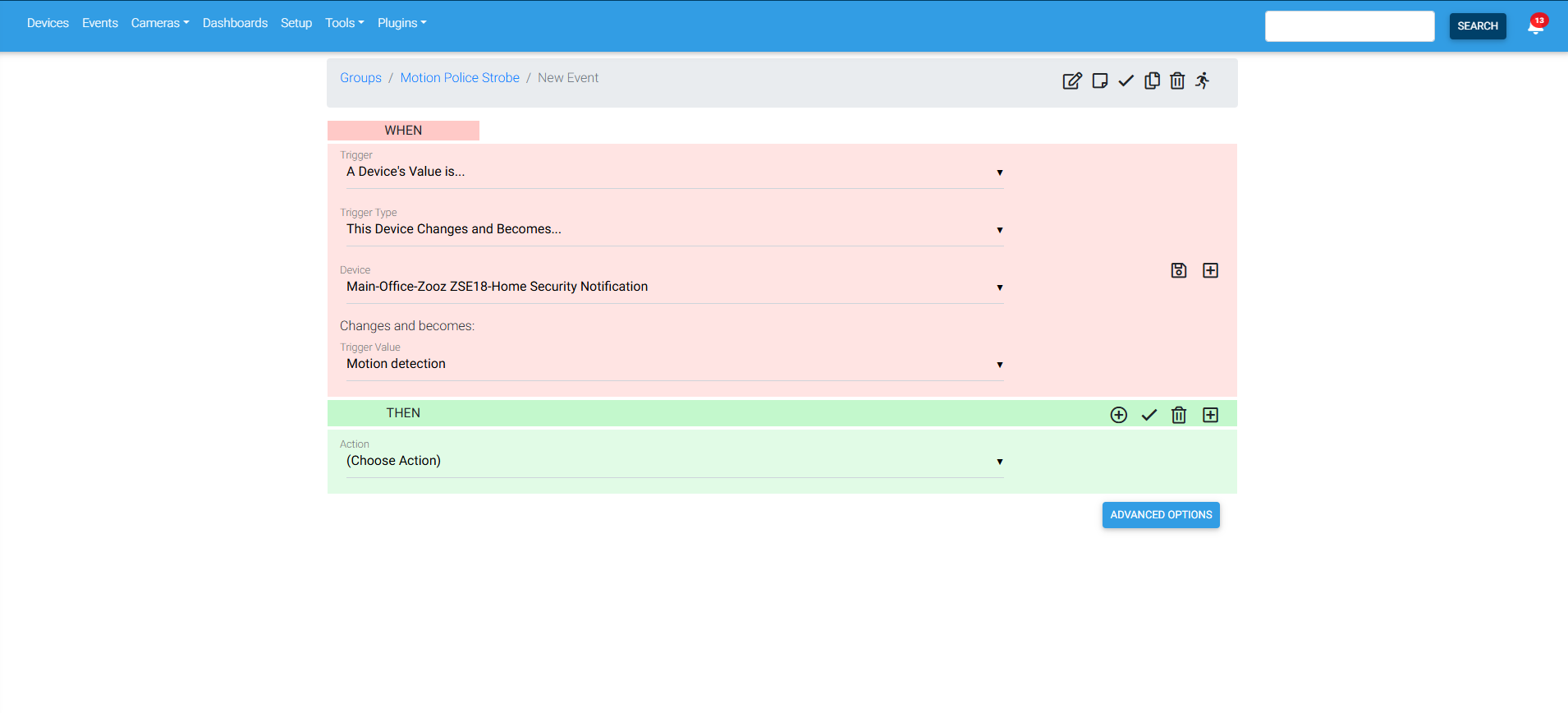
3. In the Then section, we are telling the ZEN56 RGBW Dimmer to turn on the Police Strobe from the Color Animation Presets (Parameter 17 in the Advanced Settings of the ZEN56):
Action: Z-Wave Plus Actions
Z-Wave network: select the Z-Wave network your ZEN56 is on
Z-Wave Plus Action: Set a Configuration Parameter Value
Device: ZEN56 RGBW Dimmer (select main parent device)
Parameter Number: 17
Value Size: 1 Byte
Value: 5
How to Program a Basic Scene with a Custom Color
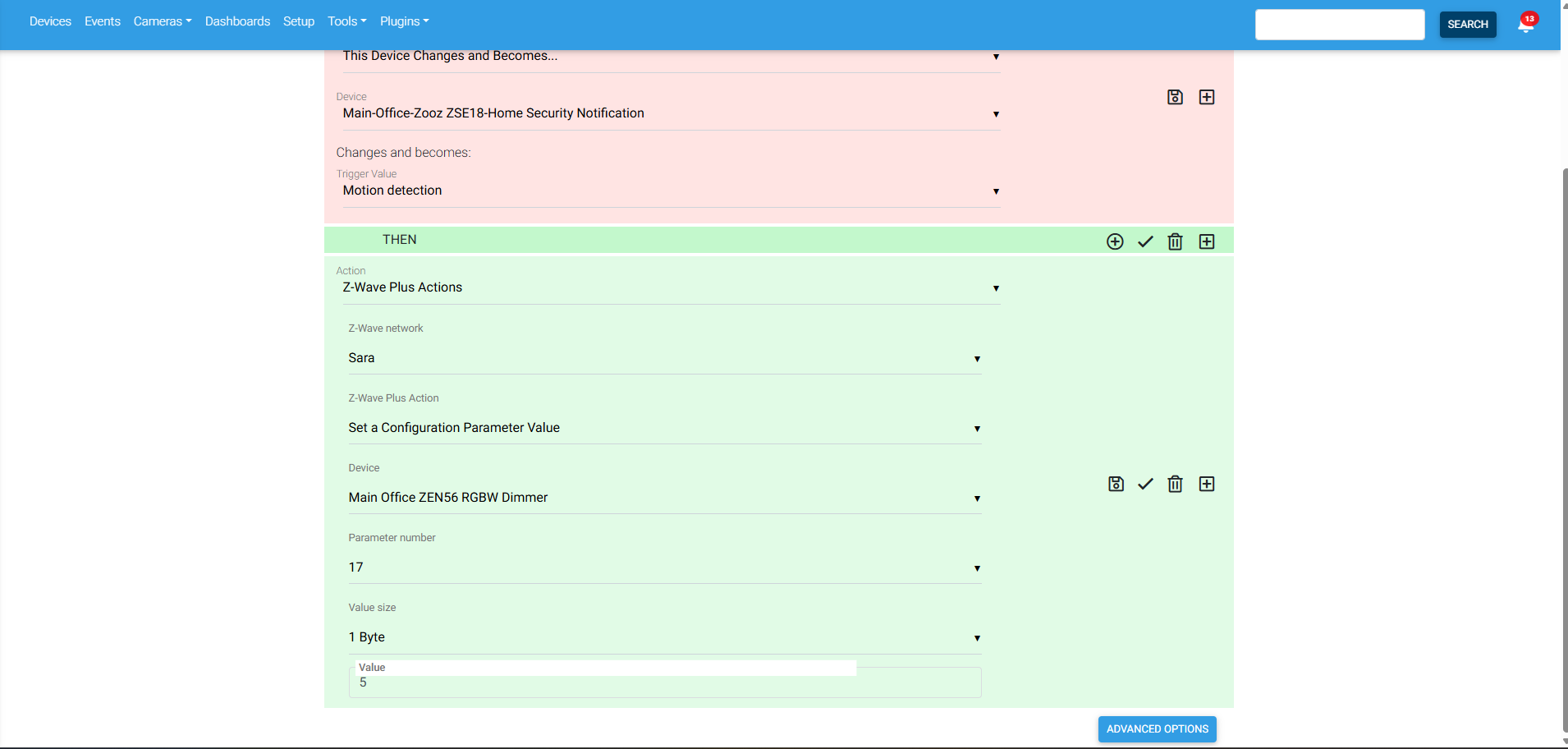
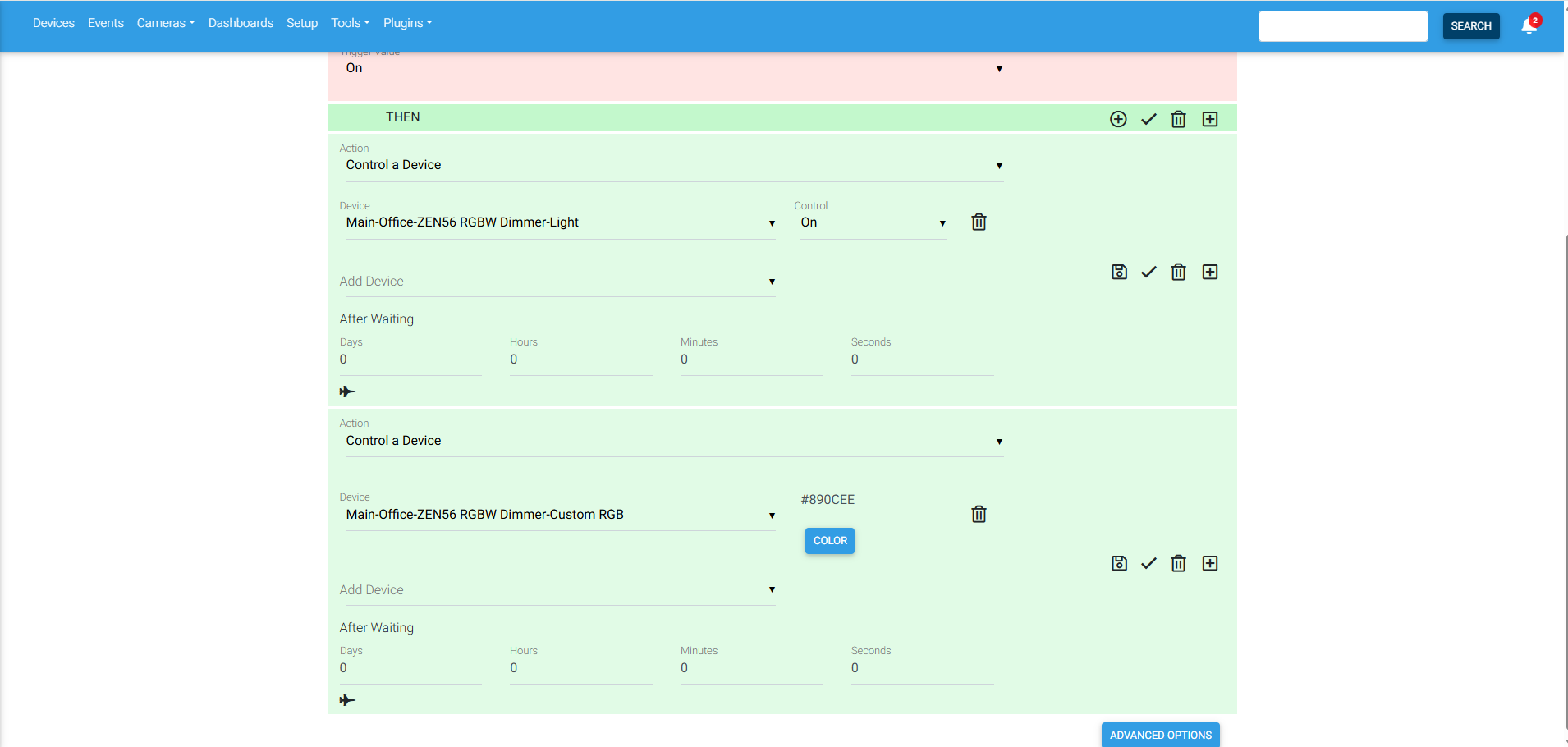
1. Decide on the trigger. For our example, we're using the status of the ZEN78 Relay turning on as the trigger for the ZEN56 RGBW Dimmer.
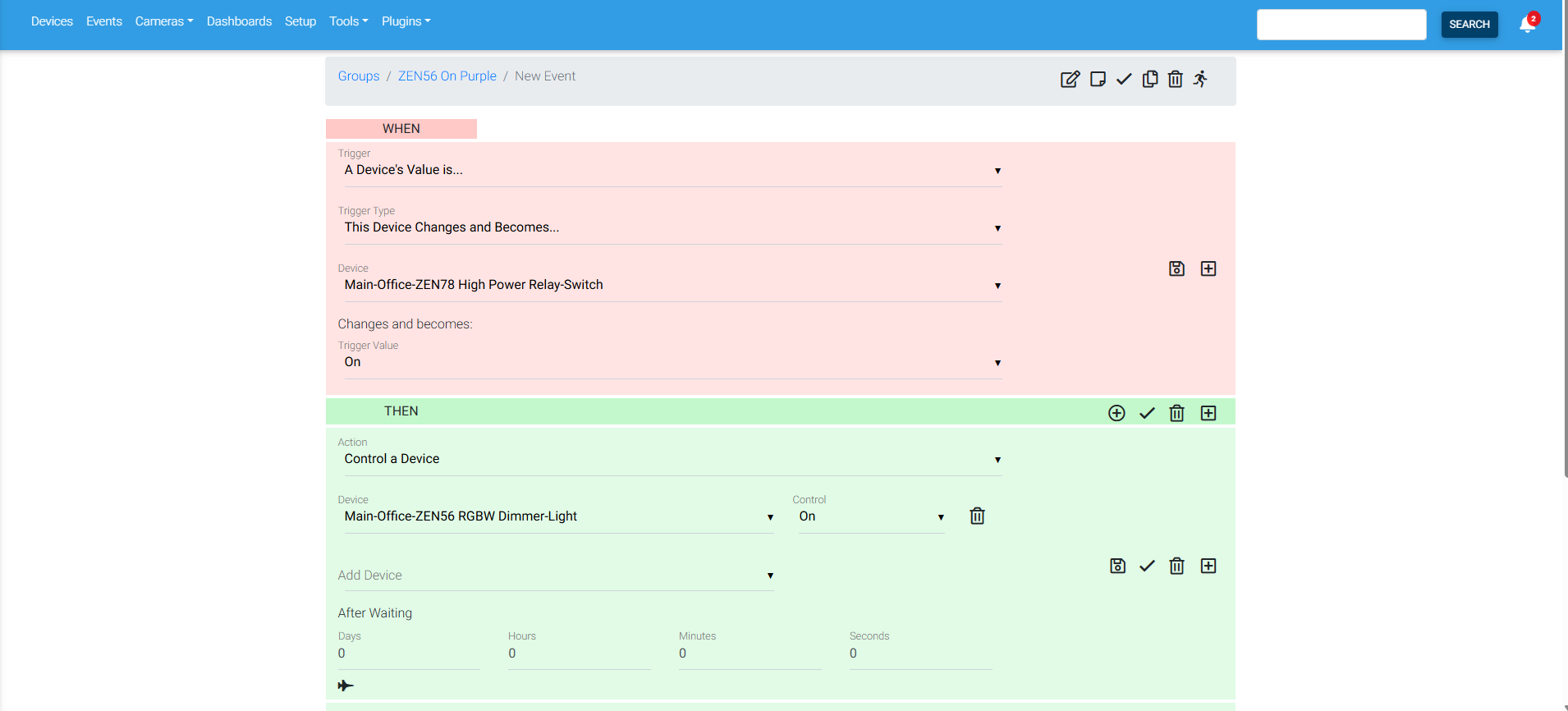
2. In the "Then" section, you'll need to set the ZEN56 main light to on. In a second Then section, you'll set the color you want the RGBW strip to turn on to. If you click Color, you get options for selecting a custom color.
Save and test your scene!

