

The ZSE50 Siren & Chime is more than just an alarm—it’s a customizable alert system that can fit seamlessly into your smart home. With the Z-Box Hub, you can easily program the device to trigger the right sounds at the right time, from security alerts to everyday notifications. This guide will cover everything you need to know: how to set up and program the ZSE50 in Z-Box, which audio formats it supports, how many sound files you can store, and the steps to upload, assign, or remove them. By the end, you’ll be ready to personalize your siren and chime for both security and convenience.
Supported File Types & Recommendations
The ZSE50 Siren & Chime can play audio saved in .mp3 or .wav format. For smooth playback and faster uploads, we recommend:
-
.mp3 files at a bitrate of 128 kbps or 192 kbps – this gives you clear sound without making the files too large.
-
Keeping each file under 1 MB – short chimes or alerts usually end up in the few hundred KB range, which helps you store more sounds on the device and avoids long upload times.
Following these guidelines will make sure your sounds work well and don’t take up unnecessary space.
-
Max number of playback sounds: 50
-
Internal file storage: 16 MB
-
Supported file types: .mp3, .wav
Important note: The flash drive is 16MB - this may limit the number of files. If you are uploading smaller files that total less than 16MB, then the limit is 50 files. If you're loading larger files, the number of accepted files will be lower (limited to 16MB).
Transferring Files to the Siren
Once you have your files, follow the simple steps below to transfer the desired files to your siren. Once the siren is plugged in, it will be treated as an external USB drive and files can be managed like on any other drive on your computer, including adding new files and deleting them.
-
Connect the Siren to your PC using the provided USB-A to Micro-USB cable.
-
Once connected, the Siren’s USB drive folder will automatically appear on your screen.
-
Open the folder on your PC where your sound files are stored.
-
Use one of the following methods to transfer files to the Siren’s USB drive:
-
Drag and drop the files into the Siren’s USB drive folder.
-
Copy and paste using keyboard shortcuts (CTRL + C to copy, CTRL + V to paste).
-
Important Notes:
-
The files below are the pre-loaded 25 sounds, and will be values 1-25 when setting the default playback tone in Parameter 4.
-
We recommend ensuring your sensor is updated to firmware 1.20, as this introduces fixed, addressable locations for each tone. Adding or removing sound files will no longer alter the sequence of existing tones. This update ensures that scenes remain consistent and unchanged when new files are loaded.

To delete a file:
-
Option 1: Right-click the file, then select Delete.
-
Option 2: Click once to highlight the file, then press the Delete key on your keyboard.
Managing Sound Files
You can remove any of the pre-loaded sounds to make room for your custom files. Please note that you must reconfigure the siren after adding or deleting any files.
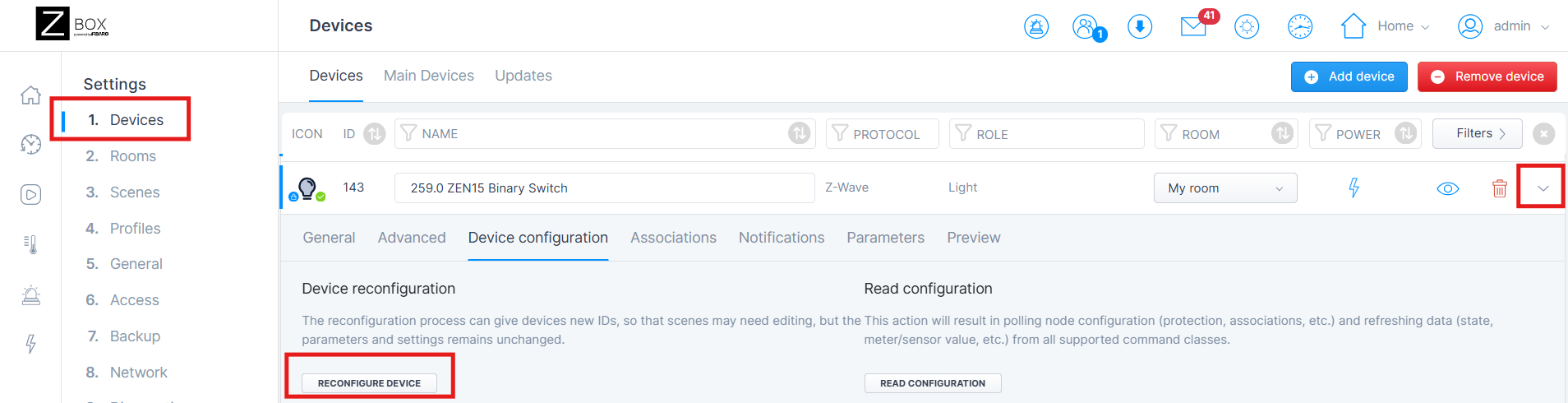
Programming the Siren
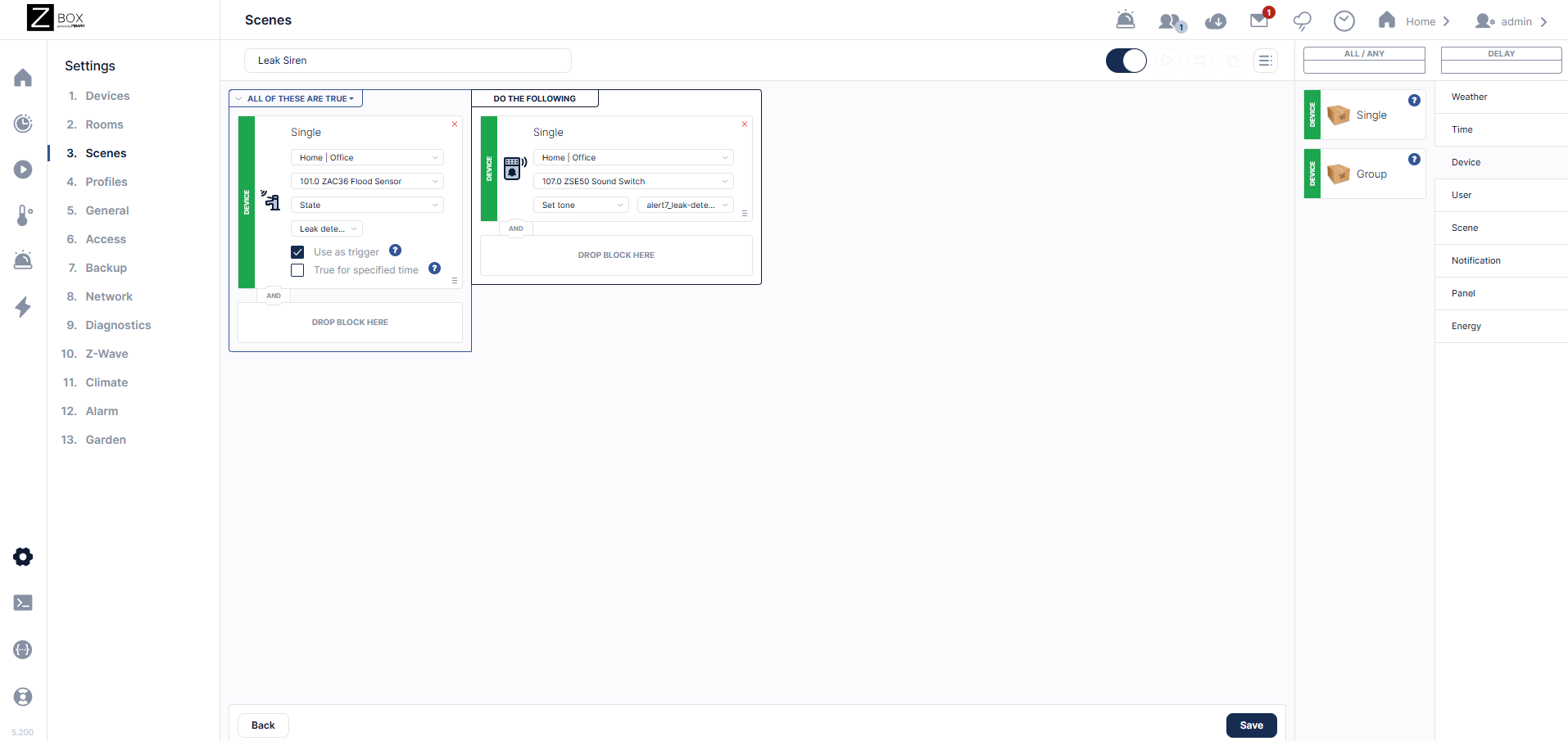
We've included a simple example of how to program the ZSE50 Siren & Chime below. You can program as many scenes to trigger any different sound you would like; this is just an easy idea to get you started!
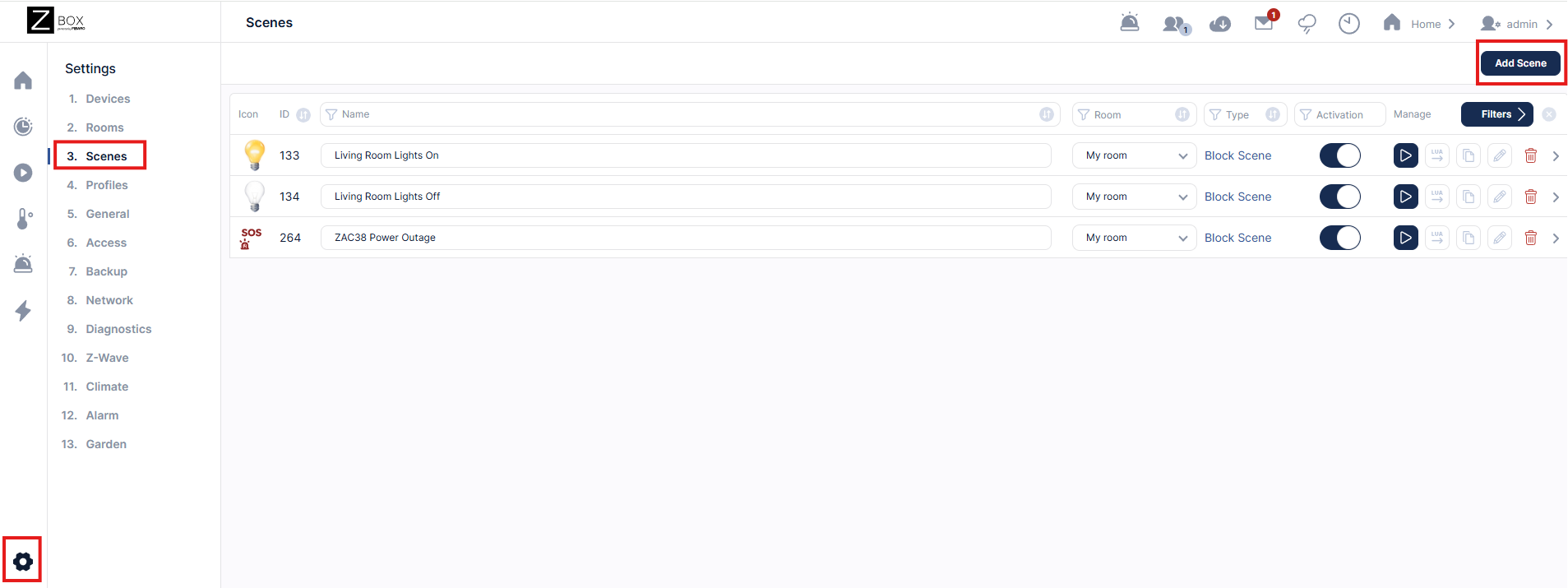
1. From the web Ui, go to the settings cogwheel > Scenes > Add Scene:
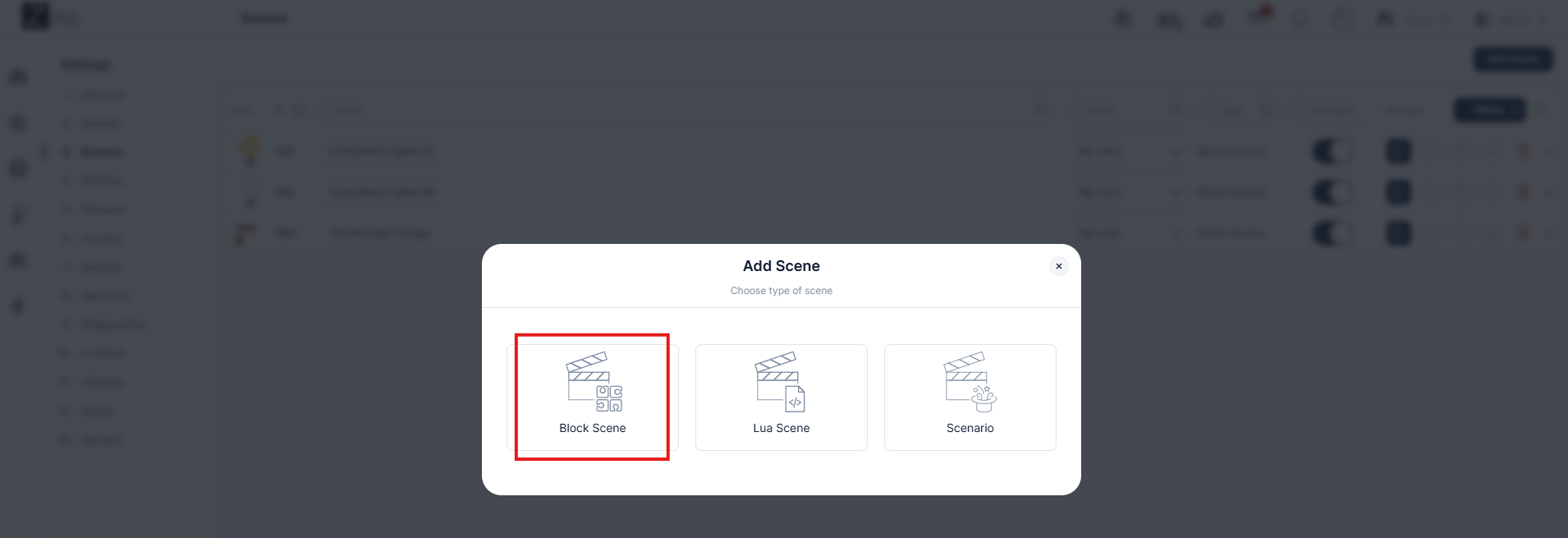
2. Select Block Scene:
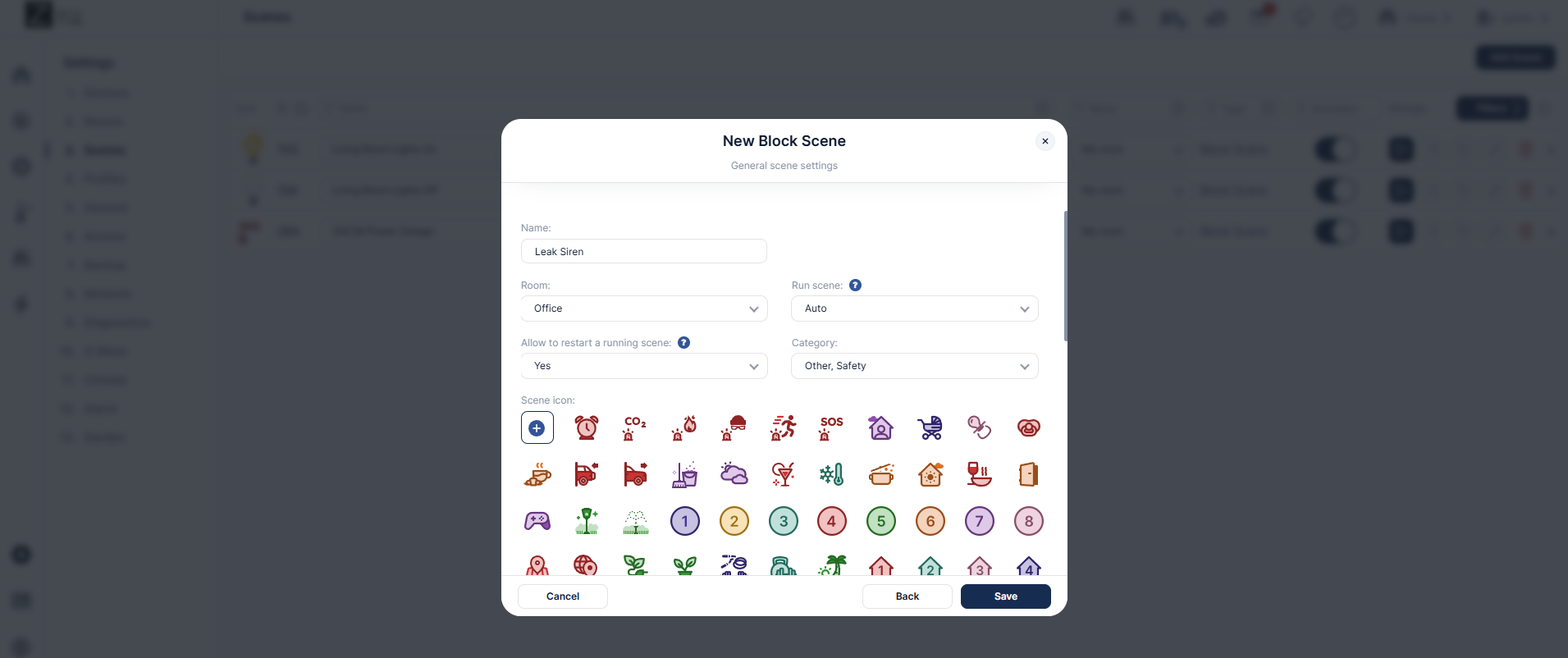
3. Fill in the block scene fields. Name your scene select the room, leave it at auto if it is device triggered (only switch to manual if you plan to trigger the scene via the UI or the app rather than another device), and choose the category and icon:
4. Since we're using a device to trigger our scene, we'll drag and drop the Single box to the "All of these are true" section. For this example, we're using the wet status of the ZAC36 leak sensor to trigger the ZSE50 to sound the Leak Detected alert. Click Save when all fields are complete.
For more information and details on programming different types of scenes, check out the following resource: How To Create Automations On Your Z-Box Hub.

