


The ZAC36 Titan Valve Actuator is now integrated with select Alarm.com hubs. A smart flood protection system can be the difference between thousands of dollars in water damage & a safe, secure home. Flooding causes an average of $8.2 billion in damages annually. Protect your home with this reliable hardware, backed by secure Z-Wave technology. The Titan installs directly on your existing ball valve in just under two minutes, without any tools needed. You can mount it indoors or outdoors & it's strong enough to handle even the most stubborn valve. It comes with a connected leak probe that works offline to help you protect your home in all situations.
The ZAC36 Titan can be added to compatible Alarm.com systems* and will function as an open or close device. Once included, you can open and close the valve from your app at any time, as well as create a scene and/or rule that will close the Titan if a leak is detected from any connected leak sensor on your Alarm.com hub.
However, please note that Alarm.com is simply the cloud platform and mobile app used to access and manage your system remotely. It provides the automation, notifications, and account management, but it is not the physical Z Wave controller in your home. The actual controller is the hardware installed on site, which may be an Alarm.com automation hub, a security panel from Qolsys, a security panel from 2GIG, or another compatible gateway. This hardware determines which Z Wave devices can be added, how they appear in the interface, and which features are supported. Compatibility depends fully on the specific hub or panel firmware you have installed in your home. The ZAC36 can be included to some alarm panels, but will only display as a light switch unless used with one of the below hubs that has fully integrated the device. *The specific automation hubs listed below have integrated and fully support the ZAC36 Titan Valve Actuator (still no access to the advanced settings).
You can read more about Alarm.com compatibility specifically here.
How to Program the ZAC36 Titan Valve Actuator and the ZSE42 Leak Sensor
Below we'll cover one of the most common scenarios for programming the ZAC36 Titan: closing the water valve if a leak is detected from a ZSE42 Leak Sensor.
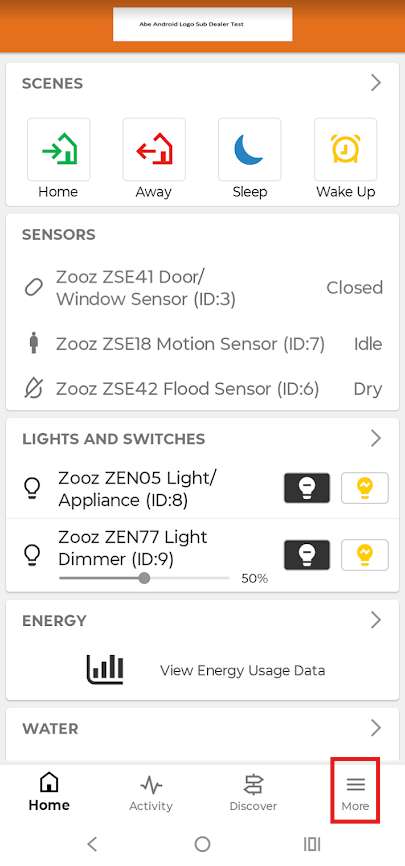
1. From the Home screen, select More in the bottom right hand corner.
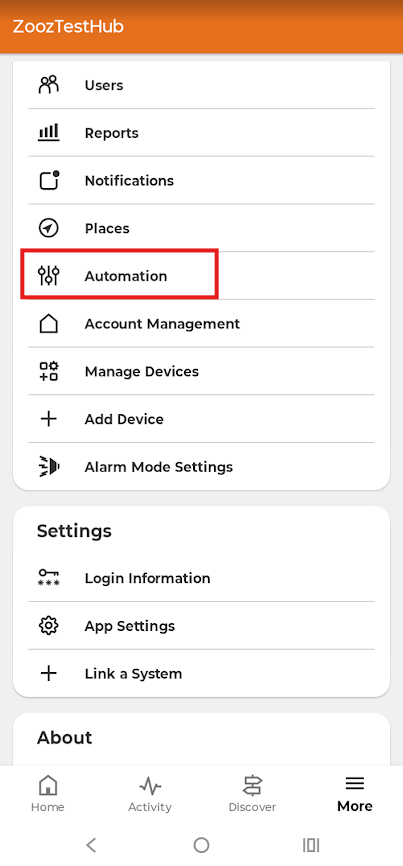
2. Click Automation.
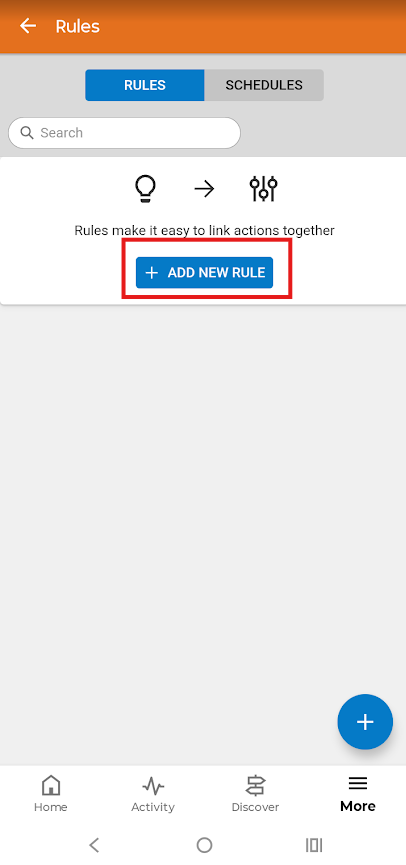
3. Click + Add New Rule.
4. In the When section, click Select Device.
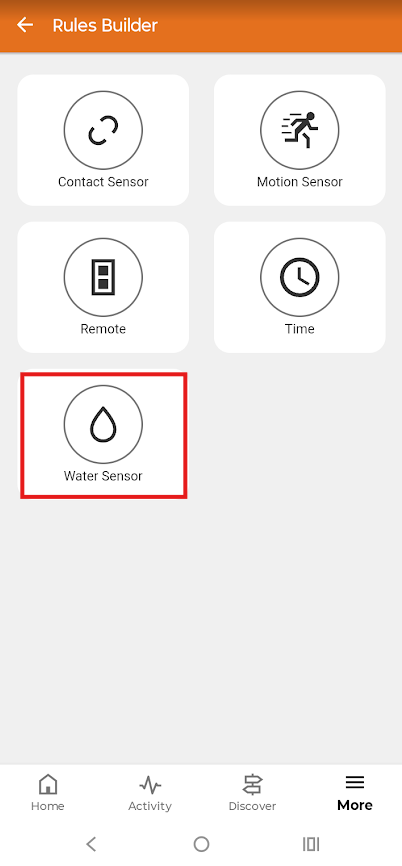
5. Select the Water Sensor.
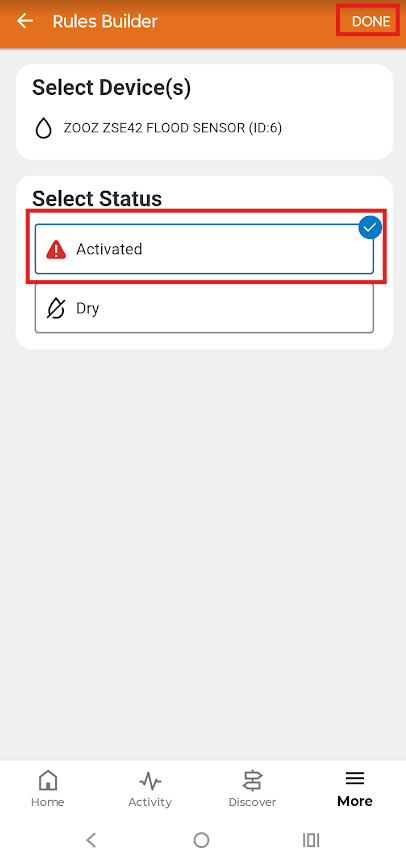
6. Choose Activated as the Status. Select Done.
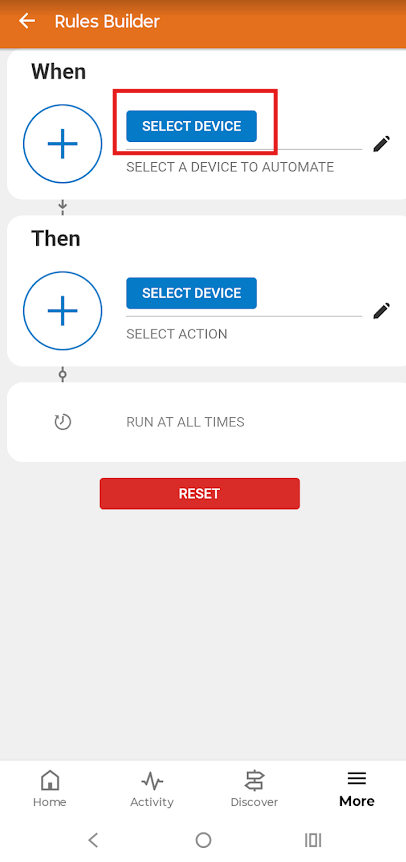
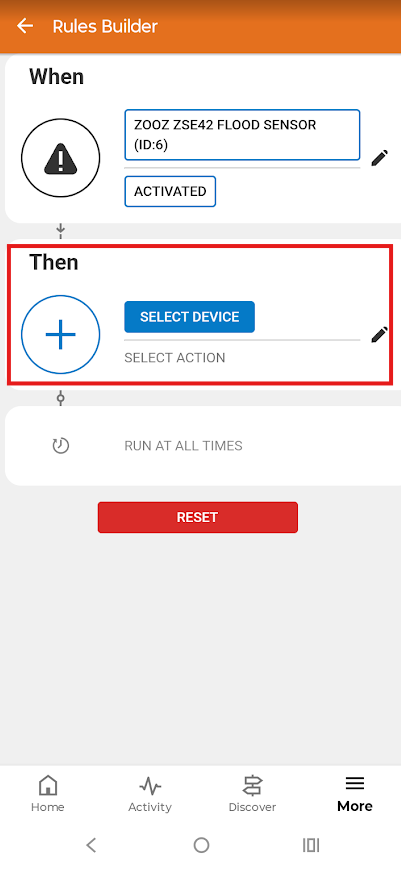
7. In the Then section, click Select Device.
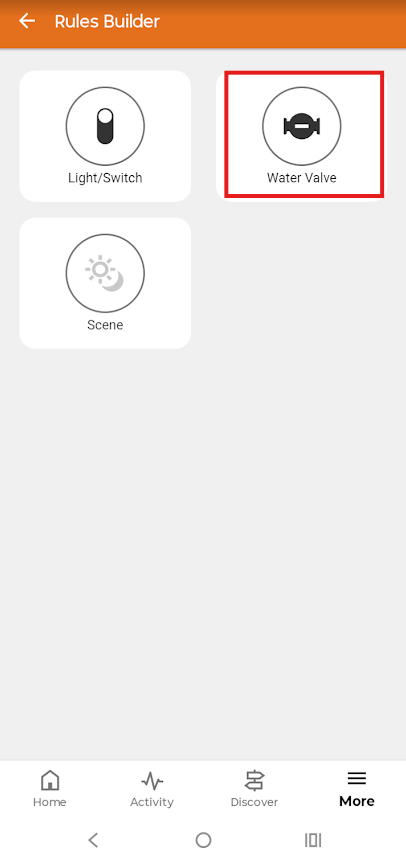
8. Choose Water Valve.
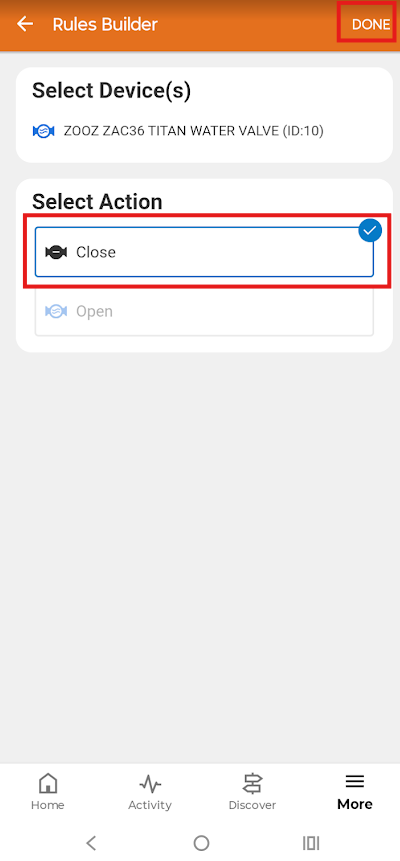
9. Select Close as the action. Click Done.
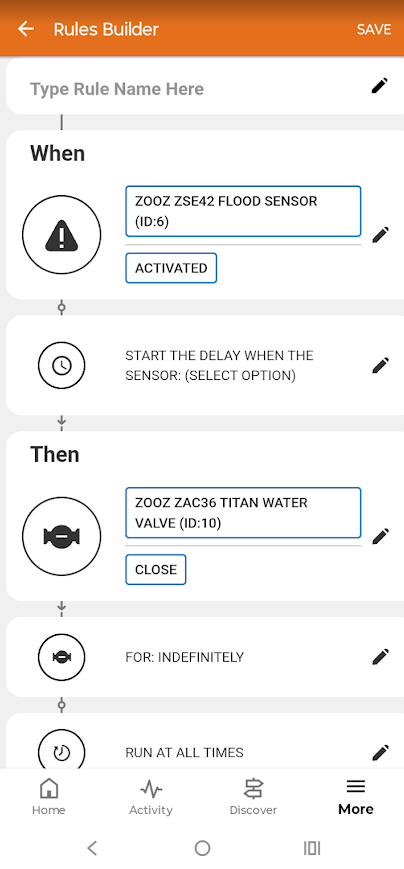
10. You now have a rule that will close the ZAC36 Titan Valve Actuator any time the ZSE42 Leak Sensor detects water!
Please don't hesitate to reach out with any questions you may have!

